
Drawing UML Diagrams: The Full Guide
A comprehensive walkthrough of the seven UML diagrams you actually use in industry — use case, class, sequence, activity, state machine, component, and deployment. Each one gets a vocabulary, a step-by-step in CorriDraw, and a Mermaid starter snippet you can paste and tidy.
Palakorn V.
Product Lead
Why UML Still Matters
UML — the Unified Modeling Language — gets a bad rap. The formal spec runs to 800+ pages, half the diagram types are used by almost nobody, and the ecosystem feels stuck in 2008. But strip out the ceremony and you're left with a small, stable vocabulary that engineers everywhere already read at a glance: boxes for classes, stick figures for actors, solid lines for associations, dashed for dependencies. When a new teammate lands on your design doc, they don't need a legend to parse a class diagram — and that is the reason UML outlived the half-dozen "successor" notations that were supposed to replace it.
Here is what a small UML diagram looks like — a use case view of an online shop. Stick figures for actors, ellipses for use cases, a labelled rectangle around the system. In a single picture, it answers "who uses this and for what?" — the one question every new project needs to answer first.
This article walks through the seven UML diagrams you'll actually use in industry — what each is for, the vocabulary that makes it work, an illustrated worked example, and the Mermaid text form. No prior UML knowledge required. By the end you'll have a reference you can come back to whenever someone asks "can you whip up a quick UML for this?"
The Seven You Actually Need
UML 2 defines fourteen diagram types. Seven of them do almost all the real work; the rest are either special cases of the main seven or niche enough that you'll recognize when you need them.
- Use case — who talks to the system and why. The one diagram non-engineers will read.
- Class — the static structure of your code: types, fields, methods, inheritance, associations.
- Sequence — how objects talk to each other over time. Best for debugging flows.
- Activity — branching logic and workflow. Flowcharts with actors.
- State machine — the lifecycle of a single entity (order, session, device).
- Component — the boxes-and-ports view of how a running system is wired.
- Deployment — where each component physically runs (nodes, containers, hosts).
The other seven (object, package, composite structure, timing, interaction overview, communication, profile) are either special cases of the above or niche enough that you'll recognize when you need them. Learn these seven first.
1. Use Case Diagram
When to draw it: You're scoping a new feature or product and need a single diagram that answers who uses this, and for what. Stakeholders, PMs, and new joiners read it without training.
Vocabulary:
- Actor — a stick figure outside the system. Humans, but also other systems (e.g., "Stripe webhook").
- Use case — an ellipse with a verb phrase: "Publish post", "Reset password".
- System boundary — a rectangle around the use cases, labelled with the system name.
- Association — a plain line between an actor and a use case. No arrowheads; associations in UML are undirected.
- Include / extend — dashed arrows annotated
<<include>>or<<extend>>between use cases. Include means "always triggers"; extend means "sometimes triggers".
<<include>> relationships showing that both "Publish" and "Manage billing" always trigger "Authenticate" first.How to read it: Find an actor, trace the lines to the use cases they touch, and read each one as a verb phrase describing something the actor can do. The dashed include arrows mean "doing use case A always involves doing use case B too" — here, both publishing and billing management always involve authentication, so that's pulled out as a shared use case.
Mermaid starter: Mermaid doesn't have a dedicated use-case syntax, so approximate it with a flowchart using rounded ellipses:
flowchart LR
  actorA(("Author"))
  actorB(("Reader"))
  actorS(("Stripe"))
  subgraph Blog
    UC1((Publish post))
    UC2((Comment))
    UC3((Manage billing))
    UC4((Receive webhook))
  end
  actorA --- UC1
  actorA --- UC3
  actorB --- UC2
  actorS --- UC4
2. Class Diagram
When to draw it: Every time you introduce a new core domain object, refactor an inheritance hierarchy, or onboard someone into an unfamiliar codebase. A class diagram is the single highest-leverage UML investment — it's the view your IDE wishes it had.
Vocabulary:
- Class — a rectangle with three compartments: name (top, bold), attributes (middle), operations/methods (bottom). Dividers between compartments.
- Visibility markers before each member:
+public,-private,#protected,~package-private. - Association — plain line, optionally with multiplicity labels at each end (
1,0..*,1..*). - Inheritance (generalization) — solid line with a hollow triangle arrowhead pointing at the parent.
- Composition — solid line with a filled diamond on the owner side (the child can't exist without the owner).
- Aggregation — solid line with a hollow diamond (the child can exist independently).
- Dependency — dashed line with an open arrowhead.
- Realization (implements) — dashed line with a hollow triangle.
User is abstract (italic name). AdminUser inherits from it (hollow triangle). Diagram is composed of Versions (filled diamond — versions can't outlive the diagram). User owns zero or many Diagrams (plain association with multiplicity).How to read it: Start with a class box and read name → attributes → methods. Trace lines to related classes, checking the arrowhead style (hollow triangle = inheritance, filled diamond = composition, plain line = association). Multiplicity numbers at each end tell you how many of each side participate.
Mermaid starter: classDiagram is one of Mermaid's best-supported diagram types.
classDiagram
  class User {
    +UUID id
    +string email
    -string passwordHash
    +authenticate(pwd) bool
    +resetPassword() void
  }
  class Diagram {
    +UUID id
    +string name
    +JSON scene
    +save() void
  }
  class Workspace {
    +UUID id
    +string name
  }
  User "1" --o "0..*" Diagram : owns
  User "0..*" --o "0..*" Workspace : member of
  Diagram "1" *-- "0..*" Version : has
3. Sequence Diagram
When to draw it: You're tracing a bug that spans multiple services, writing a design doc that involves an async flow (auth, payments, webhooks), or explaining the dance between a frontend and a backend to a new hire. Sequence diagrams show ordering better than any other UML diagram.
Vocabulary:
- Participant — a labelled rectangle at the top (the actor or object).
- Lifeline — a dashed vertical line hanging below each participant. Time flows down.
- Activation bar — a thin rectangle on the lifeline showing when that participant is actively processing.
- Synchronous message — solid arrow with a filled arrowhead. The caller blocks until the response returns.
- Asynchronous message — solid arrow with an open arrowhead. Fire-and-forget; no blocking.
- Reply — dashed arrow with an open arrowhead, pointing back to the caller.
- Self-message — an arrow that loops back to the same lifeline.
- Combined fragments —
alt,opt,loop,parboxes for branching, optional, loops, and parallel flows.
How to read it: Start at the top-left and move down. Each arrow is one message; labels describe what's being sent or returned. Dashed arrows are replies. The activation bars (thin white rectangles on lifelines) show which participant is actively processing at any given moment.
Mermaid starter: sequenceDiagram is natively supported and one of the nicer Mermaid formats to author.
sequenceDiagram
  actor User
  participant Browser
  participant API
  participant DB
  participant Stripe
  User->>Browser: Click upgrade
  Browser->>API: POST /billing/checkout
  API->>Stripe: Create session
  Stripe-->>API: session_id + url
  API-->>Browser: 200 { url }
  Browser->>Stripe: Redirect
  Note over User,Stripe: User pays on Stripe
  Stripe->>API: webhook: checkout.completed
  API->>DB: UPDATE subscription
  DB-->>API: ok
  API-->>Stripe: 200
4. Activity Diagram
When to draw it: Documenting a workflow that branches based on decisions — onboarding flows, approval pipelines, anything with if/else that a sequence diagram would make too wide.
Vocabulary:
- Start node — filled black circle. Every flow begins here.
- End node — filled black circle with a hollow ring around it ("bullseye").
- Action — a rounded rectangle with a verb phrase inside.
- Decision / merge — a hollow diamond with one input and two (or more) outputs labelled with guard conditions in square brackets:
[valid],[else]. - Fork / join — a thick horizontal or vertical bar. Fork splits one flow into parallel ones; join waits for all parallel flows to complete.
- Swimlanes — vertical columns that partition the flow by actor. Draw the actor's name at the top of the column.
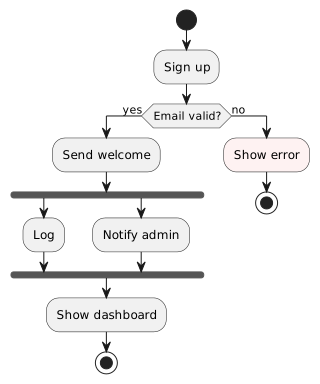
How to read it: Follow arrows from the start circle. At a diamond, pick the branch whose guard condition matches the situation. At a fork bar, control splits into multiple parallel branches (both execute simultaneously); the join bar waits for all of them before continuing. Flow ends at the bullseye.
Mermaid starter: Mermaid doesn't have a first-class activity-diagram syntax, so approximate it with a flowchart and round the start/end nodes by hand:
flowchart TD
  Start([Start]) --> A[Open editor]
  A --> B{Signed in?}
  B -- yes --> C[Load diagram]
  B -- no --> D[Prompt login]
  D --> E{Login ok?}
  E -- yes --> C
  E -- no --> F[Show error]
  F --> Start
  C --> G[Edit shapes]
  G --> H[Autosave]
  H --> End([End])
5. State Machine Diagram
When to draw it: Designing or documenting the lifecycle of a single entity — an order, a subscription, a device session, a background job. Any time the answer to "what states can this be in, and how does it get between them?" is non-trivial.
Vocabulary:
- State — a rounded rectangle with the state name.
- Initial pseudostate — filled black circle. Flow starts here.
- Final state — a filled black circle inside a hollow ring.
- Transition — an arrow labelled
event [guard] / action. All three parts are optional; a bare event is common. - Internal transition — an entry inside the state's compartment:
event / actionwithout an arrow. - Composite state — a state that contains other states, shown as a larger rounded rectangle with nested states inside.
How to read it: Start at the filled circle. Each arrow is a transition, labelled with the event that triggers it. A single entity moves from one state to another over its lifetime — only one state is active at a time. The diagram answers "given a post, which states is it allowed to be in, and what can cause it to move?"
Mermaid starter: stateDiagram-v2 is natively supported and renders cleanly.
stateDiagram-v2
  [*] --> Draft
  Draft --> InReview : submit
  InReview --> Published : approve
  InReview --> Draft : reject / notifyAuthor
  Published --> Archived : archive
  Archived --> [*]
  Draft --> Draft : autosave / persistToDisk
6. Component Diagram
When to draw it: You need to show the boxes of a running system — the deployable units and how they connect. This is the "system architecture" diagram you pin in Notion or Slack when someone asks what the stack looks like.
Vocabulary:
- Component — a rectangle with the
<<component>>stereotype in its top-left, or a component icon (a small rectangle with two "tabs" on its left edge). - Interface — a small hollow circle (provided interface, "lollipop") or half-circle (required interface, "socket"). The two connect to express a dependency: the socket plugs into the lollipop.
- Port — a small square on the component's edge where an interface attaches.
- Assembly connector — a line between a required interface and a provided interface.
- Delegation connector — an arrow from a component's port to an internal subcomponent's port.
How to read it: Every component is a deployable unit (a service, a library, a daemon). The lollipop (full circle) marks an interface the component provides; the socket (half circle) marks an interface it requires. When a socket meets a lollipop with a line, that's one component using another's API.
Mermaid starter: Component diagrams don't have a first-class Mermaid syntax, so approximate with a flowchart.
flowchart LR
  subgraph Frontend
    SPA[Editor SPA]
    TB[Toolbar]
  end
  subgraph Backend
    API[Next.js API]
    COLLAB[Collab server]
  end
  DB[(Postgres)]
  OBJ[(MinIO)]
  SPA --> API
  SPA --> COLLAB
  TB --> SPA
  API --> DB
  API --> OBJ
  COLLAB -- Yjs sync --> SPA
7. Deployment Diagram
When to draw it: Documenting production infrastructure — where each component runs, which processes sit on which host, where the network boundaries are. Invaluable during incident response and capacity planning.
Vocabulary:
- Node — a 3D cube (or a rectangle with a thin slanted parallelogram on top for a 3D look). A physical or virtual host.
- Execution environment — a nested rectangle inside a node (browser, runtime, container).
- Artifact — a document icon (rectangle with a folded corner). A deployed file — a JAR, a Docker image tag, an NPM package.
- Communication path — a labelled line between two nodes:
HTTPS,TCP,gRPC.
How to read it: Each 3D box is a host — physical hardware, a VM, or a managed service. Rectangles nested inside are runtimes or containers. Labelled lines between hosts show how they communicate. Artifacts (document icons) are the actual deployed files. Think of it as "a photograph of production" — frozen in time, showing everything at the physical-layout level.
Mermaid starter:
flowchart LR
  subgraph AWS["AWS us-east-1"]
    subgraph VPC["Private VPC"]
      subgraph APP["EC2: corridraw-app"]
        NEXT[Next.js]
        COLLAB[Collab server]
      end
      DB[("RDS Postgres")]
      OBJ[("S3 bucket")]
    end
    ALB[Application Load Balancer]
  end
  CLIENT[Browser]
  CLIENT -- HTTPS --> ALB
  ALB --> NEXT
  ALB --> COLLAB
  NEXT -- TCP --> DB
  NEXT -- S3 API --> OBJ
Tying It Together: The Multi-Diagram Story
None of these diagrams stand alone. A well-documented system has:
- One use case diagram per major actor group, drafted once at the start of a feature and revisited when the scope changes.
- A handful of class diagrams, one per bounded context — "auth", "billing", "editor" — kept next to the code, updated when the domain model shifts.
- A sequence diagram per significant async flow. Paste them into design docs and incident postmortems.
- One or two activity diagrams for the most-branching user workflows.
- A state machine diagram per entity with non-trivial lifecycle — order status, subscription, user verification.
- One component diagram of the whole system, pinned in your team's handbook.
- One deployment diagram of production, updated whenever infra changes materially.
That's fifteen to twenty diagrams for a mid-sized system. The trick is that they reinforce each other — class names appear in sequence diagrams, actors from the use case diagram reappear as lifelines in sequences, states from the state machine show up in activity diagrams as guard conditions. When the diagrams stay editable rather than exported as images, you can refactor across them the same way you refactor across code: rename one class, fix every place it appears in a couple of clicks.
Tips Picked Up From Shipping Real UML
- Start with text, finish with a drawing. Mermaid is fast to type and easy to edit in a pull-request diff. When the content stabilizes, paste it into a drawing tool and tidy the layout. Faster than starting from shapes, and you end up with editable primitives you can refine.
- Consistent palette across diagrams. Pick one fill colour per semantic kind — e.g., blue for external systems, green for your own services, yellow for data stores — and apply it across every diagram in the set. Readers learn the code once.
- Don't over-label. A class diagram with every
private static finalconstant listed is noise. Include the attributes that matter to the relationships you're showing; leave the rest to the code. - Put diagrams in source control. If your drawing tool exports to text (JSON, XML, Mermaid), commit that next to the code. Treat diagrams as code: reviewed, versioned, PR-ed. Binary-only diagrams that live in a shared drive rot immediately.
- One diagram, one question. If a diagram tries to show too many things, split it. Three small diagrams that each answer a single question beat one mega-diagram that tries to answer all of them.
- Stereotypes are your escape hatch. UML's
<<stereotype>>syntax lets you annotate anything with extra meaning without inventing new shapes —<<singleton>>,<<async>>,<<admin-only>>. Use them liberally. - Delete a diagram the day it stops being true. A wrong diagram is worse than no diagram — it actively misleads whoever reads it. When the model evolves past the picture, either update the picture or remove it.
Closing: Ship the Diagram, Not the Spec
UML doesn't need to be perfect to be useful. A class diagram with the wrong arrowhead on a relationship is still better than no diagram. A sequence diagram that skips half the intermediate messages is still better than a 40-line code comment. The goal is always to reduce the cognitive load of the next person who walks up to your design — the teammate, the reviewer, the future you at 2am during an incident.
You don't need to master all fourteen UML diagram types. The seven covered here do almost all the real work. Pick the right one for the conversation you're about to have, draw it in under ten minutes, and keep it readable. The diagrams that stick are the ones that are cheap to update — keep them that way and you'll actually reach for them.
A Note on Tools
Everything in this article is about the notation itself — the shapes, the arrows, the rules for reading them — and it applies in any drawing tool. Whiteboard, paper, Figma, dedicated UML tools, Mermaid in a markdown file: a clean UML diagram is a clean UML diagram. If you'd like a tool with pre-built UML shapes (class boxes with compartments, stick-figure actors, lifelines, 3D deployment nodes) and a Mermaid importer so you can turn a text sketch into polished shapes, CorriDraw — the tool you're reading this on — is one option. But the skill transfers. You now know how to read and draw the seven diagrams that matter in any tool you pick up.
More from the blog .


Ready to start collaborating ?
Join thousands of teams using CorriDraw for their visual collaboration needs.