
Gantt Charts 101: Plans as Pictures
A beginner's guide to Gantt charts — the hundred-year-old notation for visualising project schedules. Learn the five ingredients (tasks, sections, timeline, dependencies, milestones), the four dependency types, the critical-path idea that determines your real deadline, when to use Gantt vs. Kanban, and the five mistakes every first chart makes. Walk through a complete six-week launch in Mermaid.
Palakorn V.
Product Lead
What Is a Gantt Chart?
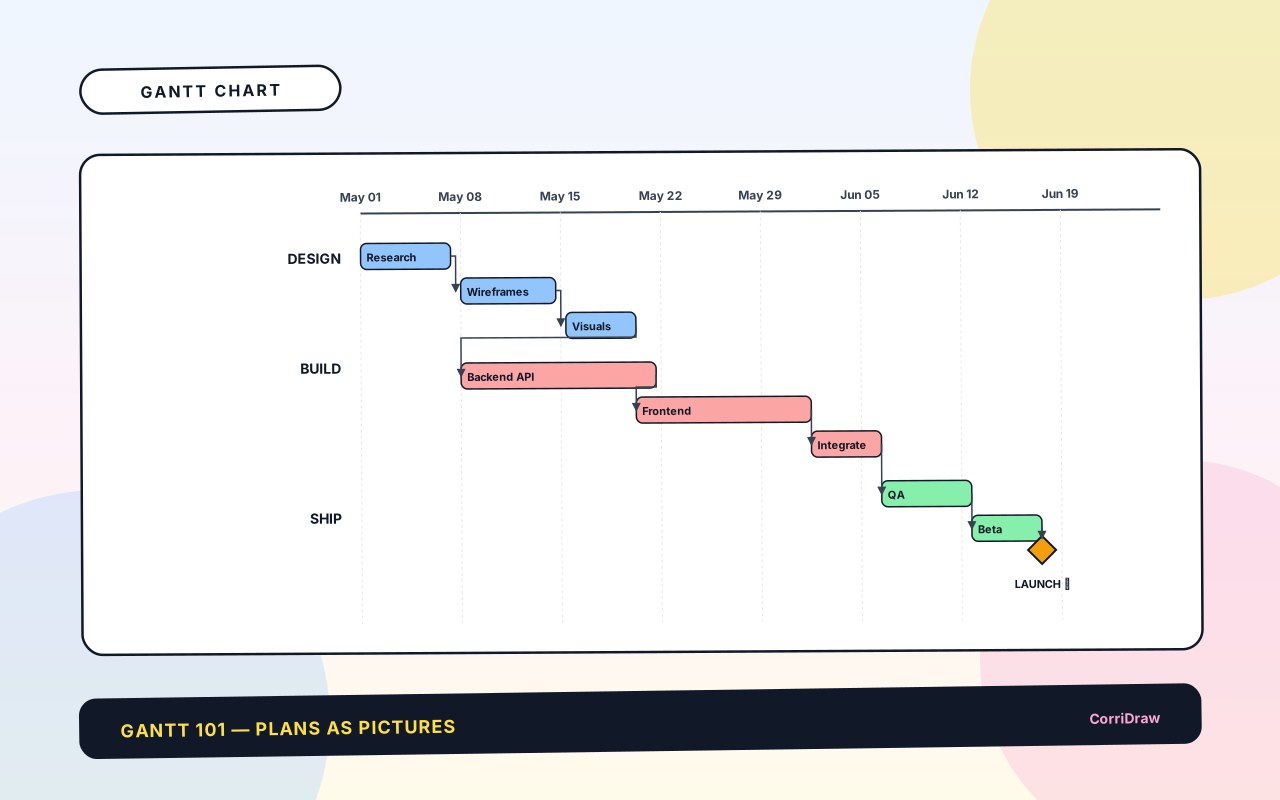
A Gantt chart is a picture of a plan spread out over time. You draw a horizontal bar for each task — the bar's left edge is when the task starts, the right edge is when it ends, and the length is how long it takes. Stack the bars vertically, put dates across the top, and you have a plan anyone on the team can read in ten seconds: what's happening, when, and in what order.
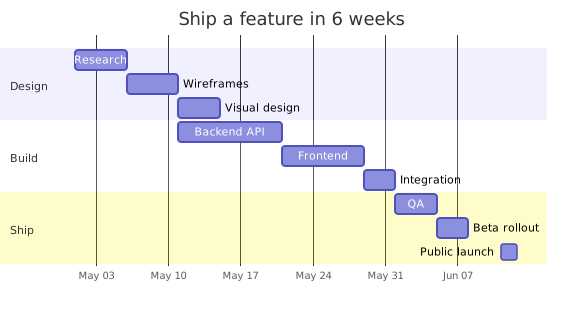
Here is one — a small project running six weeks across three sections (Design, Build, Ship) and ending in a public launch milestone:
The chart is named after Henry Gantt, an American mechanical engineer who popularized it in the 1910s as a way to schedule factory work — though the underlying idea of drawing tasks as horizontal bars predates him by a couple of decades. For a hundred years Gantt charts were drawn by hand on large sheets of graph paper; since the 1980s they've been software-generated, and since 2015 they've been Mermaid-generated from a few lines of text.
This post teaches you to read and draw a Gantt chart from scratch: the five ingredients that make one work, how to handle dependencies and milestones, the critical-path idea that separates the bars you can slip from the ones you can't, the three common mistakes, and how to write a Gantt in Mermaid syntax so it lives in your repo next to the code.
Why Gantt Charts Work (and Don't)
Two observations explain the Gantt chart's hundred-year staying power.
First: time is one-dimensional, and horizontal bars are a perfect match for it. A list of tasks with start and end dates can be read, but you can't feel the shape of a plan from a list. Put the same list on a Gantt chart and overlaps, gaps, and imbalances jump out. Two people booked solid while a third has three weeks of nothing? Obvious. A whole week where no task ends and the team is waiting? Obvious. Nothing else communicates schedule with the same density.
Second: the chart is the contract. When a team agrees on a Gantt, everyone is looking at the same bars: the same duration, the same order, the same dependencies. Arguments about "what did we promise?" become "look at the chart". That clarity is why sales teams, client-services teams, construction project managers, and government contractors all reach for Gantt charts first: they communicate a plan to multiple audiences without ambiguity.
The failure modes are the mirror of the strengths. Gantt charts assume the plan is knowable — that tasks have estimatable durations and a clear order. For genuinely exploratory work — research, early-stage product, most of a startup's first year — a Gantt chart is a lie disguised as a schedule: the bars move every week, dependencies shift, and eventually the team stops updating it. For that kind of work, reach for Kanban instead. Gantt shines for predictable work with clear dependencies and firm dates.
The Anatomy of a Gantt Chart
Five ingredients, which you can combine in endless variations. Everything you see on a Gantt chart, anywhere, is one of these five.
Tasks (the bars)
Each horizontal bar is one task: a unit of work with a start, an end, and someone accountable for finishing it. Tasks should be small enough to plan and big enough to matter — typically 1 day to 2 weeks on a normal project. If a task is two months long, break it up; if a task is an afternoon, fold it into its neighbour.
A task's label names the work ("Research", "Backend API") and sometimes the owner (initials or avatar on the bar). The bar's colour is often used to distinguish sections or statuses.
Sections (rows of bars)
Related tasks get grouped into sections — horizontal bands on the chart with a label on the left (e.g. "Design", "Build", "Ship"). Sections don't change what the tasks do; they just make the chart readable. A 30-task chart with no sections is overwhelming; the same 30 tasks in five sections reads as five mini-plans.
Timeline (the x-axis)
Across the top, the timeline shows the calendar: days, weeks, or months. The granularity matches the project. A six-month project labelled in days is unreadable; a two-week sprint labelled in weeks doesn't give enough resolution. Most tools let you zoom.
Dependencies (the arrows)
If task B can't start until task A finishes, draw an arrow from the right edge of A to the left edge of B. The arrow means "this is a predecessor". When A slips, the chart shows you that B slips too — the arrow keeps them connected.
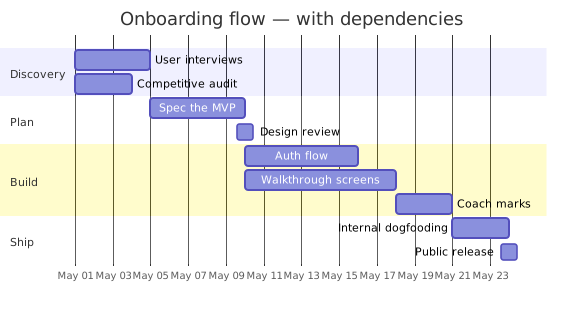
Four kinds of dependencies exist, though the first is 95% of what you'll see:
- Finish-to-start (FS) — B starts after A finishes. The default; the one Mermaid draws.
- Start-to-start (SS) — B starts after A starts, but can run in parallel.
- Finish-to-finish (FF) — B must finish when A finishes (uncommon; used for wrap-up tasks).
- Start-to-finish (SF) — B must finish when A starts (very rare; used in shift handovers).
Milestones (the diamonds)
A milestone is a point in time with no duration — a date that matters but doesn't consume work. Drawn as a filled diamond (◆) on the timeline. Common milestones: "public launch", "beta opens", "contract signed", "freeze starts", "demo to board". Milestones don't do anything themselves; they're pins on the calendar that other tasks are planned around.
Reading a Gantt Chart in Thirty Seconds
A scan-pattern that works on any Gantt chart.
- Find the end. Look at the rightmost bar or milestone. That's the project's deadline.
- Find the start. Look at the leftmost bar. The distance between them is the total plan length.
- Look for long bars. A task noticeably longer than its neighbours is the riskiest — most variability, most assumptions.
- Look for gaps. A section-row with empty space in the middle means someone is waiting for something. That's either a dependency gating the next task, or underutilized capacity.
- Follow the arrows. The chain of arrows ending at the final milestone is the critical path — the sequence of tasks that determine the earliest possible finish date.
The Critical Path
This is the one Gantt-chart idea that's worth memorizing. The critical path is the longest chain of dependent tasks from start to finish. Any task on the critical path, if it slips, slips the whole project. Any task not on the critical path has some slack — it can slip a day or two without affecting the deadline.
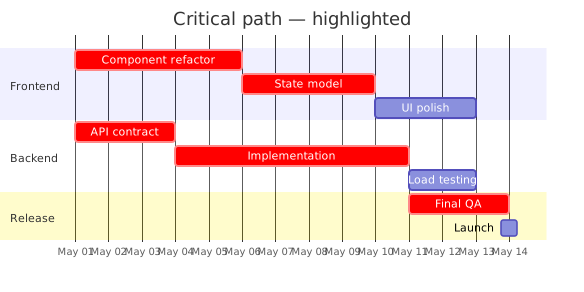
Two practical consequences:
- If the deadline is fixed and something on the critical path slips, something else on the critical path has to get shorter — or the deadline slips.
- If you want to speed up the project, speeding up a task that's not on the critical path buys you nothing. Always attack the critical path first.
Calculating the critical path used to be a whole profession. Now most Gantt tools highlight it automatically. Understanding what it means still matters — otherwise you end up celebrating a team that finished early on a non-critical task while the launch is three weeks late.
Common Beginner Mistakes
Five mistakes show up on almost every first Gantt chart.
- Using Gantt for unpredictable work. If you can't estimate durations within a factor of two, the Gantt is fiction. Use Kanban until the plan stabilizes, then — if deadlines matter — bring the Gantt in.
- Missing dependencies. A Gantt without arrows is a pretty picture of task lengths; it's not a plan. Explicit arrows are what let the chart do its job when something slips.
- Tasks too big. A three-month task tells you nothing about progress until month three. Break long tasks into weekly chunks with a handoff (a milestone, a review, a demo) between them.
- Ignoring people. Two tasks running in parallel on the chart means nothing if the same person is assigned to both. Mark owners on the bars and look for overloaded rows before declaring the plan realistic.
- Never updating it. A Gantt is a living document. Update it weekly at minimum. An out-of-date Gantt is worse than no Gantt — it misleads everyone who looks at it.
Drawing Your Own
Five steps to draw a Gantt chart for your project from scratch.
- List the tasks. Write down every piece of work you know needs to happen. Don't sequence yet — just capture. You'll have 15–50 tasks for a normal project.
- Estimate durations. How long does each task take if the right person works on it full-time? One day, three days, a week? Be honest — optimism here is the number one source of missed deadlines.
- Find the dependencies. For each task, ask: "what has to finish before this can start?" Not every task has one, but most do. The dependency graph is more important than the estimates.
- Lay out the bars. Starting from the first task, place each bar on the calendar. A task with a dependency starts the day after its predecessor ends. Where a task has multiple predecessors, it starts after the latest one ends.
- Walk the critical path. Trace arrows from start to end. The longest chain is the critical path. Mark it; that's where your attention goes first. Where the plan doesn't fit the deadline, you're going to shorten, parallelize, or drop something on the critical path.
A Gantt isn't done when it fits on one page; it's done when the team agrees it's plausible. Before you lock it in, look for unassigned weeks, for people working on three things at once, and for tasks you'd be embarrassed to promise to a customer at that duration. Fix those before you publish.
Expressing Gantt Charts as Text
Mermaid has first-class gantt support, understood by GitHub, GitLab, Notion, and most developer documentation pipelines. The six-week project above, in Mermaid source:
gantt
    title Ship a feature in 6 weeks
    dateFormat  YYYY-MM-DD
    axisFormat  %b %d
    section Design
      Research            :a1, 2026-05-01, 5d
      Wireframes          :a2, after a1, 5d
      Visual design       :a3, after a2, 4d
    section Build
      Backend API         :b1, 2026-05-11, 10d
      Frontend            :b2, after b1, 8d
      Integration         :b3, after b2, 3d
    section Ship
      QA                  :c1, after b3, 4d
      Beta rollout        :c2, after c1, 3d
      Public launch       :milestone, 2026-06-12, 0d
Reading the syntax: each task is Task name :id, start_or_after, duration. The after a1 form creates a dependency; milestone marks a zero-duration point. Mark a task crit to highlight it on the critical path. The whole chart fits in 13 lines of text, lives in your repo next to the code, renders anywhere Mermaid is supported, and tracks with your commits.
Gantt vs. Kanban: When to Use Which
Two different tools for two different problems.
- Use Kanban when you don't know what work will arrive, you care more about throughput than about dates, and the work items are independent. Best for: support, ops, maintenance, small-feature teams, almost any continuous work.
- Use Gantt when the work is planned, the deadline matters, and tasks have dependencies. Best for: launches, construction, event planning, client work with contracted delivery dates, any project that has to coordinate with outside parties.
Many teams use both: a Gantt for the milestone-driven parts of the plan (launch, contract, integration with a partner) and a Kanban for the day-to-day flow within each phase. Neither replaces the other; they answer different questions.
Closing: Plans Are Promises
A Gantt chart is a kind of contract — a promise the team makes to a customer, a board, a client, or to themselves about when work will finish. Like any contract, its value depends on whether people take it seriously. A chart nobody updates is a stage prop; a chart updated weekly, with honest slippages, is a tool.
Start with a small one. Pick a project three months long or less, list the tasks, add the dependencies, find the critical path, and share it with the team. In a week you'll know whether it matches reality. In a month you'll know which way the estimates are biased. By project end, you'll have a chart that tells the story of what actually happened — one of the most useful artefacts any team can produce for the next project.
Everything here transfers: Excel, Microsoft Project, Asana, Linear, Jira, Notion, plain paper. The notation is universal. If you'd like a tool that renders Gantt charts from Mermaid source (so you can sketch them in a meeting and keep them alongside the code) — CorriDraw is one option; it's the tool you're reading this on. But the ideas come first.
More from the blog .

Ready to start collaborating ?
Join thousands of teams using CorriDraw for their visual collaboration needs.