
Billing & plans
CorriDraw plans — Free, Pro at $5/month, Team at $29/month, and Enterprise. What each tier unlocks, the Stripe checkout flow, where invoices live, how to downgrade, and our refund policy.
CorriDraw runs on four plans: Free, Pro at $5 per month (or $4 per month billed annually), Team at $29 per month ($290 annual), and Enterprise on a custom quote. Every account starts on Free; you upgrade when you need to, and you keep using the app on Free for as long as you want. This page covers what each tier includes, the upgrade and downgrade paths, and how invoices work.
The four plans, side by side
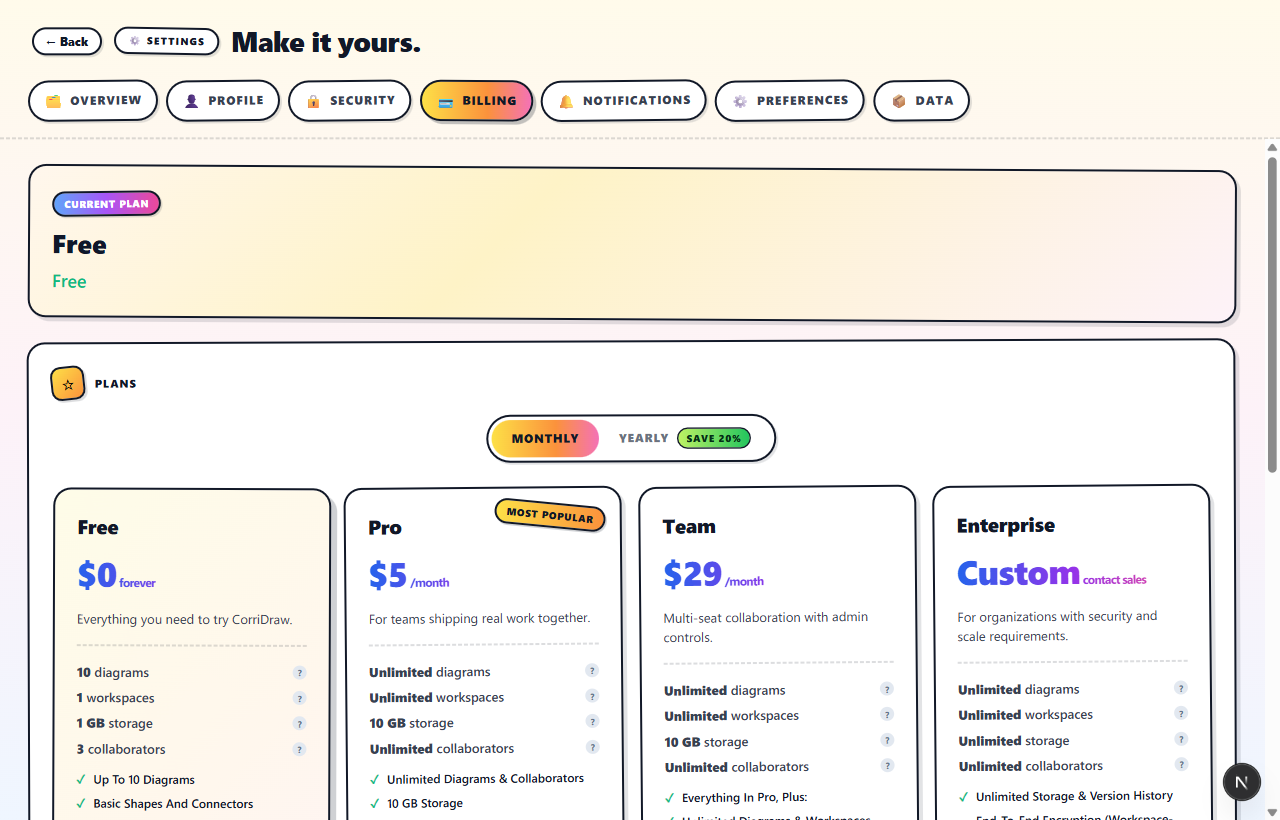
The Plans section sits inside Settings → Billing and shows a Monthly / Yearly toggle followed by four cards. The current plan is marked, the recommended plan carries a "Most popular" tape, and the price you see updates with the toggle.
- Free — $0 forever. Up to 10 diagrams, one workspace, 100 MB storage, invite up to 3 collaborators, basic shapes and connectors, PNG and SVG export, and community-board support. Enough to evaluate the tool and run small personal projects.
- Pro — $5/month, or $48/year ($4/month). Up to 100 diagrams, 5 workspaces, 2 GB storage, up to 10 collaborators per diagram, PDF export, AI Magic Frame (wireframe-to-code), smart layout suggestions, offline PWA mode, version history, custom branding on exports, and priority email support. 7-day trial. The card is marked Most popular because most paying solo professionals land here.
- Team — $29/month, or $290/year ($24/month). Unlimited diagrams and workspaces, 10 GB storage, unlimited collaborators per diagram, up to 50 members per workspace, shared libraries, admin controls, and audit logs — everything in Pro plus the multi-seat collaboration features. 14-day trial.
- Enterprise — custom quote, contact sales. Everything in Team plus unlimited storage, end-to-end encryption with workspace-held keys, SSO via SAML 2.0 / OIDC, role-based access control, audit logs with IP and user-agent attribution, self-hosted or on-prem deployment, a 99.9% uptime SLA, and a dedicated CSM. The Contact sales button on this card emails our team — it does not initiate a self-serve checkout.
Upgrading from Free to Pro
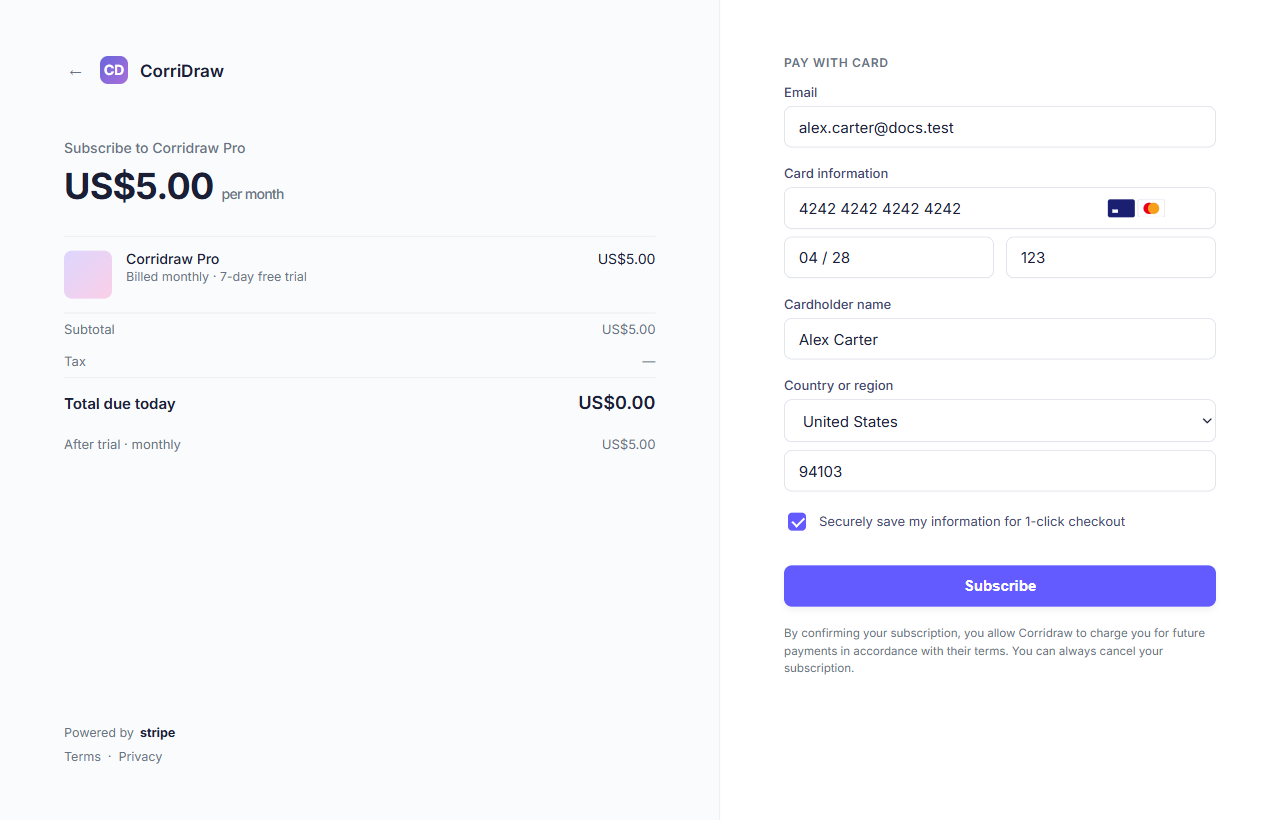
Click Upgrade on the Pro card (or Start 14-day trial if a trial
offer is showing). The button calls our backend, which creates a Stripe Checkout
session and redirects your browser to checkout.stripe.com. There you
enter card details — Visa, Mastercard, Amex, plus regional methods Stripe supports
in your country — and confirm. On success Stripe sends you back to CorriDraw at the
Settings page; the Current Plan card now reads Pro with a green
"Active subscription" status and a "Renews on …" date.
The payment-card data never touches CorriDraw servers. We hold the Stripe customer ID and the resulting subscription record; everything else lives in your Stripe customer profile. Stripe is PCI-DSS Level 1 compliant; this arrangement keeps card details out of our database entirely.
Yearly billing
Flip the Monthly / Yearly toggle before clicking Upgrade and the same checkout opens with the yearly price line — $48 for the year, charged once, which works out to $4 per month and saves you 20%. The renewal date in the Current Plan card reflects the cycle you picked. Switching cycles after the fact is handled in the Stripe customer portal (see below).
Invoices and the customer portal
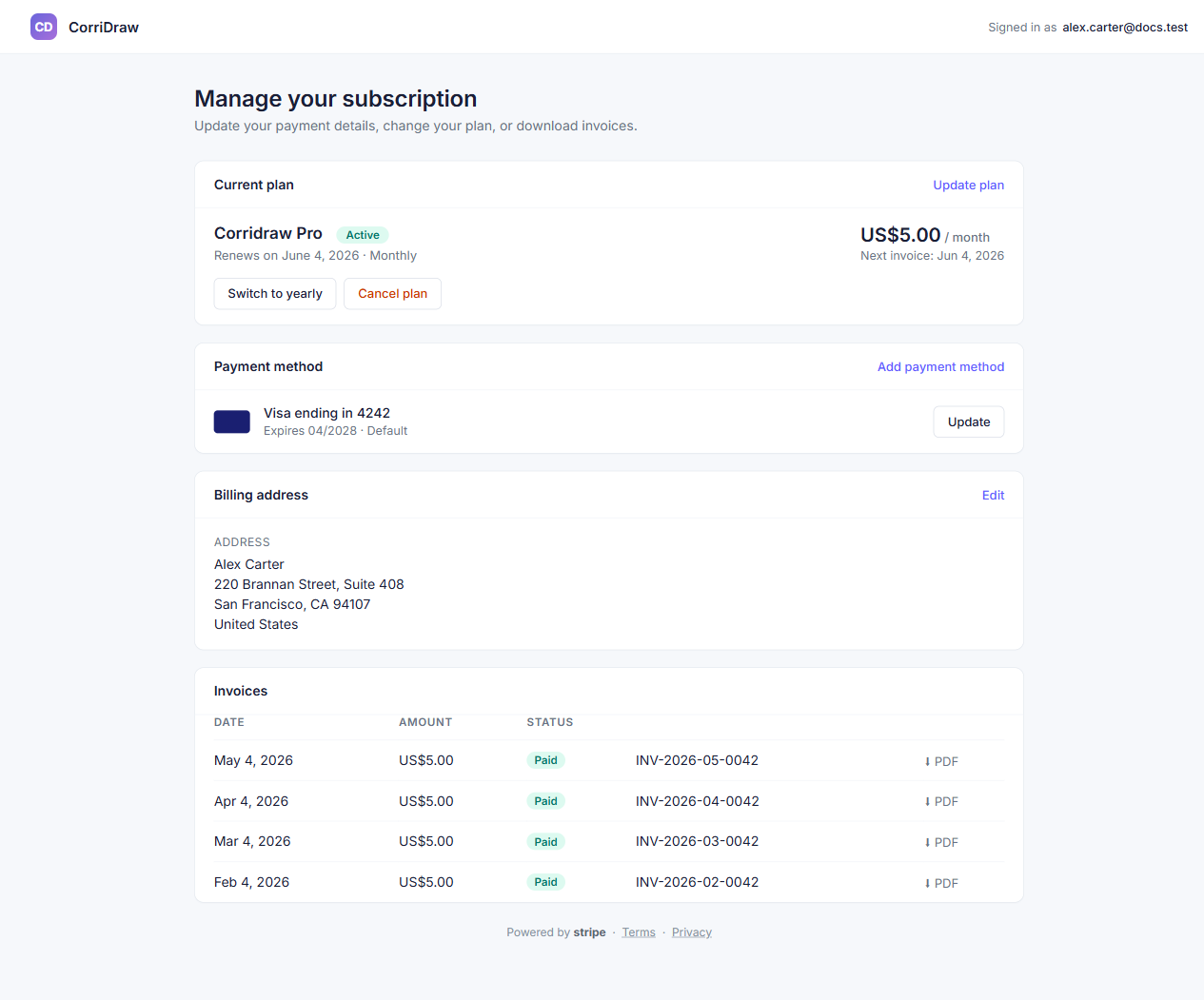
Once you have an active Stripe subscription, the Billing tab adds a Manage Billing button on the Current Plan card and a list of past invoices below the plan grid. Manage Billing opens the Stripe-hosted customer portal, which is where you:
- Update the saved card or add a new payment method.
- Switch between monthly and yearly billing on the same plan.
- Update billing address and tax ID for invoices.
- Download every past invoice as a PDF receipt.
- Cancel the subscription.
Stripe also emails a PDF copy of every invoice to the address on the subscription as soon as it posts, so the portal is a backup, not the only path.
Downgrading and cancelling
To return to Free, open Manage Billing and click Cancel plan in the portal. Cancellation is non-destructive: you keep Pro features through the end of the current billing period (the renewal date shown on the Current Plan card), and on that date the subscription expires and the account drops to Free. Stripe sends you a cancellation confirmation by email; CorriDraw shows a "Cancelled" status on the Current Plan card from the moment you click cancel.
Refund policy
Pro on Stripe is a self-serve subscription. We do not run pro-rata refunds for cancellations mid-cycle: you keep the time you paid for and the next charge does not happen. If something is wrong — you were charged twice, you cancelled but a charge still went through, the product was unavailable for you for an extended period — email billing@corridraw.com within 30 days of the charge with the invoice number. Verified billing errors are refunded to the original payment method via Stripe; refunds typically clear in 5–10 business days depending on the issuing bank.
Enterprise contracts have their own refund and termination terms negotiated as part of the agreement; check your MSA for details, or ask your account manager.
Past-due payments
If a renewal charge fails — expired card, insufficient funds, bank decline — Stripe retries on its standard schedule (4 attempts over about two weeks) and the Current Plan card flips its status badge from "Active" to "Payment past due" in amber. You keep Pro access during the retry window. Update the card from Manage Billing and the next retry will succeed; if every retry fails, the subscription cancels and the account drops to Free at the end of the retry window.