
Comments
Right-click or press C anywhere on the canvas to drop a positional comment, see every thread as a Miro-style avatar pin you can drag to reposition, reply in nested threads, react with 👍 ❤️ ✅, and resolve a pin to a green tick when it's handled. A Recent Activity panel surfaces the latest discussion across all threads.
Comments in CorriDraw are spatial. Every thread carries an x,y coordinate on the infinite canvas and renders as a small avatar pin at that point — like a sticky note on the diagram itself. Click a pin to open the thread, drag it to move the marker, reply nested Reddit-style, and resolve it to a green tick when the conversation is finished. The same threads also appear in the sidebar comments list, so you can scan everything in one place when you want a flat view.
Drop a comment on the canvas
Right-click (or two-finger tap on a trackpad) anywhere on the canvas. The context menu opens with a Comment here entry near the bottom — pick it. A small floating composer pops up at the click point with a textarea reading Add a comment…, a Cancel button, and a gradient Comment submit. Type your message and click Comment; the composer closes and a new pin appears at exactly the spot you right-clicked.
Press C to drop a pin at your cursor
The right-click menu is the discoverable path; the keyboard hotkey is
the fast one. Hover over the spot on the canvas where you want the pin,
press C, and the composer pops up at the cursor — same end
state as the menu, no detour. CorriDraw guards the hotkey so it never
fires when you're typing: it ignores the key while focus is in any
text input or editable element, while modifier keys are held
(Cmd+C still copies as expected), or while you're hovering
over the right sidebar, toolbar, or a dialog. The pin only drops when
your cursor is genuinely over the canvas surface.
The pin is a small rounded avatar (your profile photo if you have one set,
otherwise a colored circle with your initial) with a white ring and a
soft drop shadow. Its bottom-left corner is anchored to the exact canvas
point you picked, like a speech-bubble tail pointing down at the spot.
The posX and posY stored on the comment are
canvas-space coordinates, so the pin stays put as you pan and zoom — and
so do other people's pins on your screen.
Open a thread by clicking its pin
Click any pin on the canvas. The right sidebar opens to its comments tab and scrolls straight to that thread, applying a short highlight pulse so you can see which one. Hovering a pin instead shows a tooltip preview — author name plus the first ~80 characters of the body — which is enough to recognise a thread without committing to open the panel.
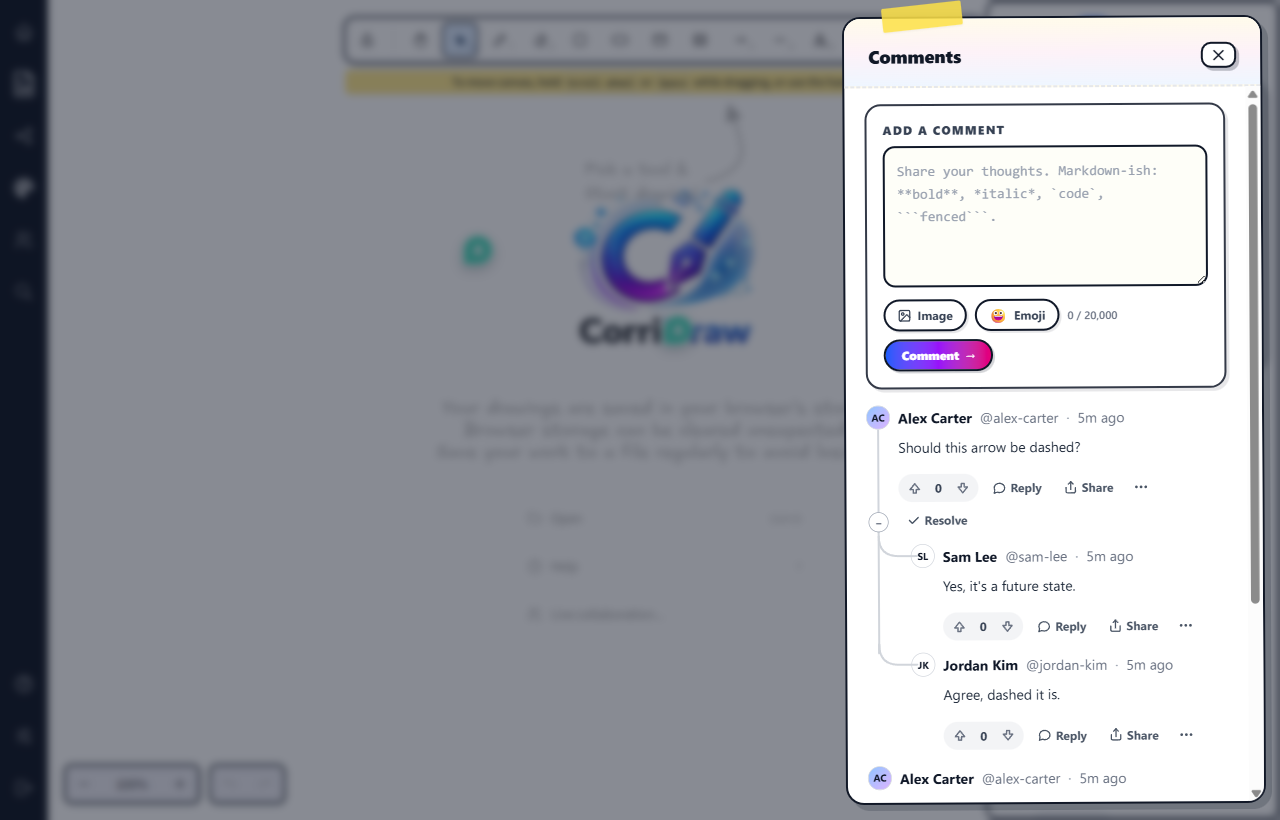
The list view in the sidebar is the canonical place to read and reply. It shows every comment on the diagram (positional pins and any legacy comments without coordinates) sorted by recency, with the same Reddit-style action row on each thread: vote arrows, Reply, Share, a kebab menu for edit / delete, and Resolve.
Drag a pin to reposition
A pin is draggable. Press and hold on the avatar, then move the mouse —
the pin tracks your cursor in real time. Release to drop. CorriDraw
distinguishes a click (a stationary press) from a drag (movement of more
than ~5 px) so a quick tap still opens the thread; only deliberate drags
move the pin. The new posX/posY are saved
server-side as soon as you release, so teammates joining the diagram
later see the pin in its new spot.
Reply in a thread
In the comments panel, every comment has a Reply button in its action row. Click it; an inline composer expands underneath the parent. Type and post. Replies are nested: a reply itself has a Reply button, so threads can branch as deeply as the conversation needs. Long sub-trees collapse to a small ↳ N replies chip you can click to load the rest, keeping the panel scannable when a thread has dozens of comments.
Each reply is keyed by parentId: a comment with
parentId = null is a top-level thread (and gets a pin on the
canvas); any comment with a non-null parentId is attached to
its parent and stays inside the panel. Posting a reply does not
bump the parent's timestamp, so a long-resolved thread won't jump back to
the top when someone adds an "agreed" reply weeks later.
React with 👍 ❤️ ✅
Not every reply needs words. Each comment carries a small chip row under its body with three emoji reactions: 👍 (thumbs up — agreement / approval), ❤️ (heart — appreciation), and ✅ (check — done / acknowledged). Click a chip to add your reaction; the chip turns green and a count appears next to the emoji. Click again to remove it. Reactions are multi-state: a single user can pile 👍 and ❤️ on the same comment, and any number of teammates can stack on top. The whole operation is optimistic — your chip flips immediately on click, and only reverts if the network call fails.
Reactions sit on each comment row, not just the parent — you can react on a buried sub-reply too. They're stored separately from votes (the up/down arrows on the action row); votes drive thread ordering ("best first"), reactions are just lightweight acknowledgement. Anonymous public-link visitors see reactions but can't add their own until they sign in.
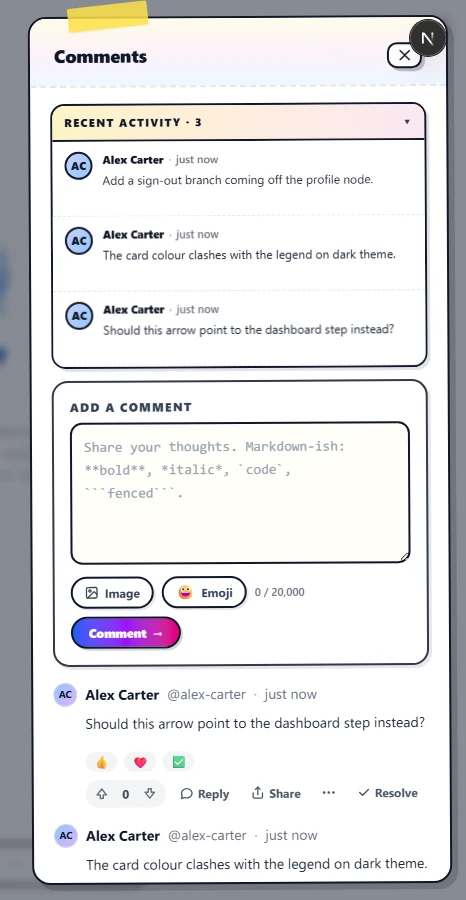
The Recent Activity panel
A pinned section sits at the top of the comments tab labelled RECENT ACTIVITY · N, where N is the count of items surfaced. It's a flat, newest-first list of the latest 8 comments and replies across the entire diagram — top-level threads and buried sub-replies alike, mixed by timestamp. The use case is "what's been happening?" — when you open a busy diagram, you don't want to expand every collapsed thread to find the new activity.
Each row shows the author's avatar and name, a relative timestamp (just now, 3m ago, 2d ago), and a two-line preview of the body. Click any row and the threaded list below scrolls to the matching thread with the same highlight pulse a canvas-pin click triggers — so the panel doubles as a jump table. Click the RECENT ACTIVITY header to collapse the panel when you want the threaded view at full height; click again to bring it back.
The panel auto-refreshes whenever a new comment, reply, or pin lands — no need to reload to see what arrived. On a brand-new diagram with zero comments the panel hides itself entirely, so empty diagrams don't get a "0 recent" header taking up space.
Resolve a thread
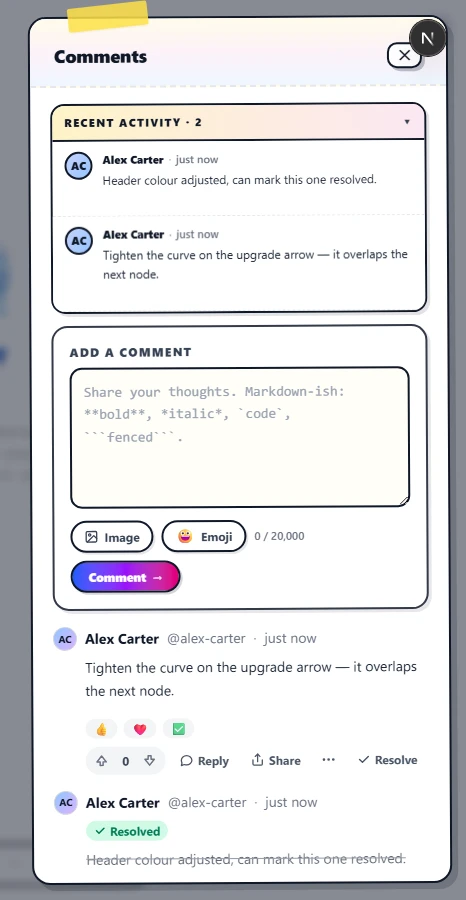
When a comment has been addressed, click Resolve on the top-level row. Three things happen at once:
- A green ✓ Resolved badge replaces the Resolve button on the row, and an identical badge appears at the bottom of the body so the resolved state is obvious from a quick scan.
- The body text gets a strikethrough so the wording is visibly archived.
- The corresponding pin on the canvas turns solid green with a white tick — a Miro-style "done" marker that's recognisable across the whole diagram even at a distance.
Resolved threads are not archived or deleted; they stay in the panel and on the canvas for context. Click the green ✓ Resolved badge again to flip the thread back to active — the pin reverts to the author's accent color and the body returns to normal weight.
Edit and delete
Each comment row has a kebab menu (three dots) in its action row. Open it on a comment you authored and choose Edit or Delete. Editing replaces the body in place and tags the row with (edited) next to the timestamp. Deleting removes the comment entirely; if the deleted comment is a top-level thread, its replies are removed with it and the canvas pin disappears. Diagram owners can delete any comment, not just their own.
@-mentions and notifications
Direct @mentions are not yet implemented in the comments
panel. Today the body is plain Markdown-ish text — typing
@alex adds the literal string @alex, nothing
more. There's also no email notification on new comments today: teammates
discover new comments by opening the diagram and seeing the pins on the
canvas, or by glancing at the comment count badge on a diagram card from
the dashboard.
Both features (typeahead mentions, in-app and email notifications) are tracked threads on the community webboard. If you'd benefit, leave a vote — comment notifications are one of the most-requested items and we plan around demand.
Permissions recap
- Viewers can read comments, drop new pins (right-click or
C), reply in threads, and add or remove their own emoji reactions, but cannot edit or delete other people's comments. - Editors can do everything viewers can, plus resolve and unresolve threads (including ones they didn't start) and drag pins to reposition them.
- The owner can additionally edit or delete any comment on the diagram.
- Anonymous public-link visitors with view-only access can read everything (including the reactions chip counts) but can't add their own reaction or post a comment until they sign in.
Comments live on the diagram document, not on the workspace, so removing someone from the workspace does not delete their old comments or pins. Their name remains on the historical thread; we don't rewrite history when access changes.