
Corner roundness
Toggle sharp or rounded corners on rectangles, diamonds, and other polygon shapes in CorriDraw with a single click.
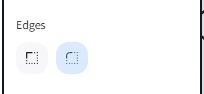
Some diagrams want crisp 90-degree corners; others want soft, friendly curves. CorriDraw exposes that choice as the Edges control in the right-hand properties panel — a two-button toggle between Sharp and Round. There are no in-between values to fiddle with: pick one, and every supported shape applies it instantly.
Where the control lives
Click a rectangle, diamond, hexagon, or any other polygon to select it. The properties panel on the right reveals an Edges row with two icon buttons. The first is a square with sharp corners; the second is the same square with rounded corners. Click either one to commit — the shape on the canvas updates the moment you click. On phones and tablets the same two buttons appear inside the side panel that slides out from the hamburger button at the top of the screen; tap to switch.
Sharp vs round
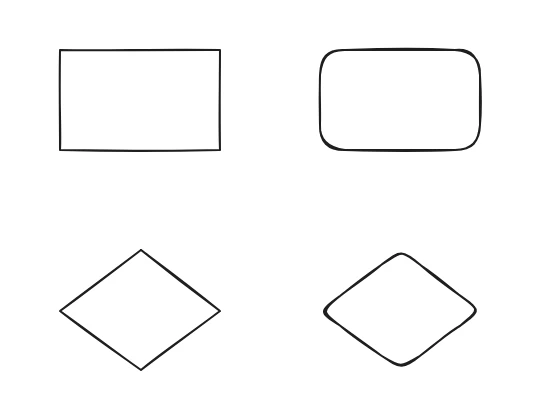
Both modes are visible at a glance:
- Sharp — every vertex is a clean angle. The shape is its strict geometric form: a rectangle has four corners, a diamond has four points, a hexagon has six.
- Round — every vertex is replaced with a smooth quarter-arc. Rectangles look like soft cards, diamonds feel pillowy, hexagons resemble rounded buttons.
The radius CorriDraw uses is chosen automatically based on the shape's size — small shapes get a proportionally smaller curve so the rounding stays visible without dominating the silhouette, while large shapes use a fixed radius so a wall-sized rectangle doesn't end up looking like a stadium.
Which shapes support rounding
Most polygon shapes support the Edges toggle, including rectangles, diamonds, hexagons, pentagons, and triangles. Ellipses don't show the control because they have no corners to round in the first place — they're already smooth. Lines, arrows, and freehand strokes also don't show it; they have a different concept of "smooth" handled by their own controls.
Combining with other styles
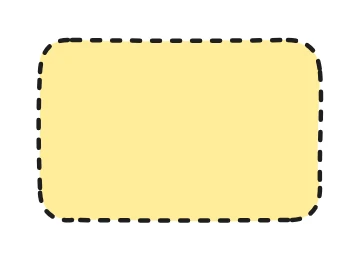
Roundness works orthogonally with every other styling control. A rounded rectangle can still be filled with hachure, drawn at Cartoonist sloppiness, given a dotted outline, and bound to a centred text label. The toggle changes only the corner geometry; nothing else moves.
Mixed selections
Select a sharp rectangle and a round one at the same time and neither Edges button shows as active — the panel reflects the lack of a single value. Click Sharp or Round and the choice applies to every selected shape in a single undoable step.
Make it the default
To set a default for the next shape you'll draw, click on empty canvas to deselect everything, then click Sharp or Round in the panel. The chosen value is saved in your preferences, so next time you open CorriDraw and draw a rectangle it'll start in the same mode.
Special case — elbow arrows
Elbow arrows (the right-angled connectors) ignore the Edges control because their corners are part of the routing logic, not a styling choice. Their bends always stay sharp so the arrow's path remains predictable on dense canvases.