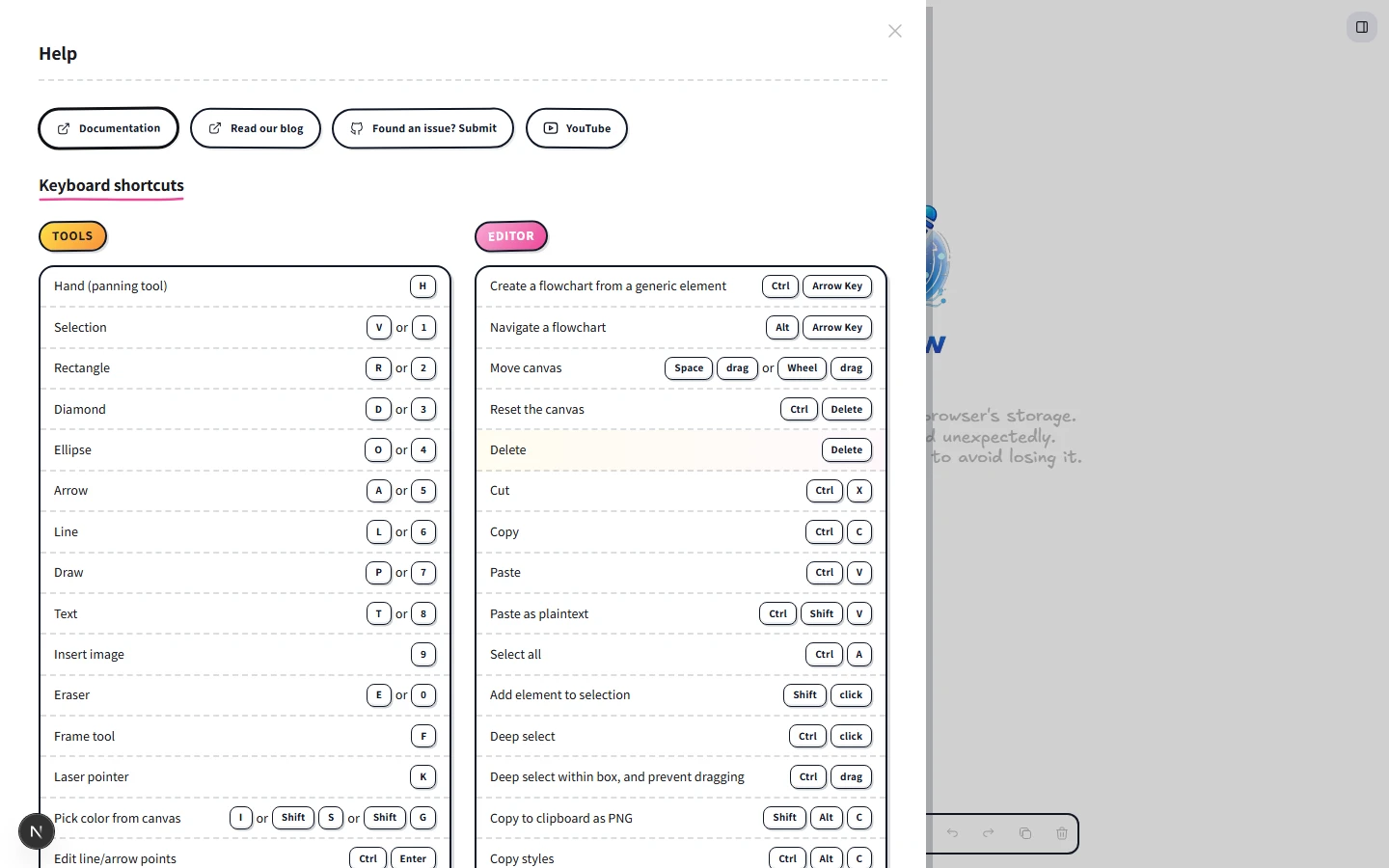
Keyboard shortcuts
The complete CorriDraw keyboard shortcut reference, OS-aware, grouped by Tools, Edit, View, Selection, History, and Files.
Every shortcut in the editor lives in this page. The in-app Help dialog (press ? on the canvas) shows the same list, but this version is searchable, OS-aware, and prints cleanly. Ctrl means ⌘ Cmd on macOS — the third column shows the Windows/Linux binding when it differs.
If you're a click-and-toolbar person, you don't need any of this — every shortcut on this page also has a button or menu item somewhere in the editor. The toolbar across the top of the canvas covers tools, the hamburger menu (top-left) covers files and export, the right sidebar covers selection and styling, and the command palette covers everything else by name. This page is the reference for power users who want their hands to stay on the keyboard.
Tools
Each tool has both a letter and a number binding. Numbers map to the toolbar order, so 1 through 0 walks the toolbar left-to-right.
| Action | macOS | Windows / Linux | Notes |
|---|---|---|---|
| Hand tool (pan) | H | H | Hold Space to pan momentarily. |
| Selection | V or 1 | V or 1 | |
| Rectangle | R or 2 | R or 2 | |
| Diamond | D or 3 | D or 3 | |
| Ellipse | O or 4 | O or 4 | |
| Arrow | A or 5 | A or 5 | |
| Line | L or 6 | L or 6 | |
| Freehand draw | P or 7 | P or 7 | |
| Text | T or 8 | T or 8 | |
| Image | 9 | 9 | Opens the file picker. |
| Eraser | E or 0 | E or 0 | |
| Frame | F | F | |
| Laser pointer | K | K | For walking through a board live. |
| Eyedropper | I, Shift+S, Shift+G | I, Shift+S, Shift+G | |
| Lock active tool | Q | Q | Stays selected after each draw. |
| Edit selected text | Enter | Enter | |
| Edit line/arrow points | ⌘+Enter | Ctrl+Enter | |
| Finish text editing | Esc or ⌘+Enter | Esc or Ctrl+Enter | |
| New line in text | Enter or Shift+Enter | Enter or Shift+Enter | |
| Curved arrow | A, then click, click, click | A, then click, click, click | Three clicks place anchor points. |
| Curved line | L, then click, click, click | L, then click, click, click | |
| Start crop (image) | Double-click or Enter | Double-click or Enter | |
| Finish crop | Enter or Esc | Enter or Esc | |
| Prevent arrow binding | Hold ⌘ while drawing | Hold Ctrl while drawing | Stops auto-snap to nearby shapes. |
| Insert/edit link | ⌘+K | Ctrl+K | |
| Convert element type | Tab / Shift+Tab | Tab / Shift+Tab | Cycles a selected shape through types. |
View
Zoom, pan, and the toggleable display modes. Zoom shortcuts work without modifier on the numpad too — most users learn the gradient palette muscle memory and stick with it.
| Action | macOS | Windows / Linux | Notes |
|---|---|---|---|
| Zoom in | ⌘++ | Ctrl++ | |
| Zoom out | ⌘+- | Ctrl+- | |
| Reset zoom (100%) | ⌘+0 | Ctrl+0 | |
| Zoom to fit (whole canvas) | Shift+1 | Shift+1 | |
| Zoom to selection | Shift+2 | Shift+2 | |
| Zoom to fit selection in viewport | Shift+3 | Shift+3 | |
| Move canvas | Space+drag or middle-mouse drag | Space+drag or middle-mouse drag | |
| Page up / down | PgUp / PgDn | PgUp / PgDn | Vertical scroll by one page. |
| Page left / right | Shift+PgUp / PgDn | Shift+PgUp / PgDn | Horizontal scroll. |
| Toggle zen mode | Alt+Z | Alt+Z | |
| Toggle object snap | Alt+S | Alt+S | |
| Toggle grid | ⌘+' | Ctrl+' | |
| Toggle view-only mode | Alt+R | Alt+R | |
| Toggle theme (light/dark) | Alt+Shift+D | Alt+Shift+D | |
| Toggle stats panel | Alt+/ | Alt+/ | |
| Search menu | ⌘+F | Ctrl+F | |
| Command palette | ⌘+/ or ⌘+Shift+P | Ctrl+/ or Ctrl+Shift+P | Firefox: Ctrl+/ only. |
| Open this dialog | ? | ? |
Selection
| Action | macOS | Windows / Linux | Notes |
|---|---|---|---|
| Select all | ⌘+A | Ctrl+A | |
| Multi-select (add/remove one) | Shift+click | Shift+click | |
| Deep select (inside group) | ⌘+click | Ctrl+click | |
| Deep box-select | ⌘+drag | Ctrl+drag | |
| Group selection | ⌘+G | Ctrl+G | |
| Ungroup selection | ⌘+Shift+G | Ctrl+Shift+G | |
| Toggle element lock | ⌘+Shift+L | Ctrl+Shift+L | |
| Duplicate selection | ⌘+D or Alt+drag | Ctrl+D or Alt+drag | |
| Delete selection | Delete | Delete | |
| Flip horizontal | Shift+H | Shift+H | |
| Flip vertical | Shift+V | Shift+V | |
| Send backward | ⌘+[ | Ctrl+[ | |
| Bring forward | ⌘+] | Ctrl+] | |
| Send to back | ⌘+Alt+[ | Ctrl+Shift+[ | |
| Bring to front | ⌘+Alt+] | Ctrl+Shift+] | |
| Align top | ⌘+Shift+↑ | Ctrl+Shift+↑ | |
| Align bottom | ⌘+Shift+↓ | Ctrl+Shift+↓ | |
| Align left | ⌘+Shift+← | Ctrl+Shift+← | |
| Align right | ⌘+Shift+→ | Ctrl+Shift+→ | |
| Show stroke picker | S | S | With selection. |
| Show background picker | G | G | With selection. |
| Show fonts | Shift+F | Shift+F | |
| Decrease font size | ⌘+Shift+< | Ctrl+Shift+< | |
| Increase font size | ⌘+Shift+> | Ctrl+Shift+> | |
| Create flowchart node from selection | ⌘+Arrow | Ctrl+Arrow | |
| Navigate flowchart | Alt+Arrow | Alt+Arrow |
Edit
Cut, copy, paste, and the style-clipboard pair. Style copy/paste lets you sample the look of one shape and apply just the styling — fill, stroke, roughness, font — to a different shape without touching its geometry.
| Action | macOS | Windows / Linux | Notes |
|---|---|---|---|
| Cut | ⌘+X | Ctrl+X | |
| Copy | ⌘+C | Ctrl+C | |
| Paste | ⌘+V | Ctrl+V | |
| Paste as plain text | ⌘+Shift+V | Ctrl+Shift+V | |
| Copy as PNG (clipboard) | Shift+Alt+C | Shift+Alt+C | Where the browser supports it. |
| Copy styles | ⌘+Alt+C | Ctrl+Alt+C | |
| Paste styles | ⌘+Alt+V | Ctrl+Alt+V |
History
| Action | macOS | Windows / Linux | Notes |
|---|---|---|---|
| Undo | ⌘+Z | Ctrl+Z | |
| Redo | ⌘+Shift+Z | Ctrl+Y or Ctrl+Shift+Z | Two redo bindings on Windows. |
| Clear canvas | ⌘+Delete | Ctrl+Delete | Confirms before wiping. |
Files
The Save and Export bindings act on the active scene. Save writes a .corridraw
JSON file (or saves back to the same handle on browsers that support the File System Access
API). See Save & version history and
Export formats for the full picture.
| Action | macOS | Windows / Linux | Notes |
|---|---|---|---|
| Save / save to active file | ⌘+S | Ctrl+S | |
| Open scene | ⌘+O | Ctrl+O | Opens a .corridraw JSON file. |
| Export to image | ⌘+Shift+E | Ctrl+Shift+E | Opens the export dialog. |