
AI generate
Use the AI tab in the Text-to-Diagram dialog to turn natural-language prompts into editable Mermaid diagrams on the canvas, with daily rate limits and clear error feedback.
When the AI generate flow lands it will live inside the Text-to-Diagram dialog. The plan: click the three-dot extra-tools menu in the top toolbar and click Mermaid to Corridraw (or PlantUML to Corridraw) to open the dialog, then click the first tab — labelled Text to Diagram with an AI Beta badge — to reach the chat-style assistant. Describe the diagram you want in plain English in the chat input at the bottom, click the send button, and the assistant will stream back Mermaid source that gets rendered, validated, and is ready to drop onto your canvas.
Where it lives
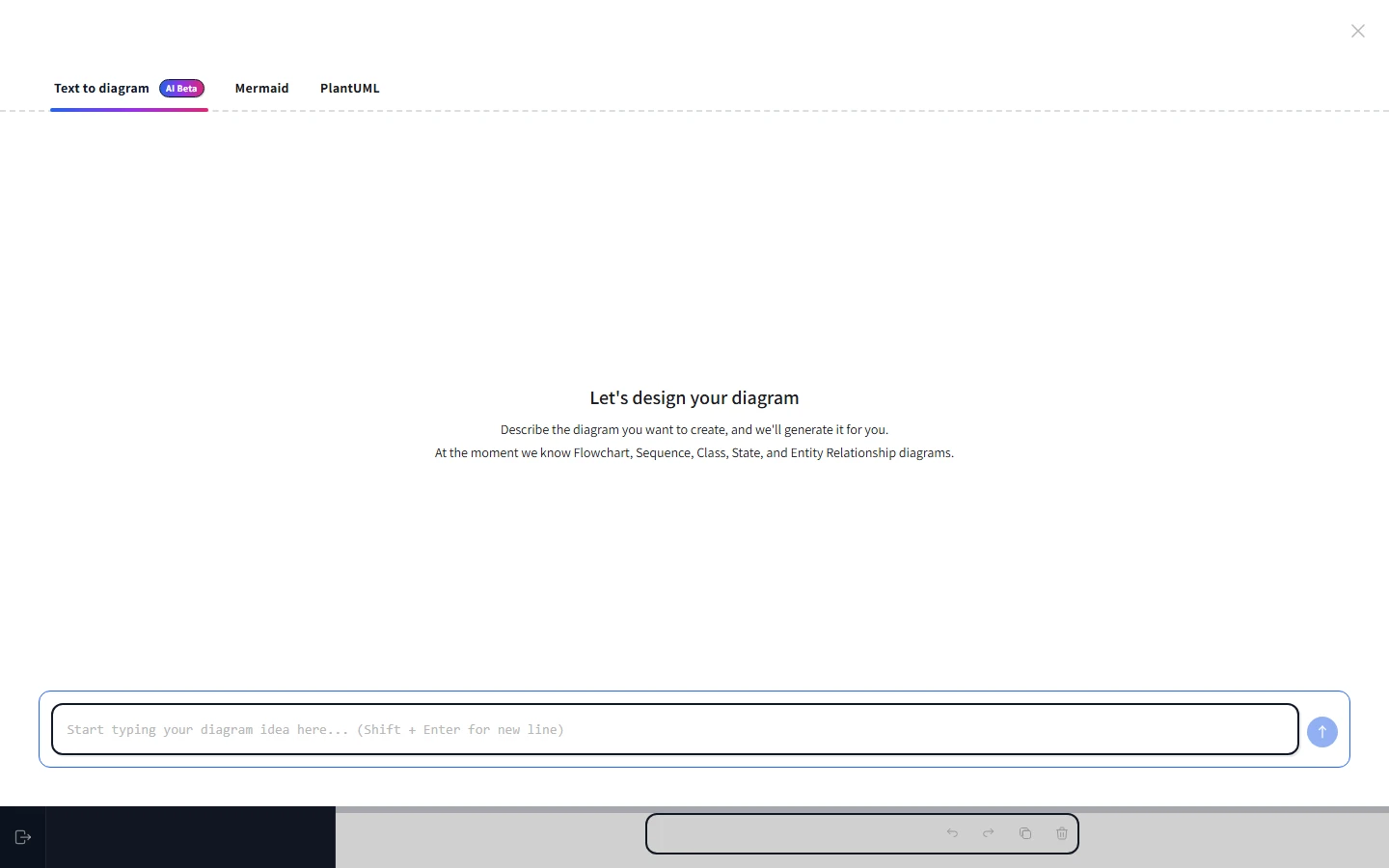
The Text-to-Diagram dialog has three tabs across the top: Text to Diagram (the AI chat), Mermaid (paste raw Mermaid), and PlantUML (paste raw PlantUML). Click any tab to switch. The AI tab is selected by default. Behind the scenes the AI tab generates Mermaid source — it's a natural-language front-end for the same Mermaid pipeline documented in Mermaid → diagram. That's why the generated output drops seamlessly into the canvas: every shape, arrow, and label is a regular CorriDraw element after insertion, free to edit, restyle, and rearrange.
Writing a prompt
The chat input lives at the bottom of the panel. Click into it, type your description, and click the send button (the paper-plane icon to the right of the input) to submit. The assistant currently understands flowchart, sequence, class, state, and entity-relationship diagrams (the welcome screen lists this explicitly). Other shapes, like mind maps or Gantt charts, are not in scope yet.
Some prompts that translate well:
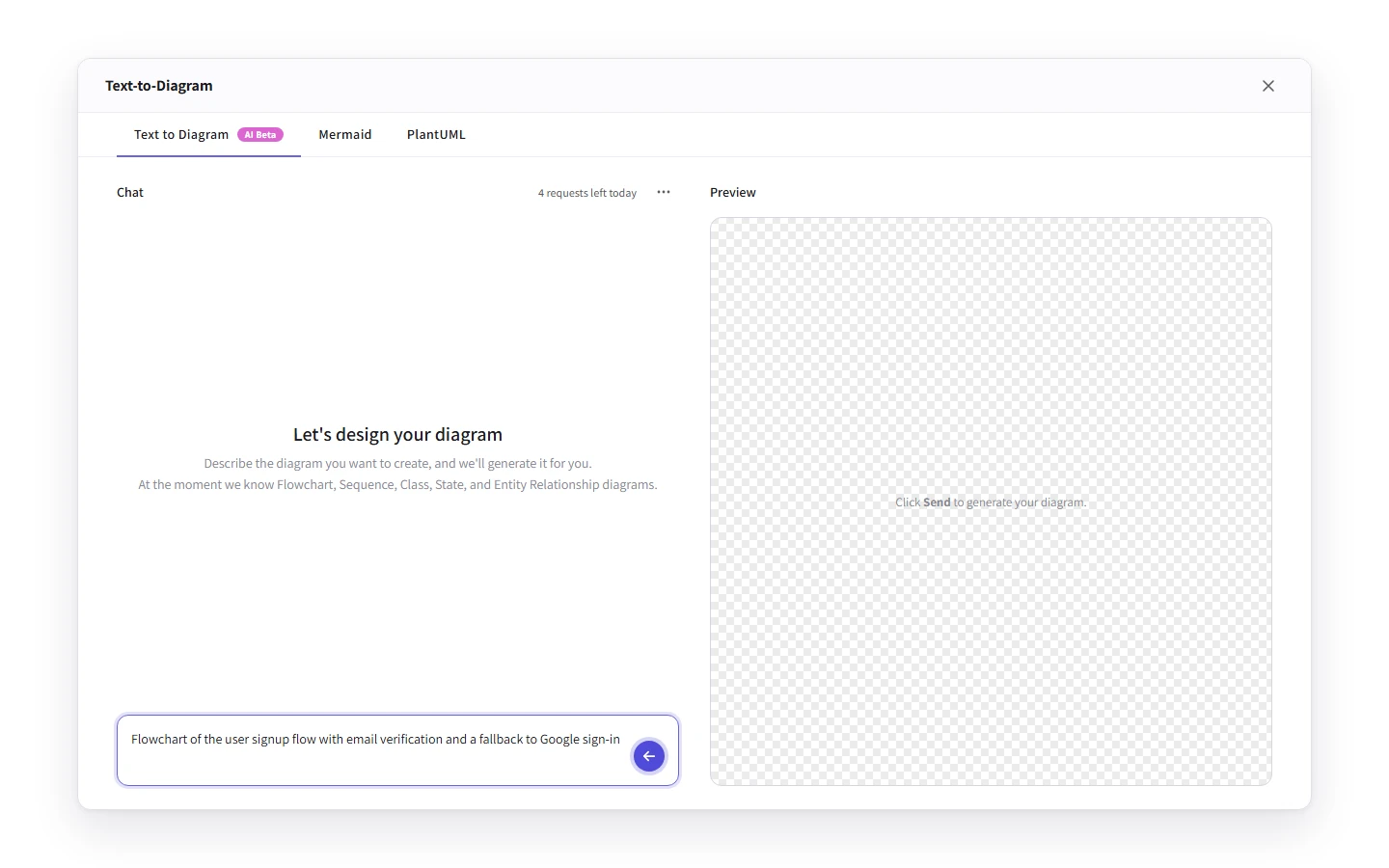
- "Flowchart of the user signup flow with email verification and a fallback to Google sign-in."
- "Sequence diagram: browser, API gateway, auth service, and database, for a token-refresh round trip."
- "Class diagram for an Order entity with line items, customer, and shipping address."
- "State diagram for a draft post moving through review, approved, and published states."
Prompts have a minimum and maximum length (the dialog will tell you exactly what they are when you hit either bound). Aim for one or two sentences with the diagram type, the main entities, and the relationships — that's enough context for clean output.
From prompt to shapes
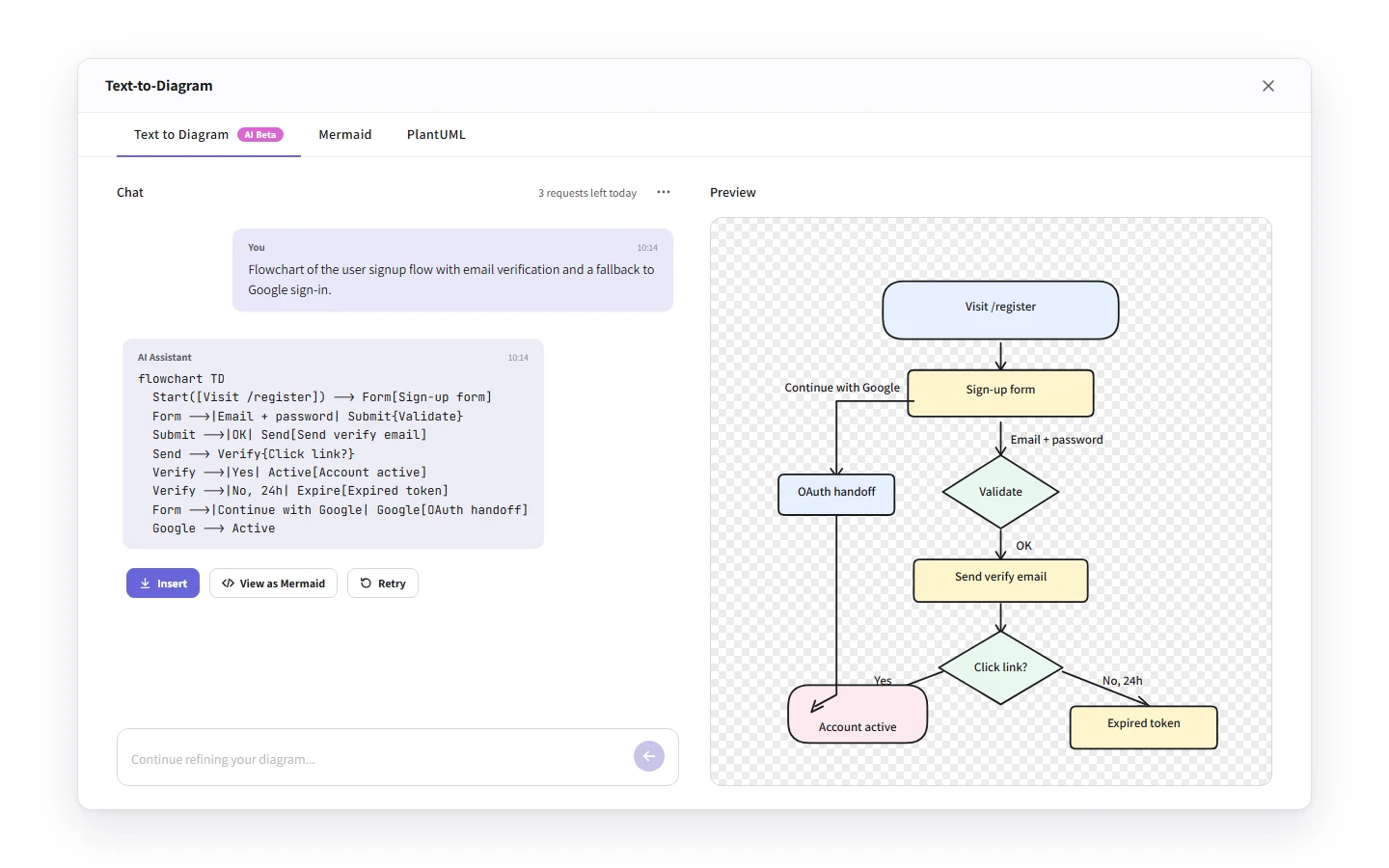
Submitting a prompt streams a Mermaid response into the chat panel and renders it in the preview pane on the right as it arrives. When the stream finishes, three action buttons appear below the assistant message — click whichever fits:
- Insert — drops the rendered diagram onto the canvas as native CorriDraw shapes.
- View as Mermaid — switches to the Mermaid tab with the generated source pre-filled, so you can hand-edit it.
- Retry — re-runs the original prompt with a fresh request.
Click Insert and the AI hand-off ends. From that point you have plain elements: arrows, text, rounded rectangles, diamonds. Click any of them to restyle, drag them to regroup, drop them inside frames, share the file. The diagram is yours.
Rate limits — free vs Pro
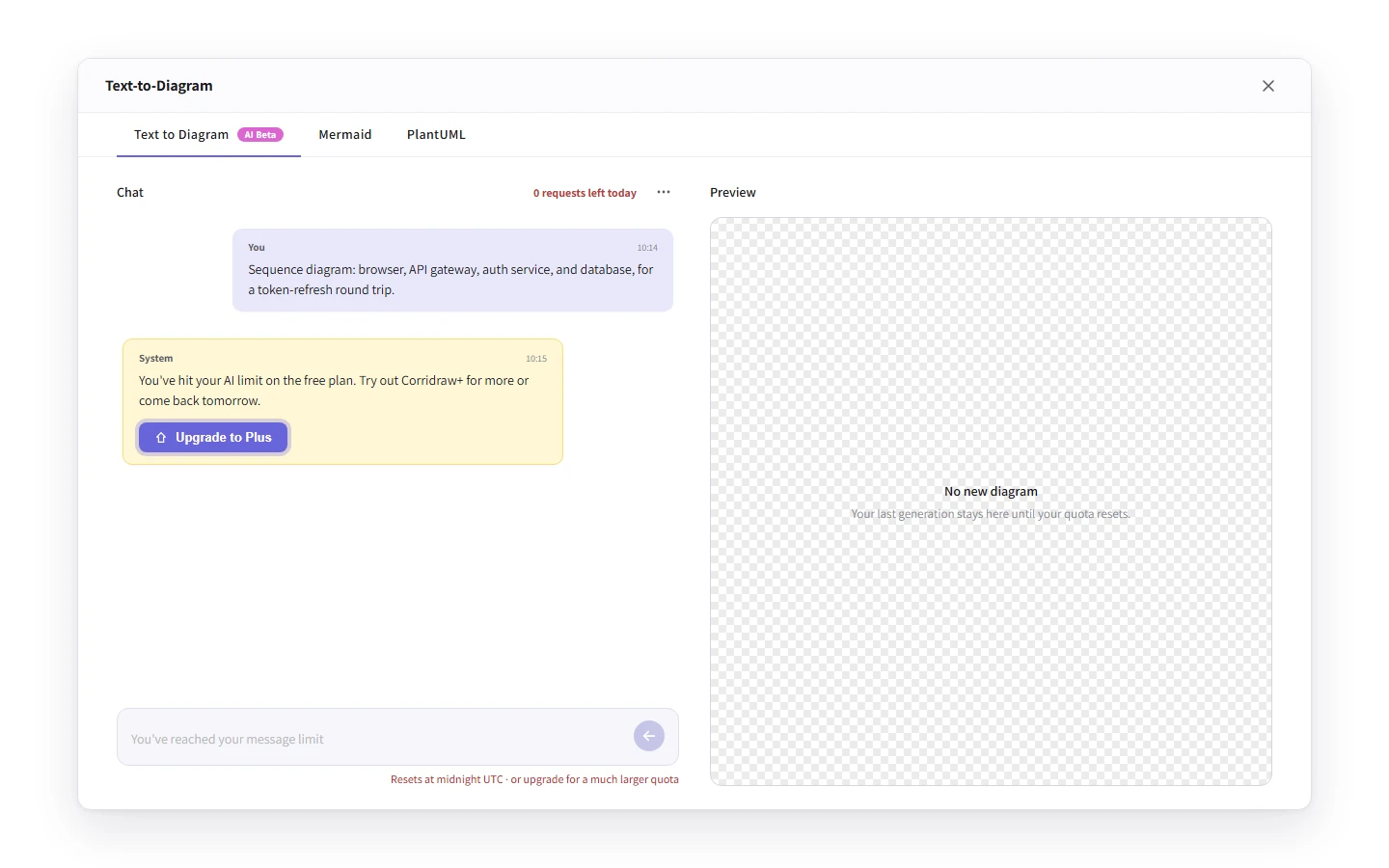
AI generate is metered to keep the service usable for everyone. The chat panel shows your remaining quota above the input as "N requests left today". When you exhaust the daily allowance you'll see this message, copied verbatim from the editor:
"You've hit your AI limit on the free plan. Try out Corridraw Pro for more or come back tomorrow."
The exact daily counts are read from the X-Ratelimit-Remaining header on every
response, so the editor always shows the live remaining count rather than a hard-coded value.
Free accounts get a small daily budget meant for trying the feature out; CorriDraw Pro subscribers
get a much larger one suitable for daily use. Click the Upgrade to Pro button
next to the rate-limit notice and it takes you to the billing page when you're ready.
There is also a burst limit — issuing many requests in quick succession returns a 429 with the message "Hold your horses, you're too fast for us! Please wait a moment before trying again." This is independent of the daily quota and clears after a short pause.
How prompts become shapes
Under the hood the path is prompt → Mermaid → CorriDraw elements. The AI is asked to return well-formed Mermaid for the type of diagram you described. That Mermaid source goes through the same parser the Mermaid tab uses, then the same converter that turns Mermaid into sketchy CorriDraw shapes. This is why generated diagrams pick up your current canvas styling (roughness, font, stroke width) the moment you insert them, and why edits afterwards behave exactly like edits on a hand-drawn diagram.
If a generation produces invalid Mermaid the preview shows a parse error with a one-click Regenerate (auto-fix) button — click it to send the broken source plus the error message back to the AI for repair. Most syntax slips clear up on the first auto-fix attempt.
Saved chats
Chat history is persisted per browser. Click the hamburger menu inside the dialog to see your previous sessions — click any session to restore it and keep iterating, or click New chat to start fresh and clear context. Click the trash icon on a chat or an individual message to delete it; deletion is instant and not undoable, so be deliberate.