
Stroke style
Switch between solid, dashed, and dotted strokes and pick a thin, bold, or extra-bold width for any outline in CorriDraw.
The outline of every shape, line, and arrow has two related properties: a stroke style that decides whether the line is continuous, dashed, or dotted, and a stroke width that decides how heavy it sits on the canvas. Both controls live next to each other in the right-hand properties panel and combine freely — you can have a thin dotted outline, a bold dashed border, or anything in between.
Find the controls
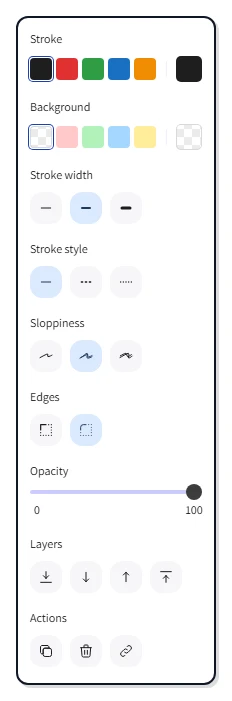
Click a shape, line, or arrow to select it. In the right-hand properties panel, the Stroke width row sits just under the color swatches, and Stroke style sits directly below it. Each row is a strip of three icon buttons — click one to apply, and the chosen button highlights. The canvas updates the moment you click.
On phones and tablets, the same controls appear inside the side panel that slides out from the hamburger button at the top of the screen.
Stroke width
Three preset buttons cover the useful range:
- Thin — a 1px line, ideal for technical diagrams and small annotations.
- Bold — a 2px line. This is the default and works well for most flowcharts and sketches.
- Extra bold — a 4px line, useful for emphasizing the outer border of a frame or a highlight box.
The width applies uniformly to the whole outline, including any rounded or hand-drawn variation. Stroke width also drives arrow heads and freehand stroke thickness — pick a heavier width before drawing if you want a chunky, marker-style line.
Stroke style
Three line patterns are available as buttons in the Stroke style row:
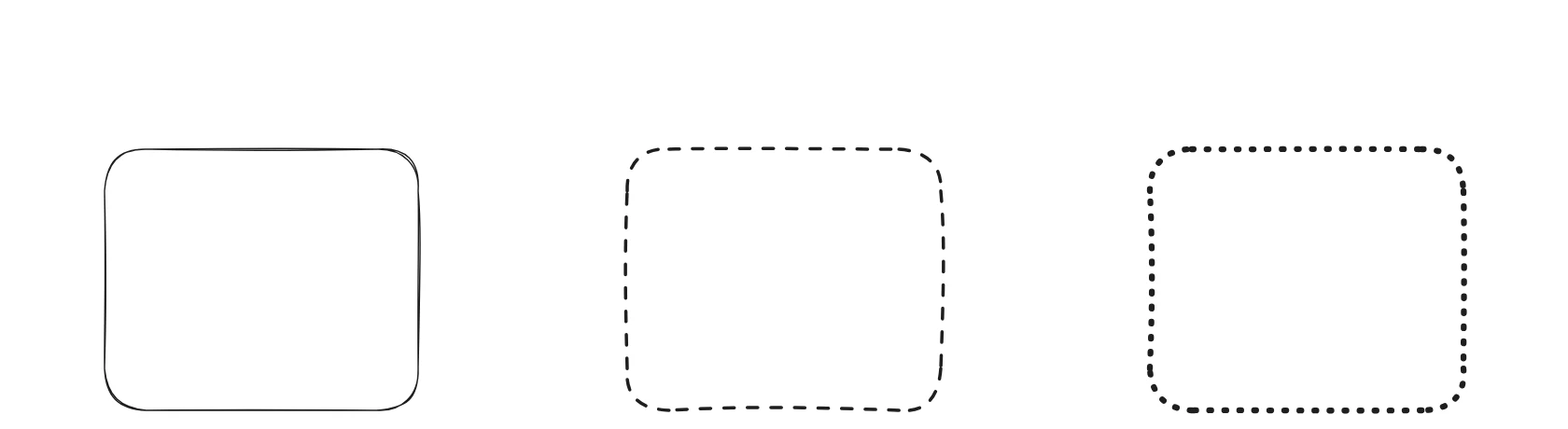
- Solid — a continuous line, the default.
- Dashed — alternating long-dash and gap, useful for showing borders that aren't quite a wall (zones, planned regions, weak boundaries).
- Dotted — a tight series of dots, useful for guides, optional connections, or "happens-later" arrows in a flow.
The pattern scales with the stroke width — a dashed extra-bold line has longer, fatter dashes than a dashed thin line. This keeps the rhythm visible at every weight.
Strokes on lines and arrows
Lines and arrows use the same width and style controls. A dashed arrow is a popular convention for "indirect dependency" or "happens later" relationships in architecture diagrams. Combine with the arrow-head buttons in the same panel for things like a dotted line with a dot on each end (a soft connection) or a dashed line with a single arrowhead (a weak directional cue).
Mixed selections
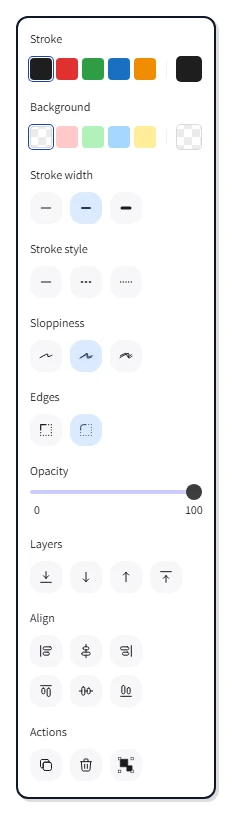
Select two shapes — one solid, one dashed — and neither button in the Stroke style row shows as active. Click Dotted and both shapes flip to dotted at the same time. The same applies to width: a thin and a bold rectangle selected together show no highlight; the next click sets a single shared width.
Apply a style to many shapes at once
Drag a marquee around the shapes you want to update — or right-click on empty canvas and pick Select all to grab everything in the scene — then click the desired width and style buttons in the panel. CorriDraw applies the change as a single undoable step, so a stray click can be reversed with the Undo button in the top toolbar.
Make it the default
Click on empty canvas to deselect, then choose the width and style you want. The values become the defaults for the next shape, line, or arrow you draw, and CorriDraw remembers them between sessions.