
Save & version history
How CorriDraw autosaves your work, what changes when you sign in, and how to bring back an earlier version of a diagram.
You should never have to think about saving in CorriDraw — that is the whole goal of this page. The editor writes your work to disk continuously, the dashboard keeps a history of every commit so you can roll back, and signing in turns the local cache into a synced copy that follows you between devices. This page covers exactly what gets saved, where, and how to recover an older version when something goes wrong.
Autosave: every second, in the background
The editor runs a debounced autosave that fires once per second of activity. Every time you draw, drag, type, or change a property, a 1-second timer resets. When the timer expires the current scene — elements, app state, and any uploaded images — is written to your browser’s local storage and IndexedDB. There is nothing to click and no progress bar to wait for. If you close the tab mid-stroke and reopen it, you lose at most the last second of work.
You can verify the save happened: the project name in the top-left of the editor briefly switches to a small dot indicator while a write is in flight, and the saved fileHandle (if you opened a .corridraw file from disk) shows up next to the title.
The editor's top-left project name with the autosave indicator dot visible mid-write
/screenshots/docs/save-history-1.png Guest mode: it lives in your browser
When you open corridraw.com without signing in, you are in guest mode. Your scene is stored entirely in this browser’s local storage and IndexedDB, on this device. That means three things:
- Clearing browser data, switching browsers, or opening the editor on another device gives you a blank canvas. There is no server copy to fall back on.
- Private/incognito windows have their own isolated storage and lose everything when the window closes.
- Storage is bounded — typically 5–10 MB for local storage and a few hundred MB for IndexedDB. A diagram with hundreds of high-resolution embedded images can hit the quota.
If your browser ever rejects a save because storage is full, the editor pops a non-blocking toast warning you that the autosave has paused. Free some space — usually by deleting an old diagram in the dashboard or removing a giant pasted image — and the next edit will save successfully.
Signed in: the server takes over
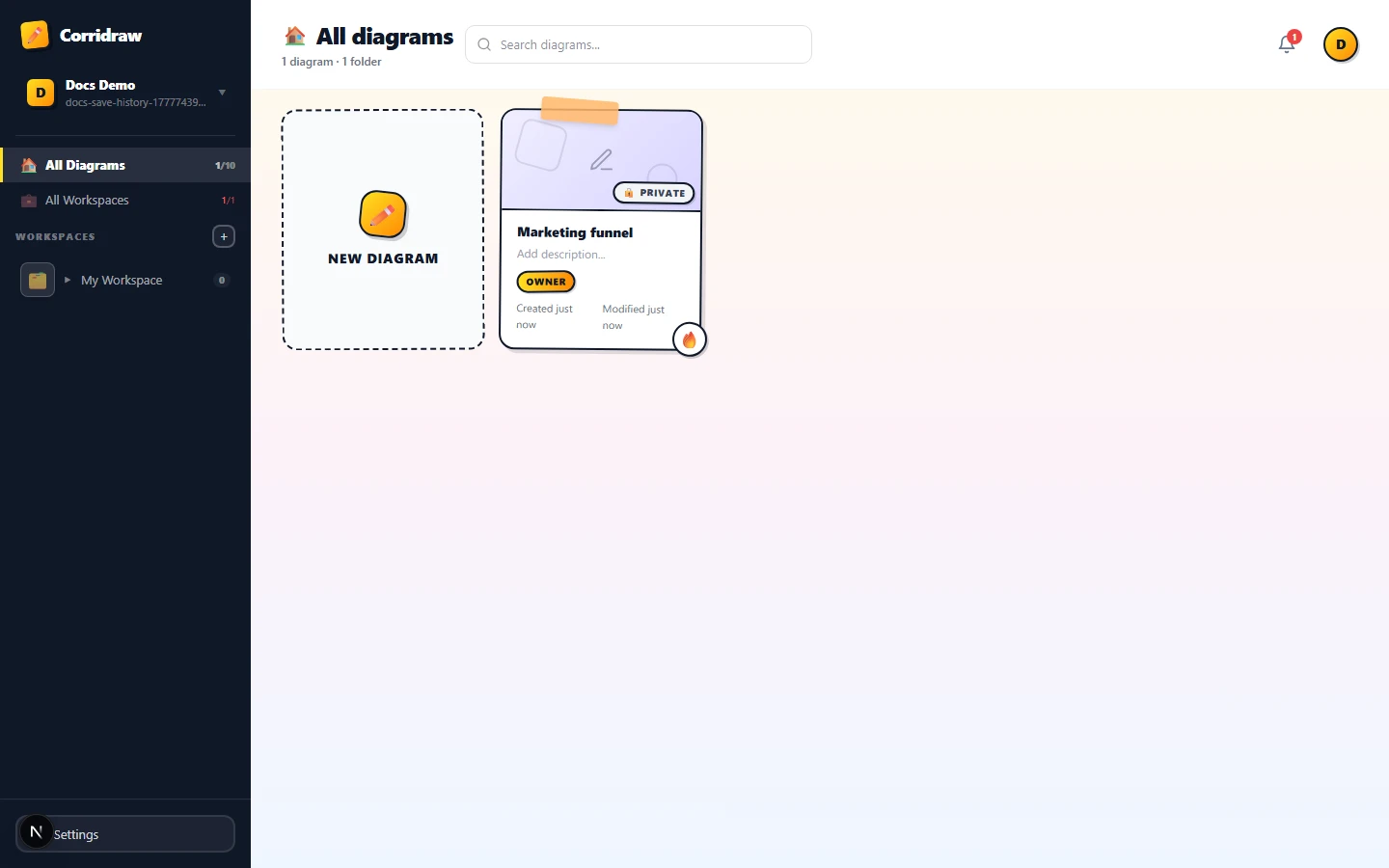
The moment you sign in, two things change. First, the local autosave keeps running exactly as before — it is your offline safety net. Second, a parallel sync writes your scene to your CorriDraw workspace on the server, with the same 1-second debounce. Open the same diagram on another browser, your phone, or your laptop after a flight, and the latest version is already there.
Conflicts between two devices are handled with the same merge logic CorriDraw uses for live collaboration — every element carries a version stamp, and the newer write wins per-element. So in practice you can edit the same file on a tablet during your commute and on your laptop at the office without losing work, even if both went offline briefly.
Saving a portable copy on demand
When you want a hard copy on your own disk — for a milestone snapshot, a Git commit, or a backup before a destructive edit — open the Main menu (the hamburger icon in the top-left of the editor) and choose Save to…. The browser’s native file picker opens, you pick a location, and a .corridraw file lands on disk. From that point on the editor remembers the file handle and quietly writes back to it as you work.
Version history: every commit is kept
Every save the server accepts is a version. The dashboard groups versions into a timeline you can scrub through — the editor itself never deletes them. How long they stick around depends on your plan:
- Free — 30 days. Older versions are pruned nightly.
- Pro — 90 days. Plus weekly backups for an extra rollback safety net.
- Enterprise — unlimited. Combined with daily backups and an SLA on retention.
The retention window is rolling. A version saved on day 1 of a Pro plan is still recoverable on day 90, but on day 91 it falls out of the window and is removed. If you need to keep a milestone forever, open the Main menu and choose Save to… to drop a .corridraw file somewhere durable — Drive, Dropbox, Git, your own NAS.
How to revert
Reverting is non-destructive: it pulls the older version forward as a new version, so the current state is preserved in the timeline as well.
- Open the diagram from the dashboard.
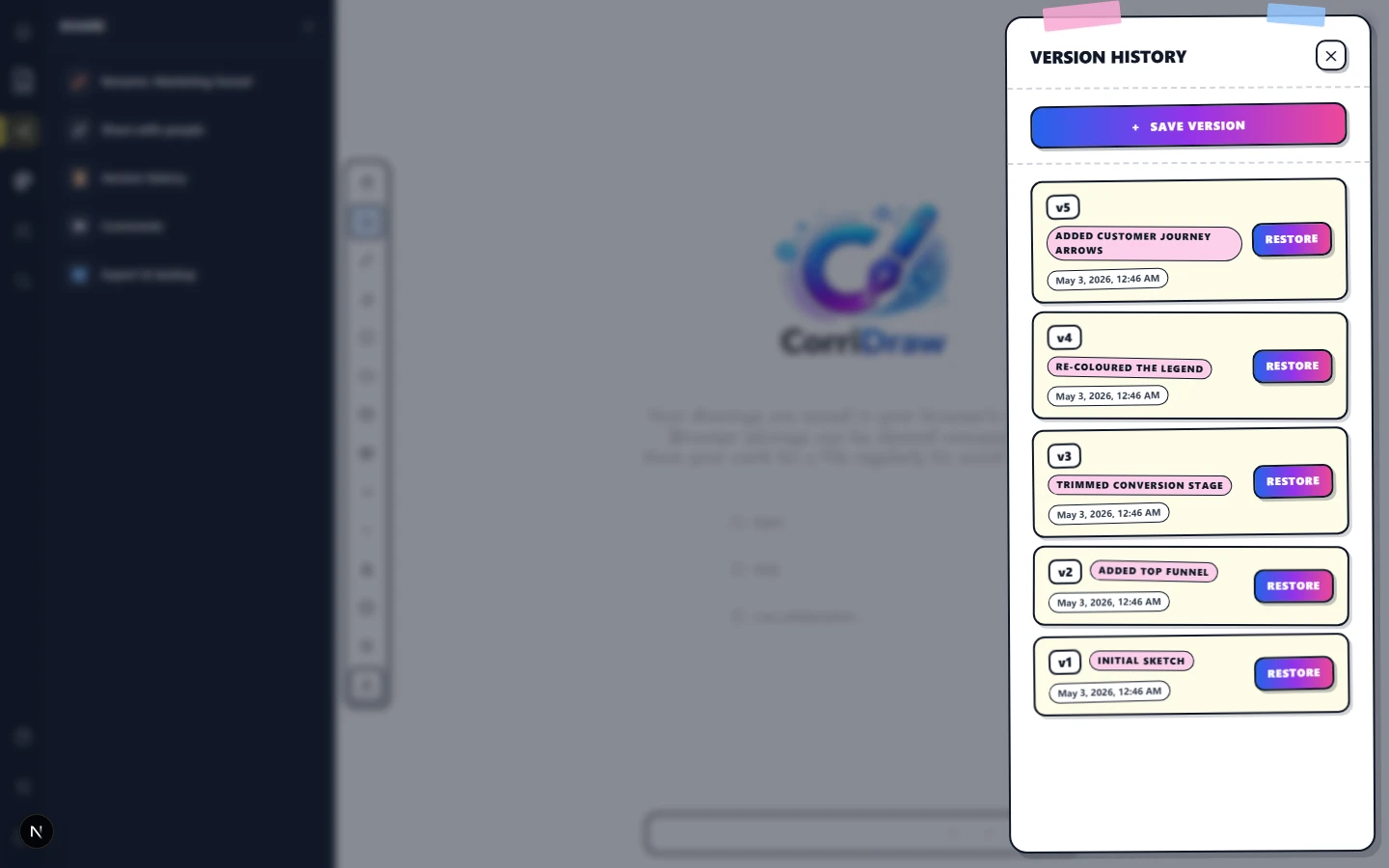
- Open the Main menu (top-left hamburger) and choose Version history. The version-history panel slides in from the right with a dimmed backdrop behind it.
- The panel shows a scrollable list of saves, grouped by day. Each entry has a thumbnail, a relative timestamp (2 minutes ago, yesterday at 14:02), and the email of the collaborator who made the change.
- Click any entry to preview it on the canvas in read-only mode.
- If it is the version you want, click Restore this version. The editor adds a fresh save on top of the timeline that contains the restored content. You have not lost anything; you have just added a new commit.
Restoring a single element
If only one shape went wrong — you accidentally deleted the legend, or someone moved a frame — you do not have to roll back the whole diagram. Open the version that still has the element, right-click it and choose Copy, close the version preview, then right-click on the canvas and choose Paste. The paste lands at the original coordinates, so it slots right back where it belonged. (Ctrl+C and Ctrl+V do the same thing if your hands are already on the keyboard.)
What is not in version history
A few things are deliberately excluded from the per-second sync:
- Cursor positions and zoom level — they belong to the device, not the diagram.
- Library items (Personal Library) — they live in IndexedDB and have their own separate sync.
- The contents of any linked resource — embeds load live from YouTube, Figma, Vimeo, etc. The version snapshot stores the URL, not the content behind it.
A diagram with a YouTube embed and a Figma embed — the embeds reload live, only the URL is versioned
/screenshots/docs/save-history-4.png If you ever feel unsure about the sync state, the dashboard always wins: a diagram listed there with a green check has been written to the server. From that point on, your work is protected by the same retention guarantees as the rest of your workspace.