
Roughness (sloppiness)
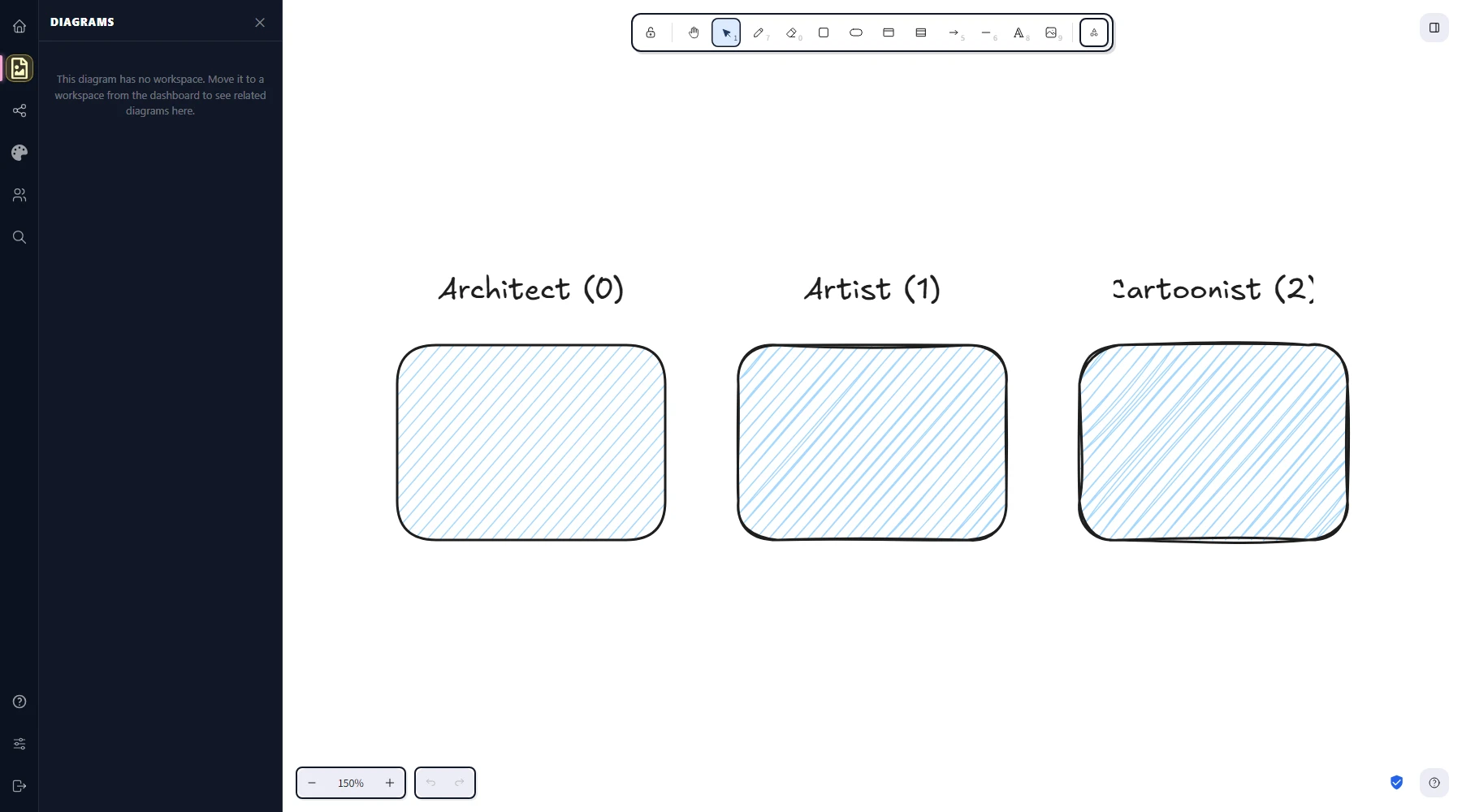
Choose between architect, artist, and cartoonist roughness levels in CorriDraw to control how hand-drawn each shape feels.
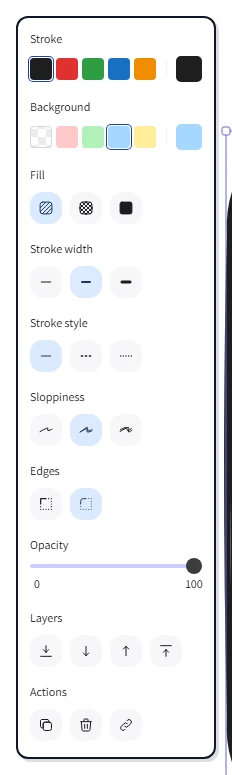
The hand-drawn look in CorriDraw isn't a single setting — it's a small dial with three steps: Architect, Artist, and Cartoonist. Together they let the same flowchart feel like a clean technical document, a thoughtful sketchbook page, or a wobbly napkin doodle. The control is labelled Sloppiness in the right-hand properties panel.
How roughness works
Under the hood, every shape is rendered through rough.js, a tiny library that takes a clean geometric path and re-emits it as a sequence of slightly imperfect strokes. The roughness value (an integer: 0, 1, or 2) tells rough.js how far each stroke is allowed to wander from the ideal line. Zero means almost no wander; two means a generous helping of wobble.
The three presets
Click any shape to select it, then look in the right-hand properties panel for the Sloppiness row. It shows three icon buttons. Click one to apply:
- Architect (roughness 0) — almost-straight lines. Perfect for technical diagrams that still want a touch of warmth without sacrificing clarity. Walls in a floor plan, rectangles in a UML diagram, gridded layouts.
- Artist (roughness 1) — the default. A relaxed sketchbook feel with visible but disciplined wobble. The level used by virtually every screenshot in this documentation.
- Cartoonist (roughness 2) — generous jitter, as if drawn quickly with a marker. Great for brainstorming canvases, fast wireframes, or anything that should feel deliberately rough.
On phones and tablets, the same three buttons live inside the side panel that slides out from the hamburger button at the top of the screen.
The seed — why two identical shapes look different
Each shape stores a random integer called its seed. The seed feeds rough.js and decides exactly where the wobbles fall. Two rectangles with the same width, height, and roughness will still look slightly different because their seeds differ — that's what stops a row of boxes from looking like a robotic copy-paste and is a big part of why hand-drawn diagrams feel alive.
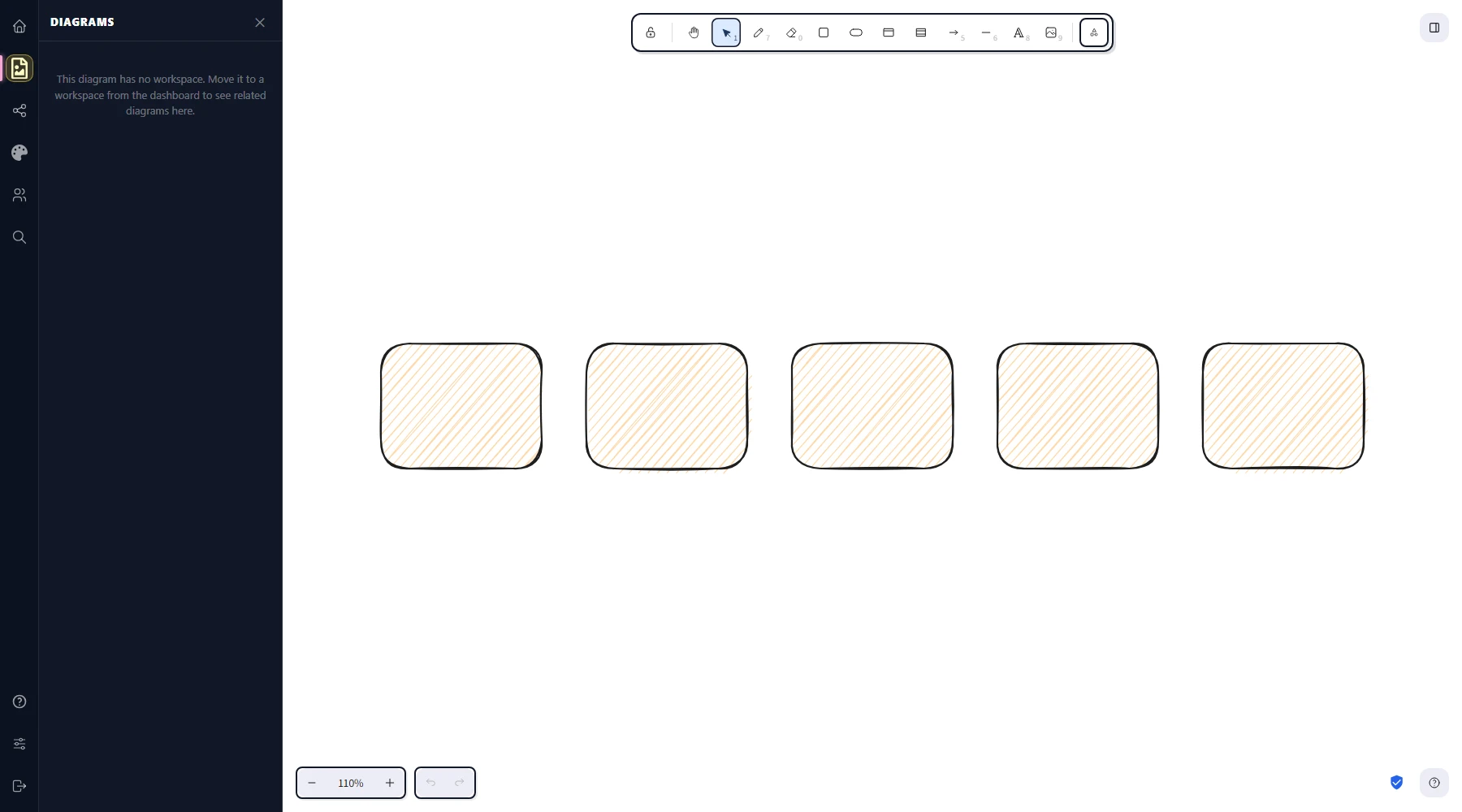
The seed is also stable: redrawing the canvas, zooming, or scrolling does not re-roll it. Once a shape is drawn, its wobble pattern stays put. A re-roll only happens when you click a different sloppiness button — switching from Architect to Cartoonist generates a fresh seed so the new look isn't biased by the previous one.
When to choose which level
Use Architect for stakeholder-ready diagrams — system maps, ERDs, schematic floor plans — where the wobble is part of the brand but you want the geometry to feel deliberate. Use Artist for everyday work: docs, README diagrams, lecture notes. Reach for Cartoonist when the rough quality is the point: a brainstorming canvas, a "this is intentionally rough" mockup, or anything where polish would actively distract.
Mixed selections
Select shapes at different roughness levels and the three buttons all sit unhighlighted. Click any one and every selected shape jumps to that level — and each one gets a fresh seed, so the new look is independent across the group instead of being a uniform stamp.
Performance note
Higher roughness levels emit more SVG paths per shape, so a canvas of a thousand cartoonist-level rectangles will render slower than a thousand architect-level ones. For dense diagrams (large libraries, generated charts) prefer Architect — it's also the most legible at small zoom levels because the wobble doesn't dominate the silhouette.