
Color pickers
Use the CorriDraw color picker to choose preset palette swatches, type custom hex codes, sample colors, and reuse recently picked colors.
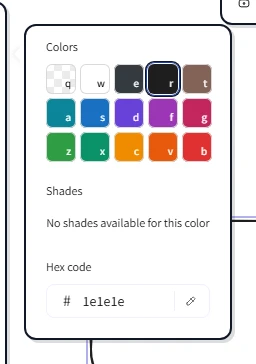
The color picker shows up in three places: the Stroke swatch in the right-hand properties panel, the Background swatch directly below it, and the Canvas background setting in the main menu. It always works the same way — a row of top picks, the full curated palette, a hex input, and (where it makes sense) the colors you've used recently. This page walks through every section and explains how the picker behaves when your selection has mixed colors.
Open the picker
Click any shape on the canvas to select it. The properties panel slides in along the right edge with two coloured swatches at the top — the upper one is Stroke (outline color) and the lower one is Background (fill color). Click either swatch to pop the picker open as a panel beside it. On phones and tablets the same swatches sit inside the side panel that slides out from the hamburger button; tap the swatch to open the full-width picker.
Top picks
The first row of the picker is Top picks — five large swatches at the very top. They're a curated short-list of the most common colors for the surface you're editing (different sets for stroke vs background) so you can land on a sensible color in one click without scanning the full palette. Click the swatch you want; the canvas updates immediately and the picker stays open in case you want to adjust again.
The base palette
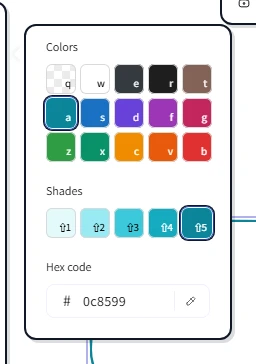
Below the top picks sits the curated palette: a grid of base colors organized by hue. Click a base color and a row of Shades appears beneath it — usually five or six steps from light to dark. Click the shade you want, and that's your final color. On touch, tap to pick the base, then tap again on a shade to commit.
Hex code input
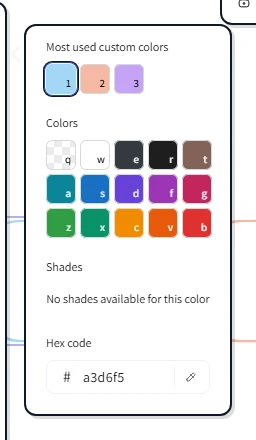
For colors not in the curated palette, click into the Hex code input at the bottom of the picker and type or paste a hex value. CorriDraw accepts the usual six-digit form (#a3d6f5), the three-digit shorthand (#1ab), and shapes without the leading hash. The preview updates the moment the value is valid.
Next to the hex input sits the eye-dropper icon. Click it, then click anywhere on the canvas, and CorriDraw samples the color of the pixel under your cursor — useful for matching the color of an imported image or another shape exactly without having to read its hex value first.
Recently used custom colors
The first time you pick a custom color (anything outside the curated palette), it joins a per-scene list of Most used custom colors. Open the picker again later in the same drawing and you'll see those colors as a row at the very top. The list is sorted by frequency of use, so the colors you reach for most often are easiest to find. Standalone curated colors don't appear here — only your custom ones, so you don't have to scroll past colors you'd find in the palette anyway.
Mixed selections
When you select multiple shapes that have different colors, the swatch in the properties panel shows a neutral, non-highlighted state — there's no single value to display. Open the picker and no swatch in the palette is marked active either. Click any color and CorriDraw applies it to every selected element in a single undoable step.
This behaviour is intentional. You can't accidentally "see" only one of the selected shapes' colors and lose track of the others; the picker tells you up-front that the selection is heterogeneous.
Transparent backgrounds
The very first swatch in the background picker is Transparent, drawn as a checkerboard pattern. Click it to clear the fill — useful when a shape is purely a border (a wireframe outline, a region marker) or when you want whatever's behind the shape to show through.
Keyboard shortcuts inside the picker
If you've opened the picker by mouse but want to commit by keyboard, the picker accepts navigation while focused: arrow keys move between swatches, 1 through 9 jump to the matching base color or custom color in the active row, Enter commits, and Esc closes the picker without applying. Holding Shift while clicking a base color skips the shade row and applies the base directly — the fastest path when you don't care about fine-tuning the lightness.