
Export formats
Every format CorriDraw can produce — PNG with embedded scene metadata, SVG, PDF, the portable .corridraw file, and one-click clipboard copies.
Every diagram you draw in CorriDraw can leave the editor in five different shapes — a flat raster, a scalable vector, a print-ready PDF, a portable scene file, or a single clipboard paste. Pick the one that matches what you are about to do with it. This page walks through each format, the use case it was built for, and the exact menu path to trigger it.
Where the export menu lives
All five formats share a single entry point: the Main menu hamburger in the top-left of the editor. Open it and choose Export image… for any image format, or Save to… for the portable .corridraw scene file. The image-export dialog is a single panel with the four image buttons — PNG, SVG, copy-to-clipboard, and (on Pro and Enterprise) PDF — plus the toggles that apply to all of them.
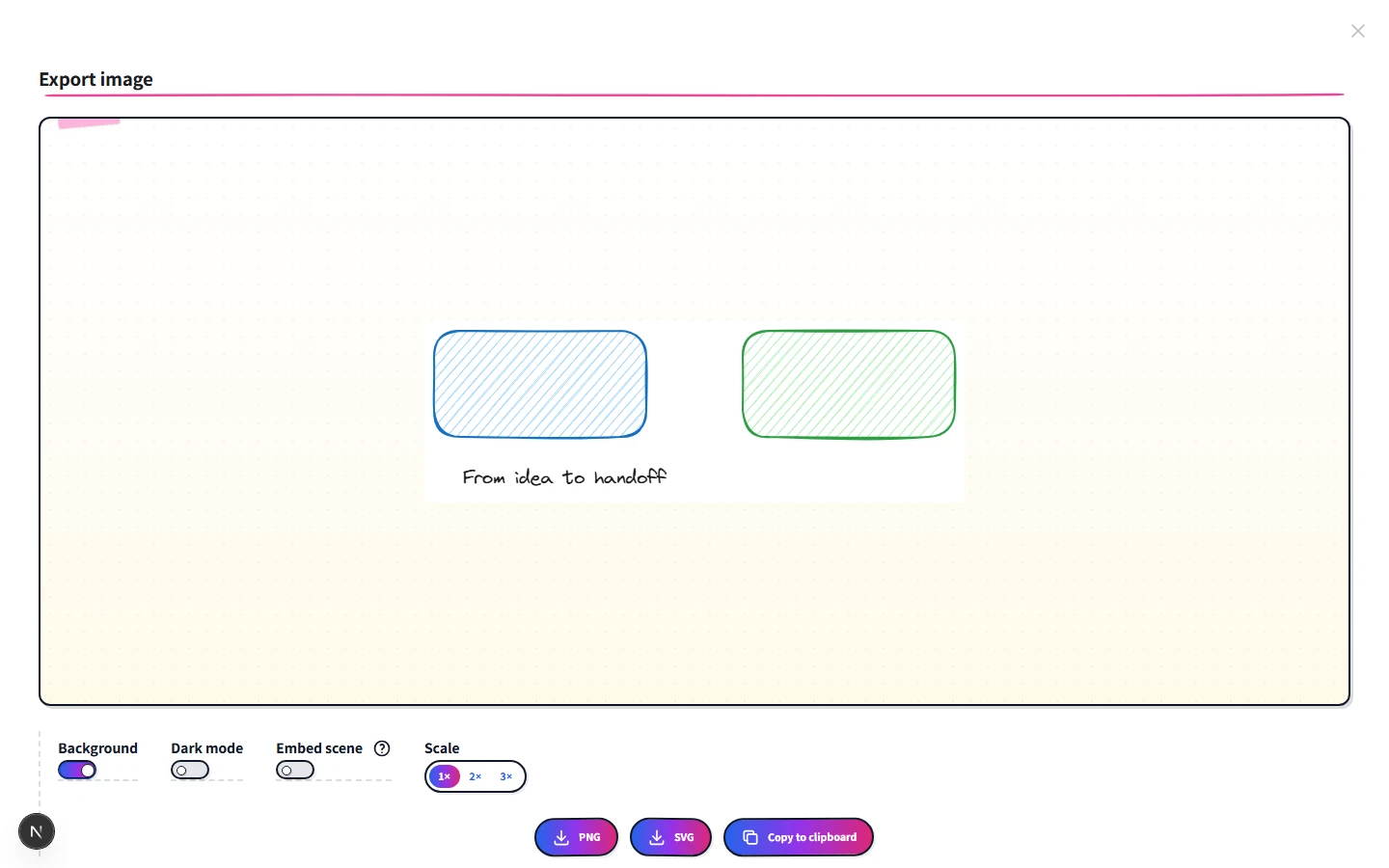
The shared controls at the top of the dialog are:
- Background — include the canvas background colour, or export on transparent.
- Dark mode — re-render with dark-theme colours, regardless of the editor theme.
- Embed scene — bake the editable scene data into the file (covered in detail below).
- Scale — 1×, 2×, or 3×. Affects raster outputs only; SVG scales infinitely.
- Padding — extra whitespace around the bounding box of the exported elements.
- Only selected — appears when at least one element is selected. Limits the export to that selection rather than the whole canvas.
PNG — with embedded scene metadata for round-trip
PNG is the workhorse. It is what you paste into Slack, Notion, Linear, a Google Doc, or a customer email. To produce one, open the Main menu, choose Export image…, and click the PNG button at the bottom of the dialog. The file lands in your downloads folder named after the project (my-diagram.png).
What makes CorriDraw’s PNG different is the Embed scene toggle at the top of the dialog. When it is on, the entire editable scene — every element, every styling decision, every uploaded image — is compressed and written into the PNG’s metadata as a tEXt chunk. Anyone you send the PNG to can drop it back onto a CorriDraw canvas and recover the full editable scene, not just a flat picture.
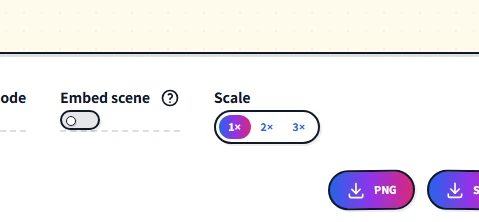
Reach for PNG when the destination is a chat tool, a document, a presentation slide, or anywhere a static raster is the right answer. Use it with Embed scene on when you want the recipient to be able to keep editing.
SVG — scalable vector for the web
SVG keeps the diagram’s vector geometry intact, so it scales to any size without blurring. From the same Main menu → Export image… dialog, click the SVG button. SVG also supports the same Embed scene trick: the scene is base64-encoded into a hidden payload tag inside the SVG, and CorriDraw can read it back when you import the file.
Reach for SVG when:
- You are embedding the diagram in a webpage or a documentation site (Astro, Docusaurus, MDX) and you want it to look crisp at any resolution.
- You are handing the result to a designer who will continue editing it in Figma, Illustrator, or Inkscape.
- You need a printable artefact at unknown final size — a poster, a wall-sized timeline.
PDF — print-ready, on Pro and Enterprise
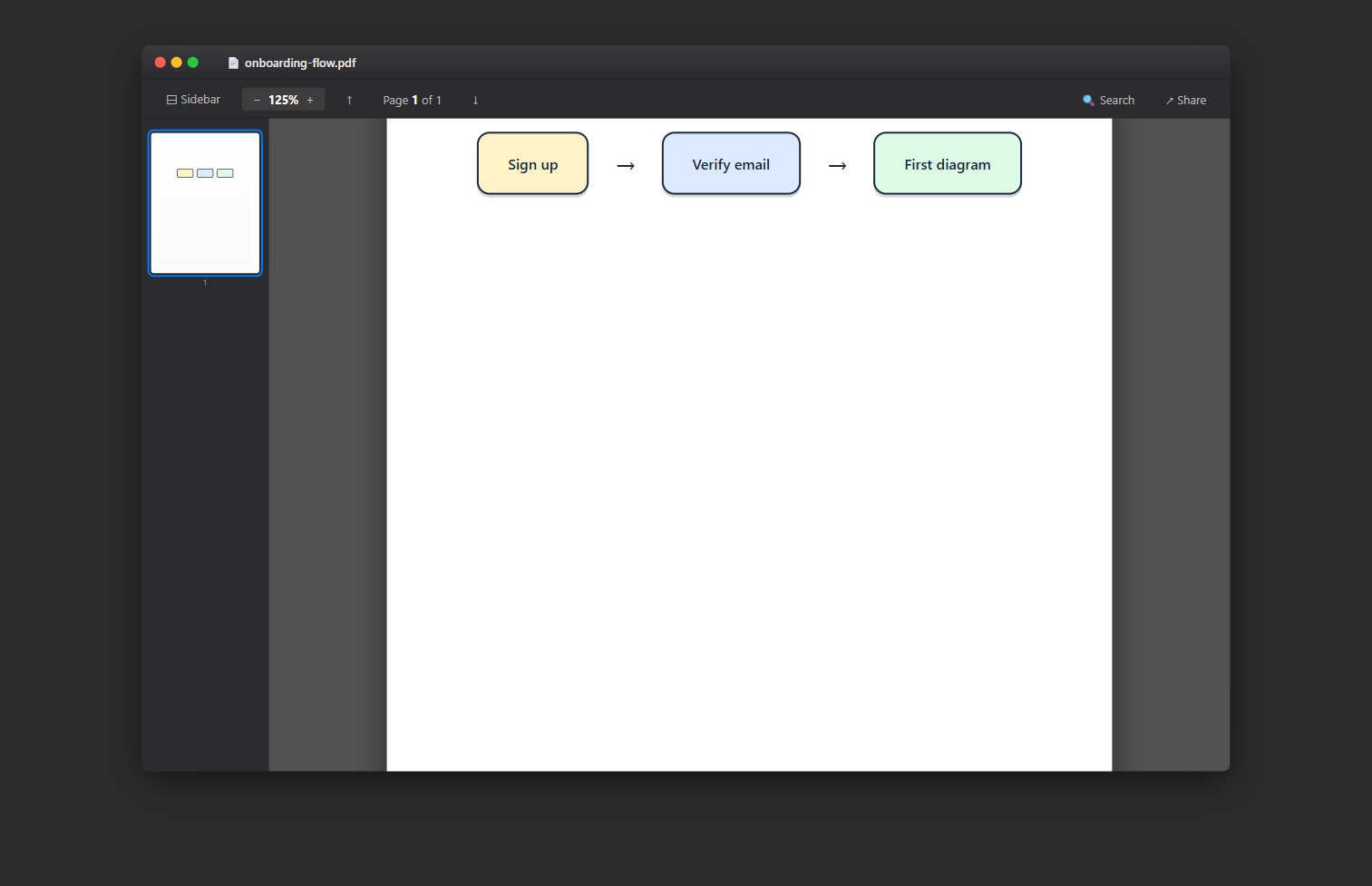
The PDF button sits next to PNG and SVG inside the same export dialog, on the Pro and Enterprise plans. Open the Main menu → Export image… and click PDF. CorriDraw produces a single-page PDF with the diagram fitted to the page bounds, vector quality preserved, and the same dark-mode and padding controls applied. Margins follow the Padding slider so the output is ready for letterhead or a printer with non-zero unprintable margins.
Use PDF when you need a sharable, portable, archivable artefact that opens identically on every device — the kind of thing you attach to a board pack, a customer proposal, or a regulatory submission.
JSON — the .corridraw portable scene file
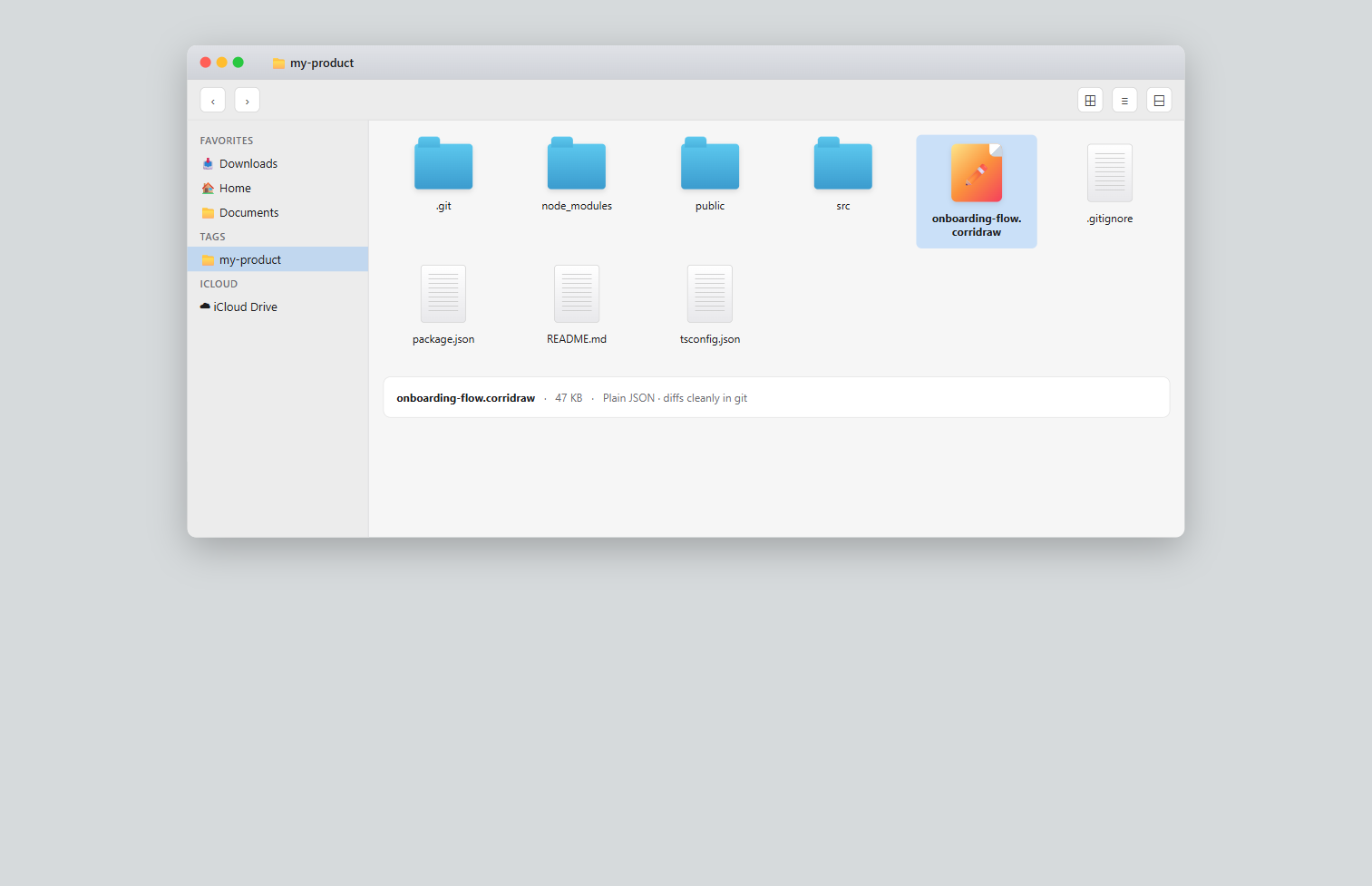
The .corridraw file is the editor’s native, fully-editable scene format. It is plain JSON: every element, every styling property, every image reference, plus the version of the schema and a small chunk of app state (zoom, view mode). The file is canonical — anything you can do in the editor is faithfully represented in the file, and reopening it puts you exactly where you left off.
To produce one, open the Main menu (top-left hamburger) and choose Save to…. The browser’s native file picker opens, you pick a location, and the file lands with the .corridraw extension and an application/vnd.corridraw+json MIME type. From then on the editor remembers the file handle and writes back to it on every save.
Reach for the .corridraw file when:
- You want a long-term archive that does not depend on our server retention policy.
- You are version-controlling diagrams alongside source code in Git.
- You are migrating between workspaces, or sharing with someone who runs a self-hosted CorriDraw deployment.
- You want a local snapshot before making a destructive edit.
Copy to clipboard — one paste away
The fastest export is the one with no file. Open the Main menu → Export image… and click Copy to clipboard; the current canvas (or selection, if you have one) is rendered to a PNG and put on your clipboard. From there, paste it directly into Slack, Notion, Discord, an email, a GitHub issue, or anywhere else that accepts an image paste.
The clipboard copy honours the same dialog toggles — background, dark mode, padding, scale — so configuring them once and then triggering the action repeatedly is the practical workflow when you need to share five screenshots in a row.
Picking a format at a glance
- Pasting into Slack/Notion/Docs — PNG (or clipboard copy).
- Embedding in a website — SVG.
- Printing or signing off — PDF.
- Long-term archive, Git, or transfer between workspaces —
.corridraw. - Sending to a teammate who will keep editing — PNG with Embed scene on, or
.corridraw.