
Frames
Use frames in CorriDraw to group related content into a labelled region. Wrap a selection, name a frame, and turn one into HTML with Magic Frame.
A frame is a labelled region on the canvas that groups related content together. Drop a flowchart inside one and you've got a self-contained section you can move, export, or annotate as a unit. Frames also act as the conceptual unit for two of CorriDraw's most useful features: per-frame export, and the AI-powered Magic Frame that turns a sketch into working HTML.
Pick the frame tool
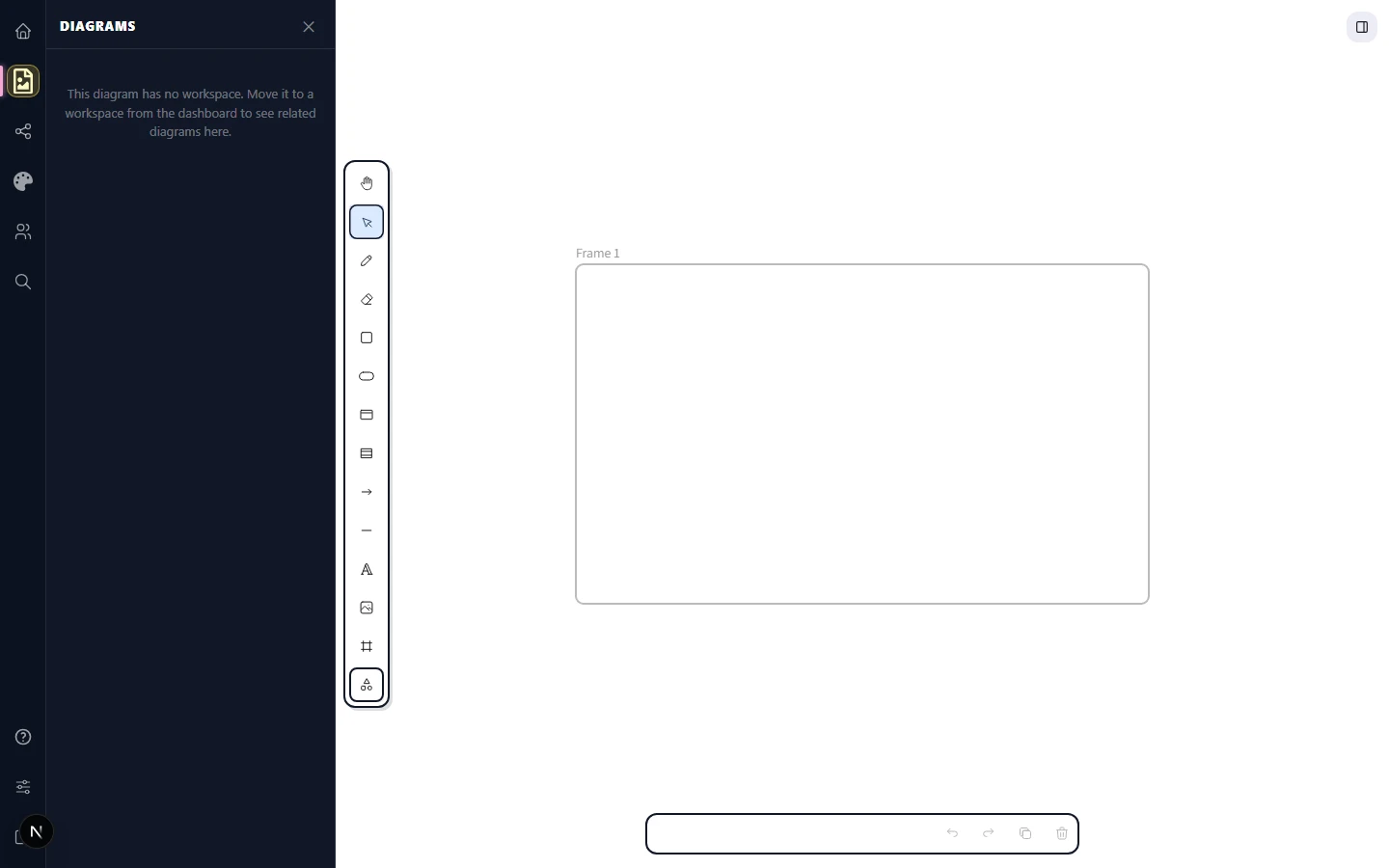
Click the Frame icon on the top toolbar — it sits in the right-hand cluster, next to the laser pointer and Web Embed buttons, and looks like a small empty rectangle with a label tab on top. With the tool active, drag on the canvas the same way you'd draw a rectangle — release to commit. The frame appears with a subtle grey border, a name field at the top-left, and an empty interior waiting to be filled. On a tablet, the frame icon lives in the bottom toolbar.
Name a frame
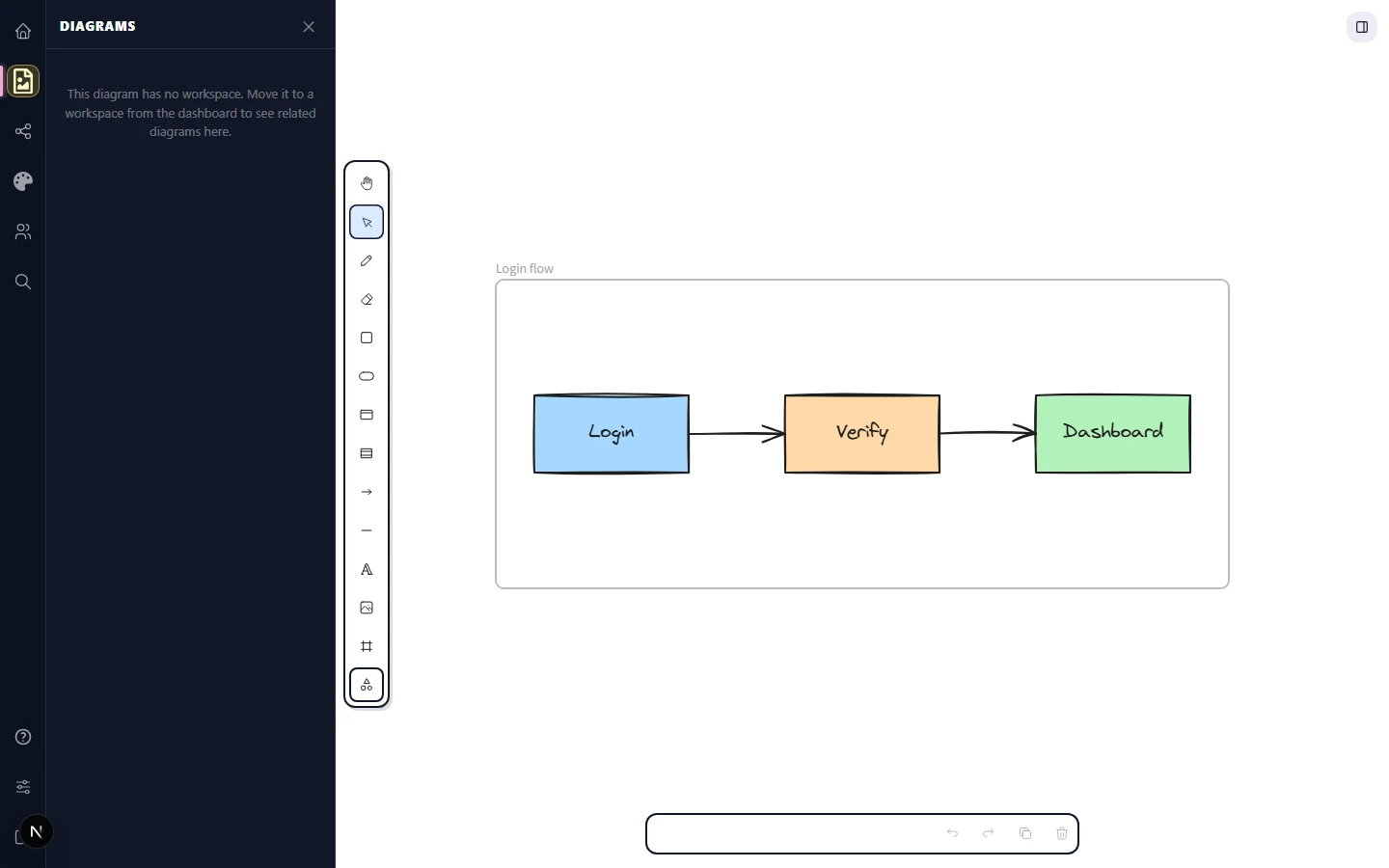
Click the name label at the top-left corner of any frame to rename it. Type a meaningful name and click outside (or press Enter) to commit. The default Frame N auto-numbers each new frame, but real names ("Login flow", "Settings modal", "Phase 2 architecture") make the canvas dramatically easier to navigate later — they show up in the Search dialog so you can jump to a frame by typing a few letters of its name.
Add content to a frame
Drag any element so its centre crosses the frame's edge — the frame's border briefly highlights, indicating the element is now part of the frame. From that point on, moving the frame moves all its contents with it; resizing the frame reflows the children's clip but doesn't scale them.
Conversely, drag an element out of a frame and it stops belonging. There's no manual "add to frame" step — membership is purely a function of overlap.
Content auto-grow
Frames don't clip content out of view — they automatically grow to encompass whatever you drag past their edges. If you drop a shape with its centre inside the frame but with edges spilling over, the frame's boundary expands so the shape sits cleanly inside. The same happens when an element inside the frame is resized larger than the frame itself.
This means you almost never have to "fix" a frame size manually. Sketch first, name the frame second, and the boundary takes care of itself.
Wrap a selection in a frame
Already have a few shapes on the canvas you want to bundle? Select them with the selection tool — drag a marquee around them, or shift-click each one — then right-click the selection and pick Wrap selection in frame from the context menu (the same action also lives in the actions menu next to the properties panel). CorriDraw draws a frame snug around the selection's bounding box and adopts every selected element as a child. This is faster than drawing a frame around content you've already positioned.
Per-frame export
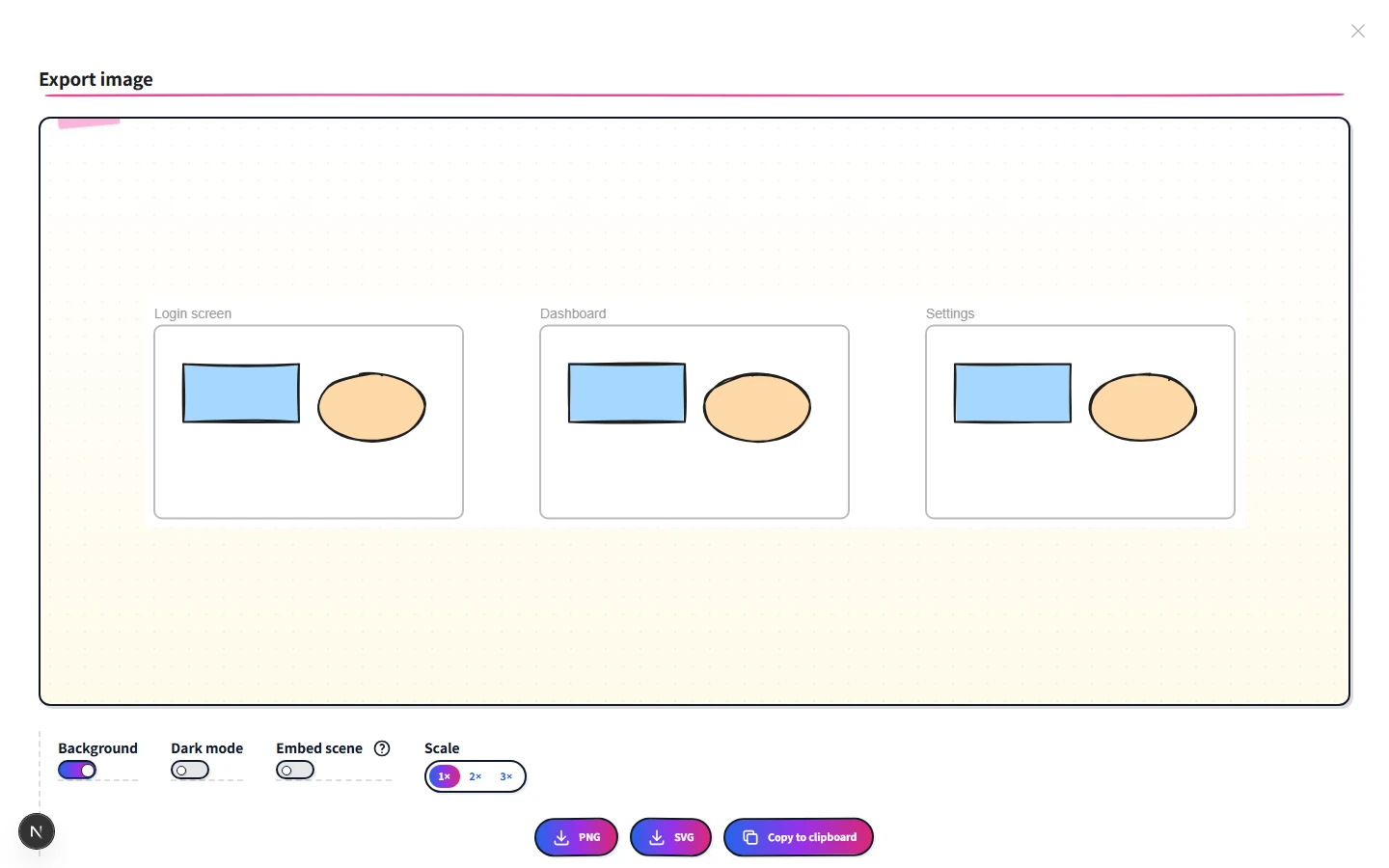
Frames double as export units. Open the hamburger menu in the top-left and click Export image. In the dialog, tick Export each frame separately and pick PNG, SVG, or PDF — CorriDraw exports each frame as its own file. Perfect for shipping a UI flow as a sequence of mockups, or generating one image per architecture stage.
Magic Frame
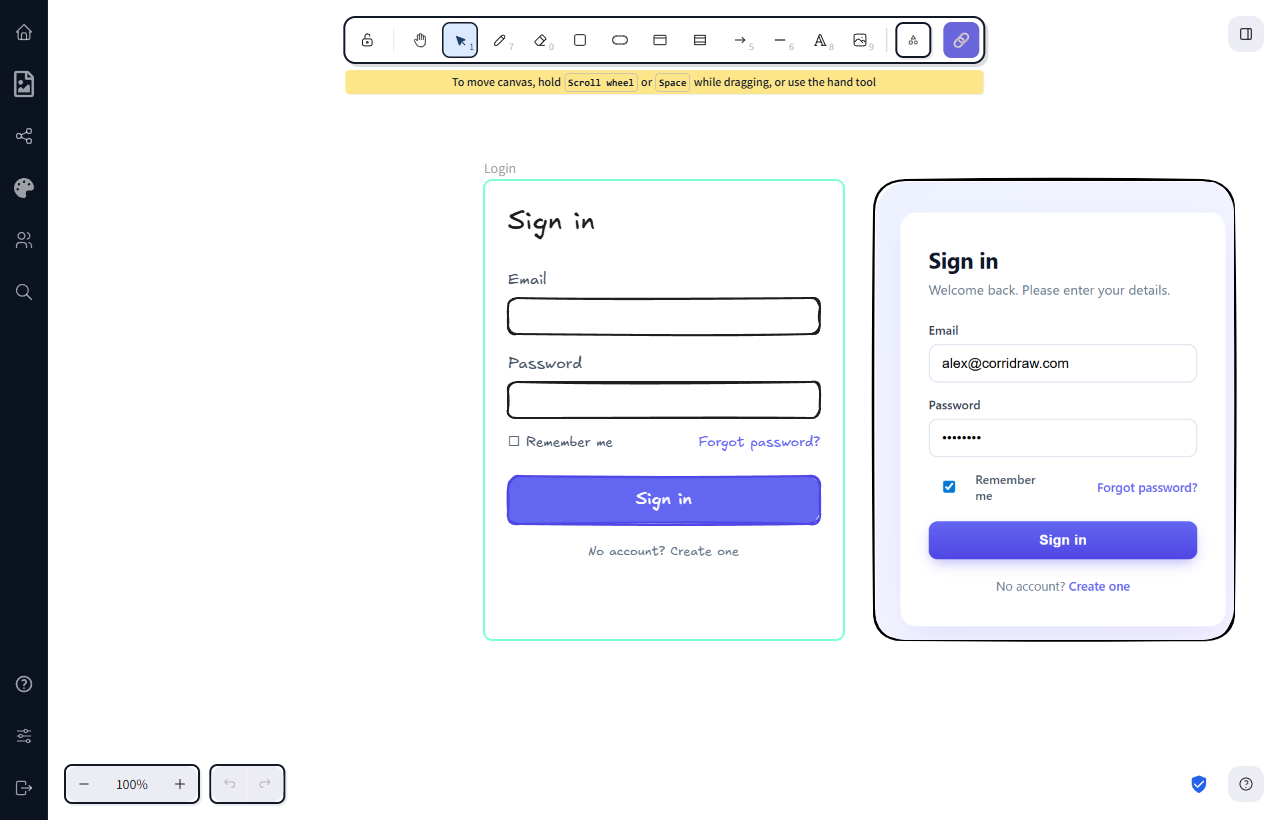
Magic Frame is CorriDraw's AI feature that turns the contents of a frame into a working HTML/CSS/JS snippet. Sketch a UI inside a frame — boxes for buttons, labels for fields, a heading at the top — then click Magic Frame from the actions menu (or right-click the frame and pick it from the context menu). CorriDraw sends the frame's contents to a vision-capable model that returns the HTML; the result lands as an embeddable element on the canvas you can preview live.
For the full walkthrough, including prompt tips and supported components, see the Magic Frame guide.
Removing frame membership
To take an element out of a frame without dragging it physically away, right-click and pick Remove from frame. The element keeps its position but no longer moves with the frame. Conversely, right-click the frame itself and pick Select all elements in frame to grab everything the frame currently owns — handy when you want to copy an entire flow to a different scene.