Posting & voting
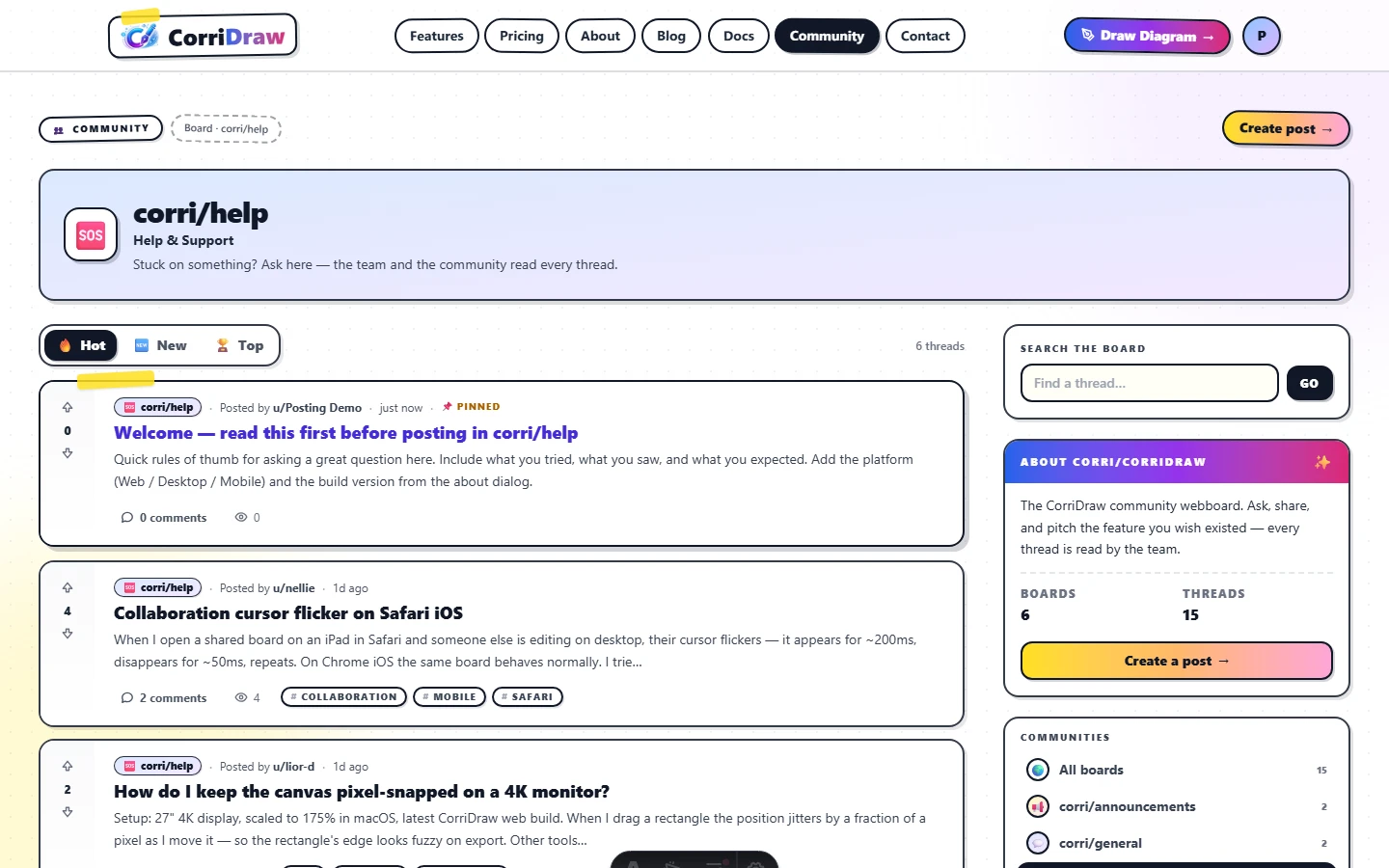
Compose threads at /community/new, pick a category, add tags, and post text, image, or link. Plus the markdown subset, voting model, and reply etiquette.
Once you're signed in, the orange Create post button on the webboard takes you to /community/new. The composer is built around three post types — Post, Images, Link — and a single category dropdown that decides which board your thread lands in.
Picking a category
The very first field on the composer is the community selector. Open it, pick the board that matches your post, and read the one-line description that appears under the dropdown — it's there because what counts as "Help" vs. "Feature request" isn't always obvious. Quick rule of thumb:
- You hit something that should work and didn't → Help & Support.
- You want something that doesn't exist yet → Feature Requests.
- You made something cool → Show & Tell.
- You wrote a how-to → Tutorials.
If you arrive at the composer from a category page (e.g. you clicked New post from
inside corri/help), the dropdown is pre-selected to that category. You can still
change it.
Three post types
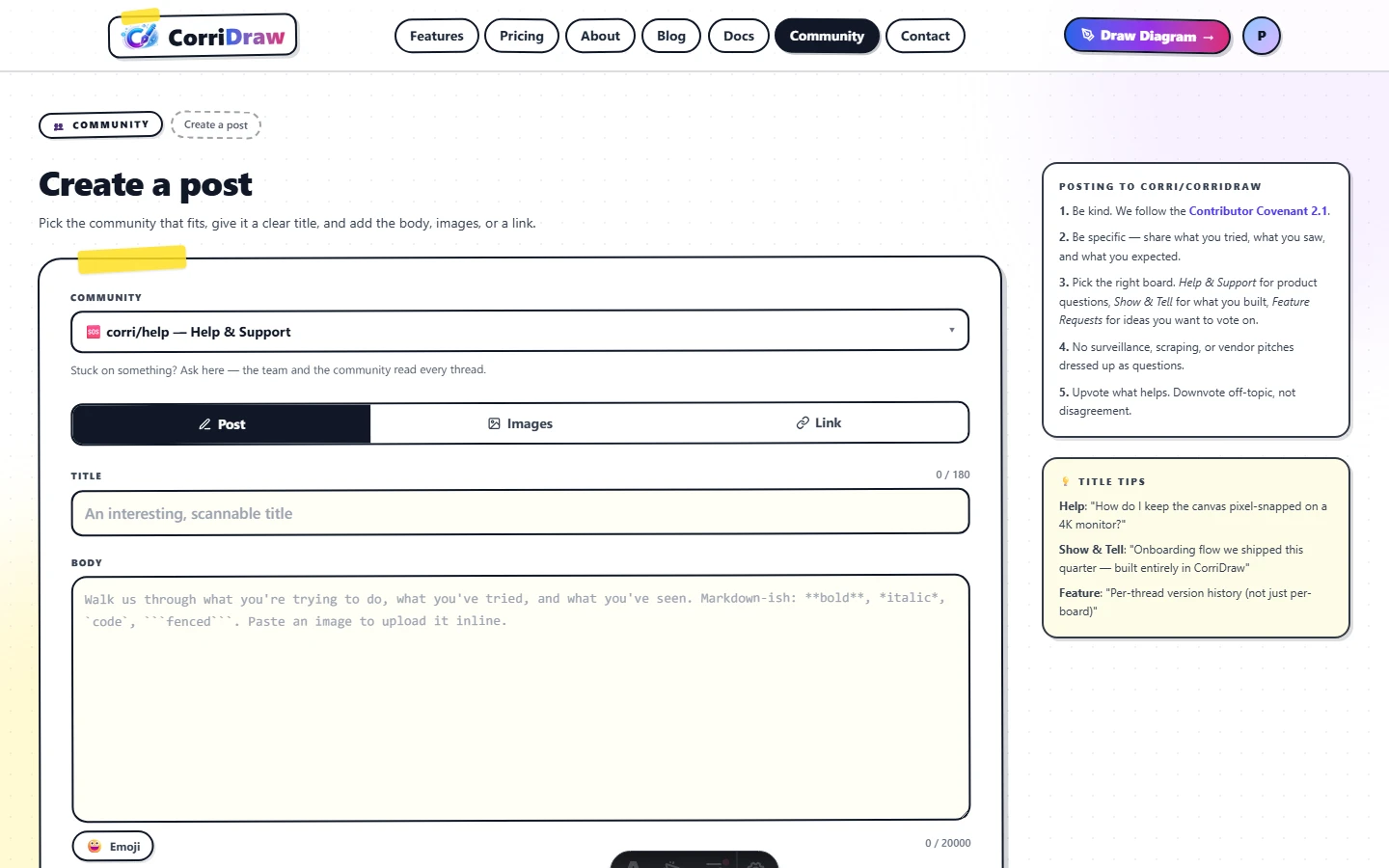
Below the title field, the tab strip switches between three composer modes:
- Post — a Markdown-ish textarea. Use this for questions, discussions, tutorials, and anything else that's primarily text.
- Images — drag, paste, or pick image files. Each upload is sent to
/api/community/uploadsimmediately so the URL is ready by the time you click Post. PNG, JPEG, GIF, and WebP are accepted, up to 5 MB per file. - Link — a URL plus an optional caption. The link's domain is shown on the thread row in the feed so other users can see where it points before clicking.
Behind the scenes, all three modes serialize down to the same field: a Markdown body. So an
image post is just a paragraph of caption followed by  lines, and a
link post is the URL on its own line plus the caption. You can edit any post later as plain
Markdown — the type tabs are just a friendlier on-ramp.
Title rules
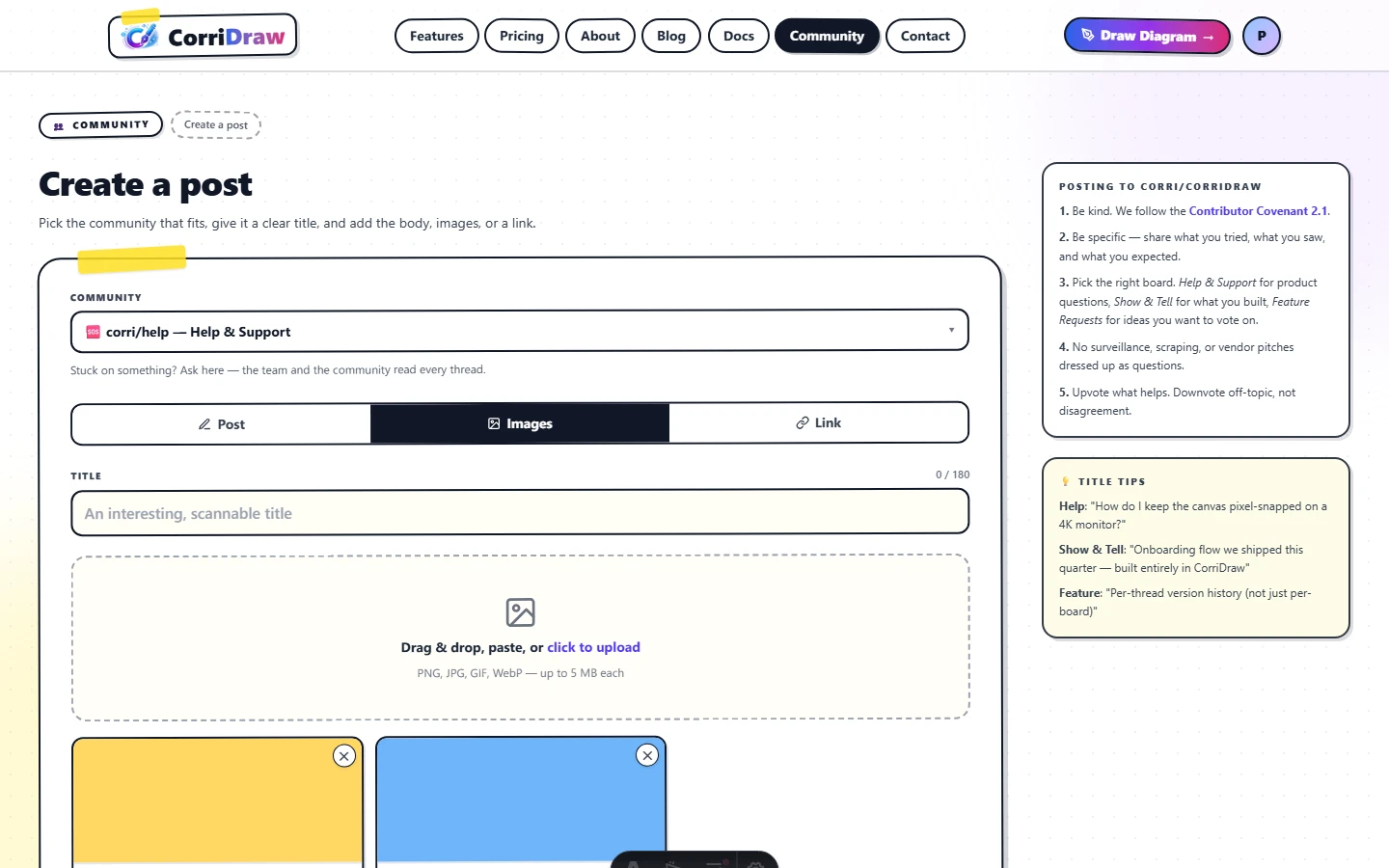
Titles must be at least 8 characters and no more than 180. The character counter on the right of the title field turns amber once you're within 20 of the limit and red if you blow past it — the submit button stays disabled until you trim it back. The composer's right rail has a few example titles for each board to help you frame yours.
Tags
The Tags field below the body takes up to five comma-separated tags. Tag slugs are
lowercase, hyphenated, and don't need a leading # (the form strips it if you add
one). Existing tags get re-used; new ones get created on the fly. Tags drive the
Popular tags grid in the right rail of the webboard, and they're matched by the
site search, so they're the lowest-effort way to make your thread findable.
Good tag examples: mobile, collab, export-png,
arrows, onboarding. Avoid generic ones like question or
help — the category already conveys that.
The Markdown subset
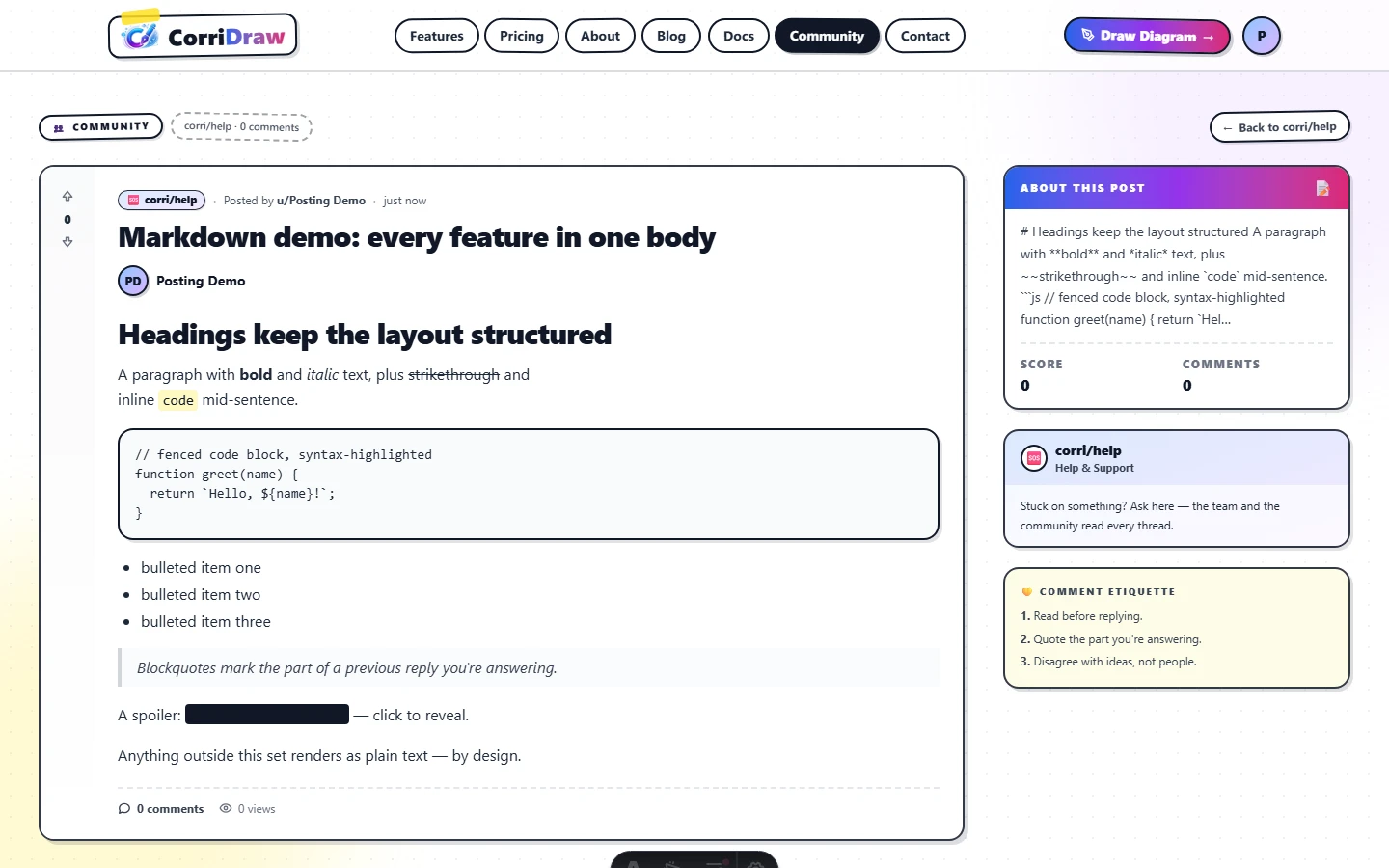
Bodies are rendered through a custom safe-Markdown pipeline — no raw HTML passes through, by design. The supported syntax is intentionally small but covers everything a help thread needs:
- Headings —
# H1through###### H6(one heading per line, blank line above and below). - Bold —
**bold**. Italic —*italic*. Strikethrough —~~struck~~. - Inline code —
`thing`. Fenced code — triple-backtick blocks with an optional language tag. - Bulleted lists — every line begins with
-,*, or+. Ordered lists — every line begins with1.,2., … - Blockquotes — every line begins with
>. - Horizontal rule — three or more
---,***, or___on a line by themselves. - Links —
[label](https://…)or relative paths starting with/. Bare http(s) URLs are auto-linked. - Images — only the form
renders. External image URLs are shown as plain text links — upload the file through the Images tab if you want it inline. - Spoilers — Reddit-style
>!hidden!<blurs the text until you click it.
Anything else (raw HTML tags, JS schemes, JS event attributes, <script>) is escaped to plain text. The threat model is that every post is hostile until proven otherwise.
Voting
Every thread and every reply has a vote stack — up arrow, score, down arrow. The score is upvotes minus downvotes. Voting is one-click; clicking the same arrow again retracts your vote, clicking the opposite arrow flips it.
Voting only works when you're signed in. Trying to vote signed-out shows the
sign-in prompt and bounces you to /login with a redirect back to the thread.
The community guideline is the same one Reddit ships with: upvote what's helpful or interesting; downvote off-topic or wrong, not just disagreement. Disagreement is what the reply field is for.
Reply threads
Replies are nested. Each top-level reply can have its own children, and each of those can have grandchildren. The visual indent caps at five levels — anything deeper still threads correctly in the data, but stacks against the same indent so the page doesn't disappear off the right edge on mobile.
Each reply has the same Markdown rules as the parent post and a Reply button that opens the inline composer. Hit it once to start a child reply; hit Cancel or click outside to back out without posting.
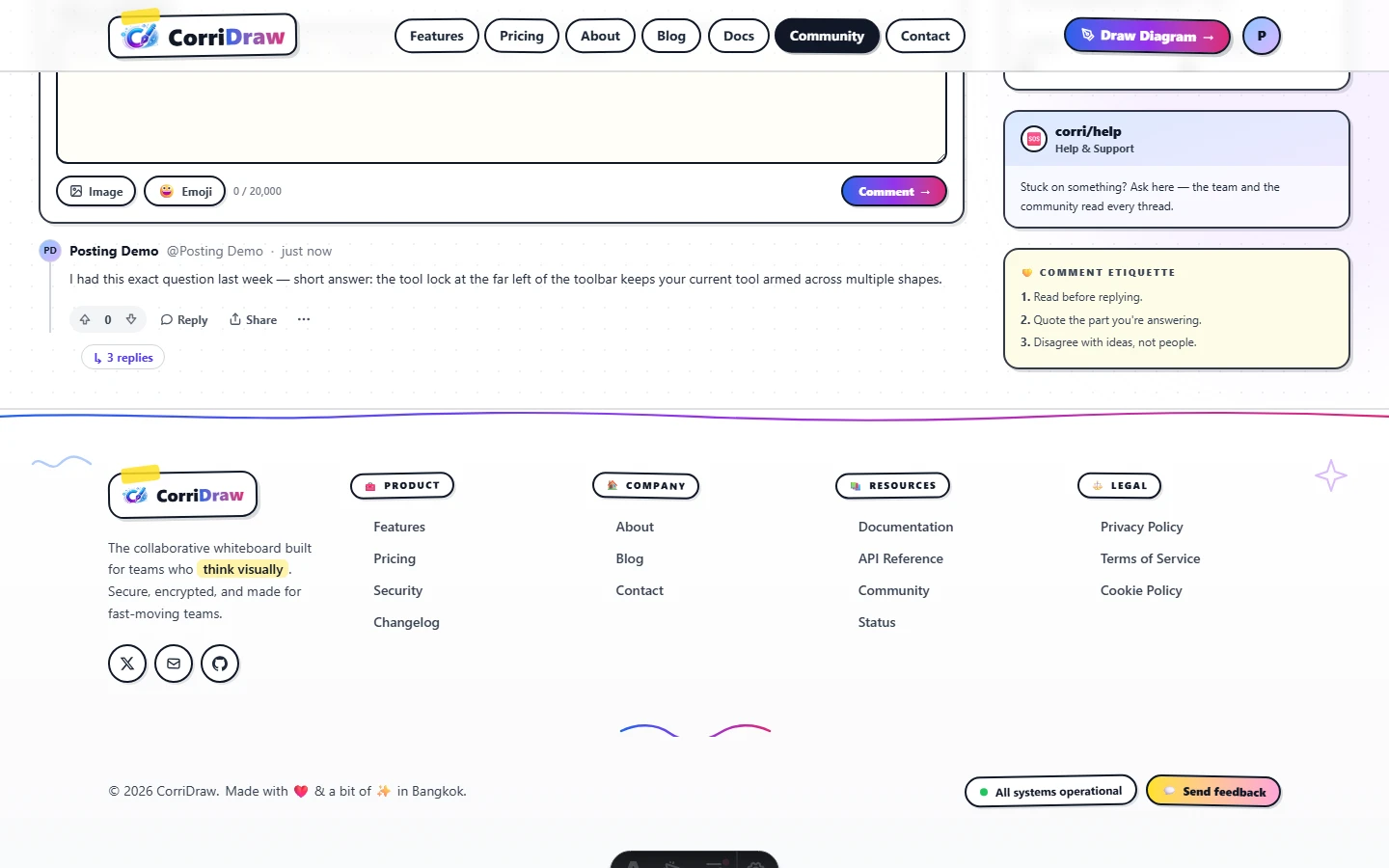
Comment etiquette
The right rail of every thread page has a yellow Comment etiquette card that repeats three short rules. The full version:
- Read before replying. If a previous reply already answered the question, upvote it instead of repeating the answer in a new comment.
- Quote the part you're answering. Use a blockquote (
> …) so it's clear which sentence your reply is about. Long threads get unreadable fast without this. - Disagree with ideas, not people. Phrases like "I don't think this works because X" land. Phrases attacking the author do not.
- Don't bump dead threads just to add "+1". Upvote the original. If you have new information, post it as a fresh thread and link back.
- Mark the helpful answer. If you're the OP and a reply solved your problem, edit your post to mention which one and upvote it. Future readers will thank you.
Locked and pinned threads
Two staff-only states change how a thread behaves:
- 📌 Pinned — sticks the thread to the top of its category, regardless of sort. Used for category READMEs ("How to ask in corri/help"), active incident threads, and monthly recap posts.
- 🔒 Locked — closes the thread to new replies. The voting buttons stay live, but the reply composer is hidden and replaced with a small banner explaining why it's locked. Threads typically get locked after they're resolved-and-archived, or when a conversation has gone off the rails and a fresh thread is the better path.
Both states are visible on the thread row (a 📌 or 🔒 next to the meta line) and on the thread page itself. Neither hides the thread — locked threads stay searchable and link-able indefinitely.