
Troubleshooting
Diagnose AI generate and Magic Frame failures — timeouts, 429 rate limits, invalid prompts, garbage output — and learn when to fall back to Mermaid or PlantUML.
AI features are powerful but probabilistic. When this lands, sometimes the model will return nothing, sometimes it'll return the wrong shape, and sometimes the service itself will be busy. This page walks through every failure state we plan to surface in the UI, explains what each one means, and points to the recovery button.
Quick reference
- "Hold your horses, you're too fast for us!" — burst rate limit (HTTP 429). Wait 30 seconds, click Retry.
- "You've hit your AI limit on the free plan." — daily quota exhausted. Wait until tomorrow or click Upgrade to Pro.
- "Generated an invalid diagram :(" — Mermaid parse error. Click Regenerate (auto-fix), click Edit Mermaid manually, or rephrase your prompt.
- "Cannot generate from an empty frame" — Magic Frame triggered with no shapes inside. Draw something inside the frame first.
- "Nothing genereated :(" with code
ERR_OAI— Magic Frame received an empty response. Click the failed iframe, delete it, and click Wireframe to code again. - "Request aborted" — you (or the network) cancelled the request. Click Retry.
- "Request failed" — generic transport error. Check connection and click Retry.
API timeouts and transport errors
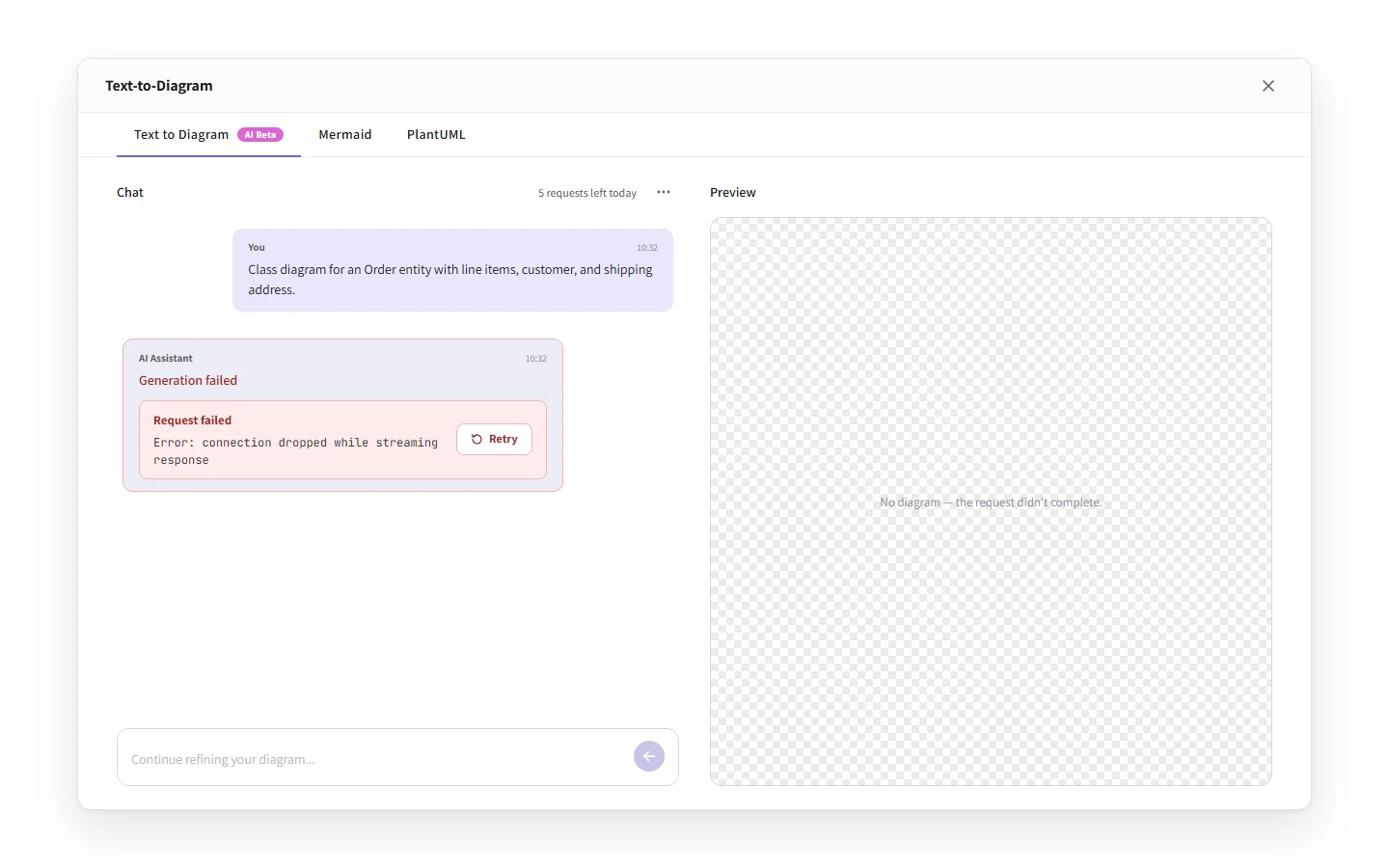
AI generate streams its response, so a complete failure usually shows up as the chat message
sitting in a half-finished state with a "Request failed" banner and a Retry
button next to it. Magic Frame instead flips its placeholder iframe to an error tile labelled
ERR_OAI. Both situations typically mean one of three things:
- The model service is under heavy load and dropped the connection. Click Retry after 10–30 seconds and it usually succeeds.
- Your network is unstable. Check whether other CorriDraw features (cursors, sync) are also degraded.
- An ad-blocker or corporate proxy is intercepting the request. Click your browser's extension menu, disable extensions on this tab, and click Retry; if that fixes it, allow-list
corridraw.com.
429 — rate limited
Two flavours of rate limiting exist, and they have different remedies.
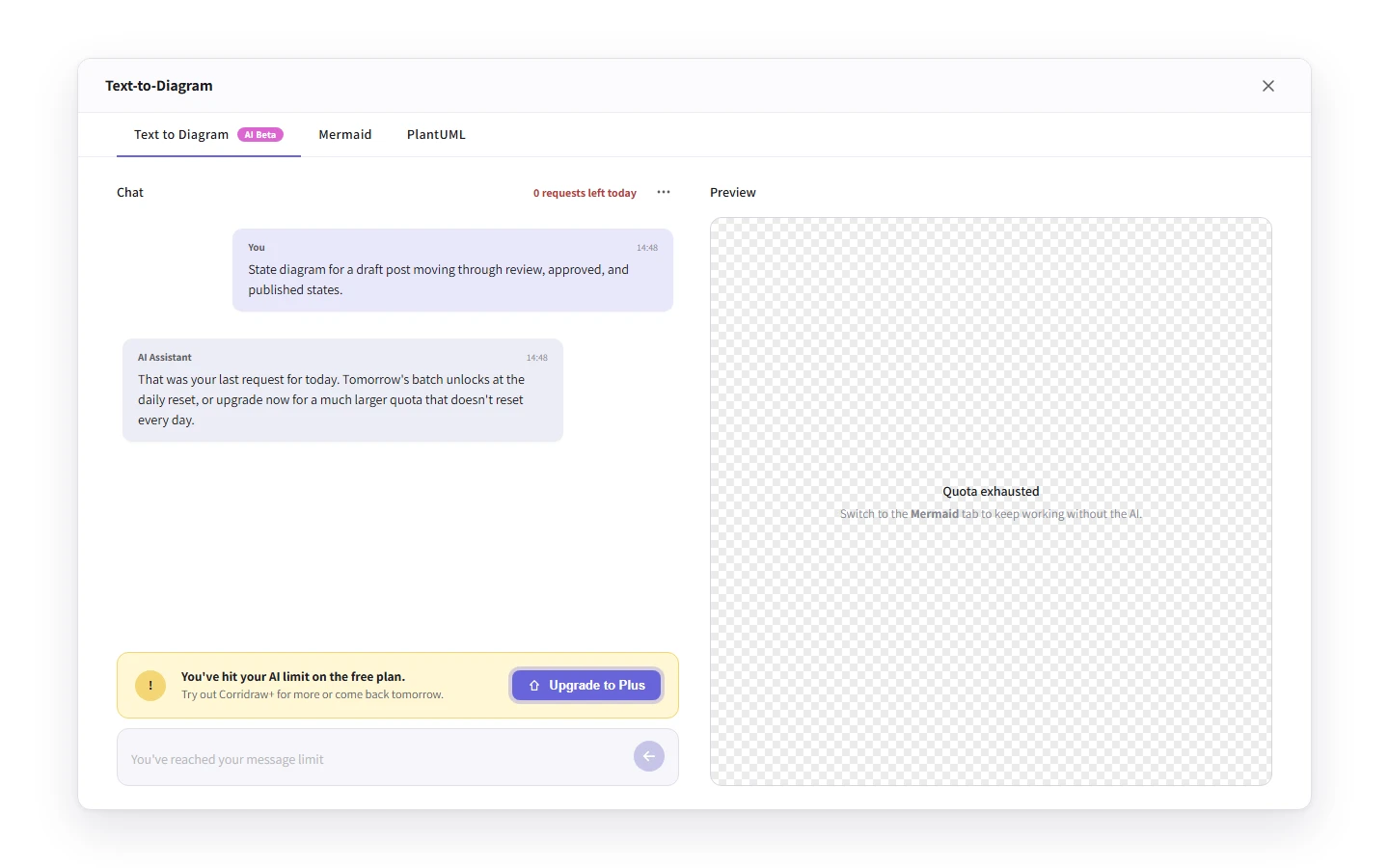
Daily message limit. Each account has a per-day budget of AI generations. When
you hit zero the chat input disables and the placeholder switches to "You've reached your
message limit". The accompanying banner reads "You've hit your AI limit on the free
plan. Try out Corridraw Pro for more or come back tomorrow." The remaining-count is read from
the X-Ratelimit-Remaining response header so the UI always reflects the live state.
Wait for the next day's reset, or click Upgrade to Pro for a much higher
quota.
Burst limit. Independent of the daily count, sending requests too quickly returns a 429 with "Hold your horses, you're too fast for us! Please wait a moment before trying again." This clears in under a minute. If you see this consistently, you're probably clicking Retry on a stuck request — pause, click the close (×) on the dialog, reopen it from the toolbar's three-dot menu, and try again deliberately.
Invalid prompts
Two validation rules fire before a prompt is sent. "Prompt is too short" appears when you submit fewer characters than the configured minimum — the message includes the exact bound. "Prompt is too long" appears when you exceed the maximum, again with the exact bound quoted in the message. Click into the input, trim or expand the prompt, and click send again.
The chat also refuses to send when the input is empty or whitespace, when generation is already in flight, and when your remaining quota is zero. The send button greys out in those states so you can tell at a glance.
When AI returns garbage
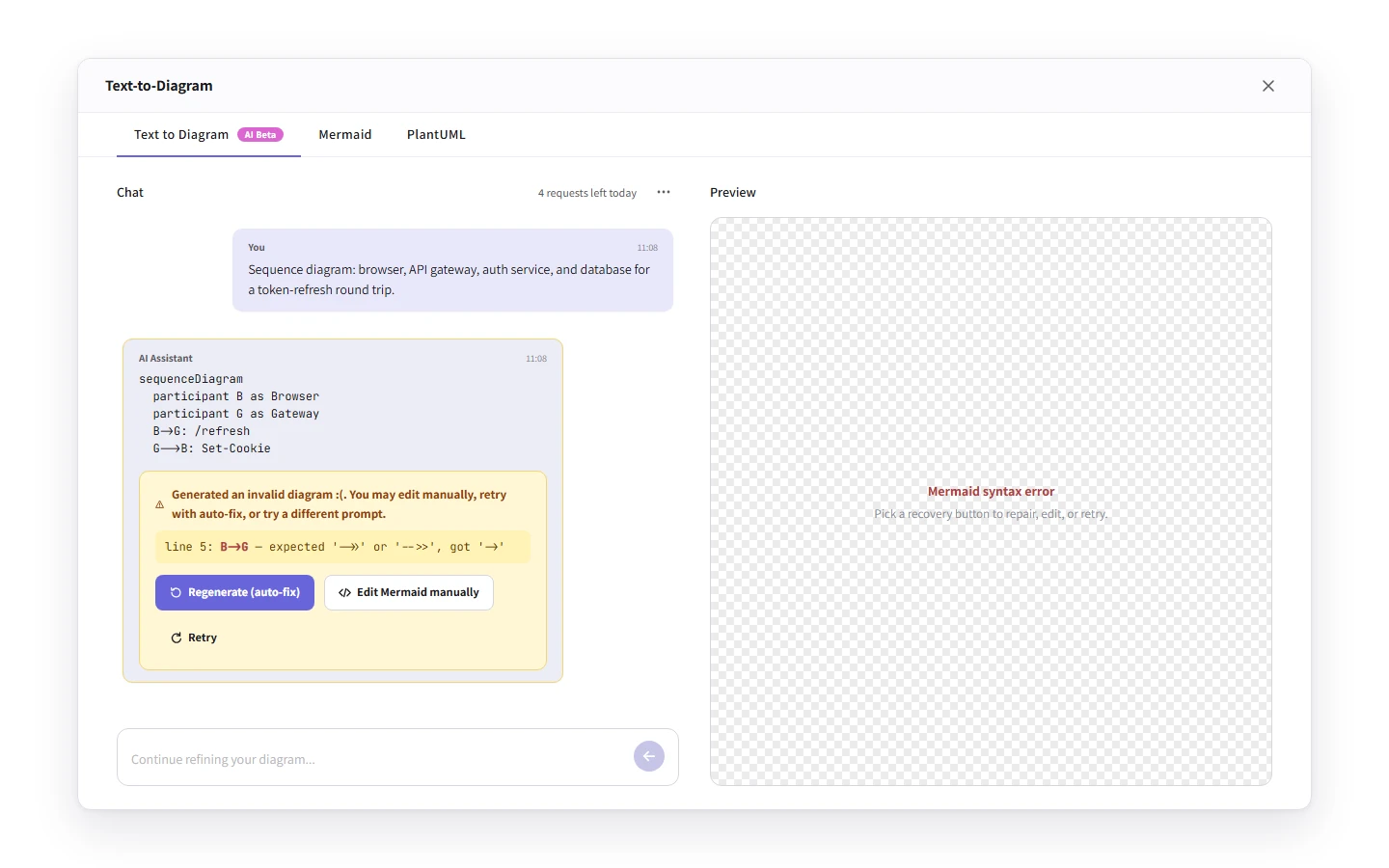
Garbage falls into two buckets. The first is a Mermaid parse error — the model returned something that looks like Mermaid but is malformed. CorriDraw shows "Generated an invalid diagram :(. You may edit manually, retry with auto-fix, or try a different prompt." with three explicit buttons:
- Regenerate (auto-fix) — click to send the broken source plus the parser error back to the AI as a repair instruction. Usually succeeds on the first try.
- Edit Mermaid manually — click to switch to the Mermaid tab with the source loaded so you can fix it by hand. Good for small typos like a stray
-in an arrow. - Retry — click to discard the broken response and re-run the original prompt cleanly.
The second bucket is semantically wrong output: the diagram parses fine but the structure doesn't match what you asked for. The model picked the wrong diagram type, missed an entity, or invented one. Don't fight it — click into the chat input, rephrase the prompt, and click send again. Naming the diagram type explicitly ("sequence diagram", "class diagram") is the single biggest improvement you can make. If three rephrasings don't get you there, click the Mermaid tab and write the source by hand, or sketch it on the canvas.
Magic Frame errors
Magic Frame surfaces failures in the iframe placeholder rather than in a chat. The tile shows
ERR_OAI for service-side failures and a plain "Cannot generate from an empty
frame" when you trigger generation against a frame with no overlapping shapes. To recover,
click the failed iframe to select it and press Delete, fix or fill the source
frame, click the frame to select it again, and click Wireframe to code. See the
Magic Frame page for what makes a healthy wireframe.
Falling back to Mermaid or PlantUML
Sometimes the right answer is to skip the AI entirely.
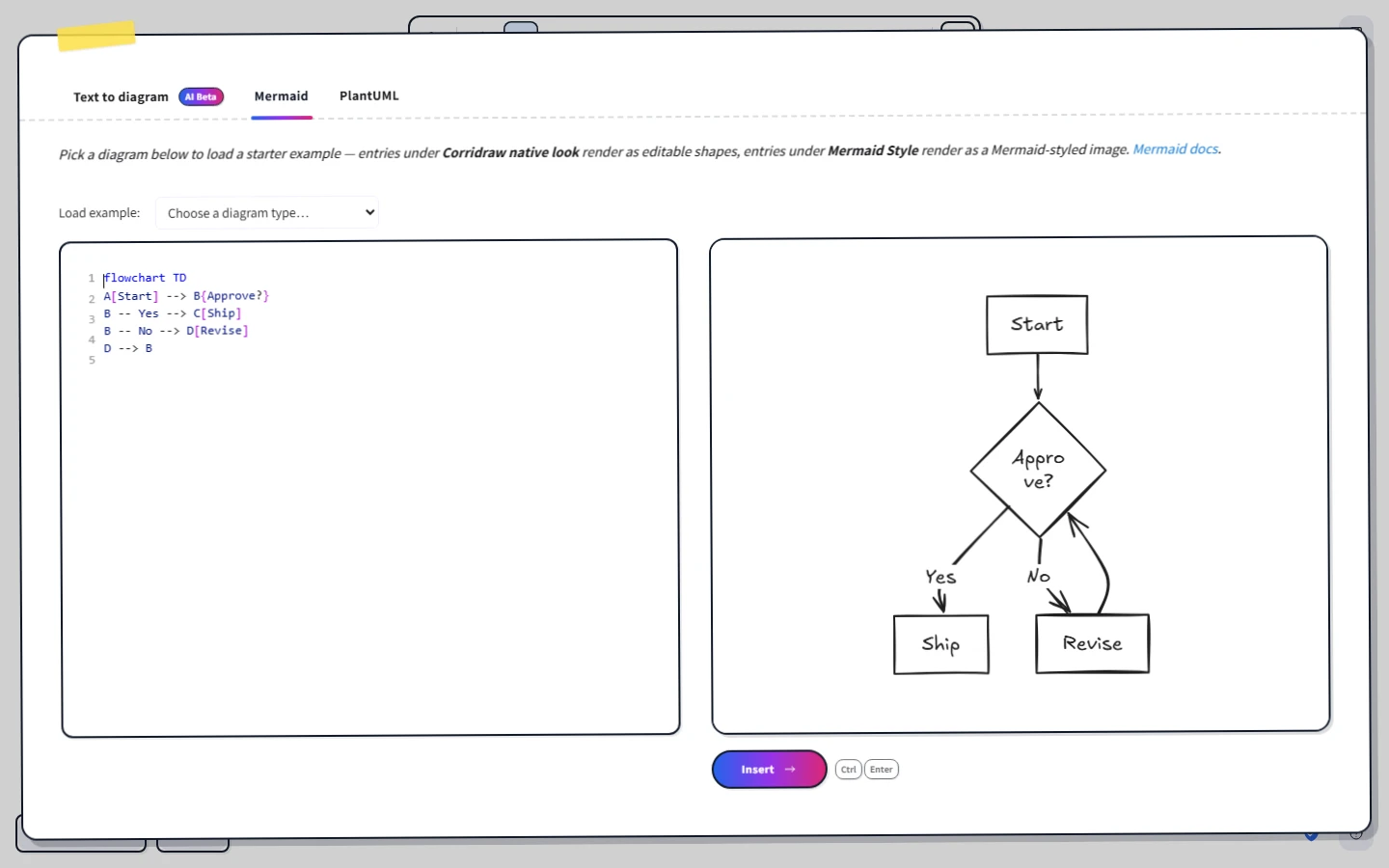
- You know exactly the diagram you want. Hand-written Mermaid or PlantUML beats prompting every time. Click the Mermaid or PlantUML tab at the top of the dialog and paste your source.
- You're rate-limited and the work is urgent. Mermaid and PlantUML have no daily quota — they're pure client-side conversion. Just click the tab and paste.
- You need deterministic output. The AI may produce slightly different Mermaid for the same prompt across retries. Hand-written source is byte-stable and reviewable.
- Your diagram type isn't supported (Gantt, mind map, journey). Mermaid handles those even though the AI tab currently focuses on flowcharts, sequences, classes, states, and ERs.
The chat's "View as Mermaid" button is a one-way bridge between the two — generate once, then click it to take over manually on the Mermaid tab.
Filing a useful bug report
AI failures are easier to fix when we can see exactly what was on the canvas and exactly what came back. Before you email support, do this:
- Save a snapshot. Click the hamburger menu (top-left of the editor), click Save (or click the Share button to mint a public link). A live link is far more useful than a screenshot because we can open the same scene you saw.
- Capture the response. For chat failures, take a screenshot of the assistant message including the error banner. For Magic Frame failures, screenshot the iframe placeholder showing
ERR_OAI. - Note the prompt and the time. Include the exact prompt text and the rough timestamp — backend logs are time-keyed.
- Send it in. Click the support contact link and email us with the canvas link, the screenshot, the prompt, and the timestamp. We respond fastest when those four pieces are present.
If the issue is reproducible with a tiny example (one prompt, two shapes), say so explicitly — we'll prioritise minimal repros because they go straight into the regression suite.