
Text to diagram
Generate CorriDraw shapes from Mermaid, PlantUML, or a natural-language AI prompt — without leaving the canvas.
You will not always start a diagram by drawing it. Sometimes the structure already lives in your head, in a code review comment, or in a chat thread — written down as Mermaid, sketched as PlantUML, or just described in plain English. The Text to diagram dialog is where CorriDraw turns any of those text sources into real, editable shapes on your canvas.
This page is the overview. It explains what the dialog actually does, the three tabs you will see, when you should reach for each one, and the small details (toolbar shortcuts, localStorage seed keys, programmatic API) that make it pleasant to use day to day. The two pages after this one cover the Mermaid and PlantUML tabs in depth.
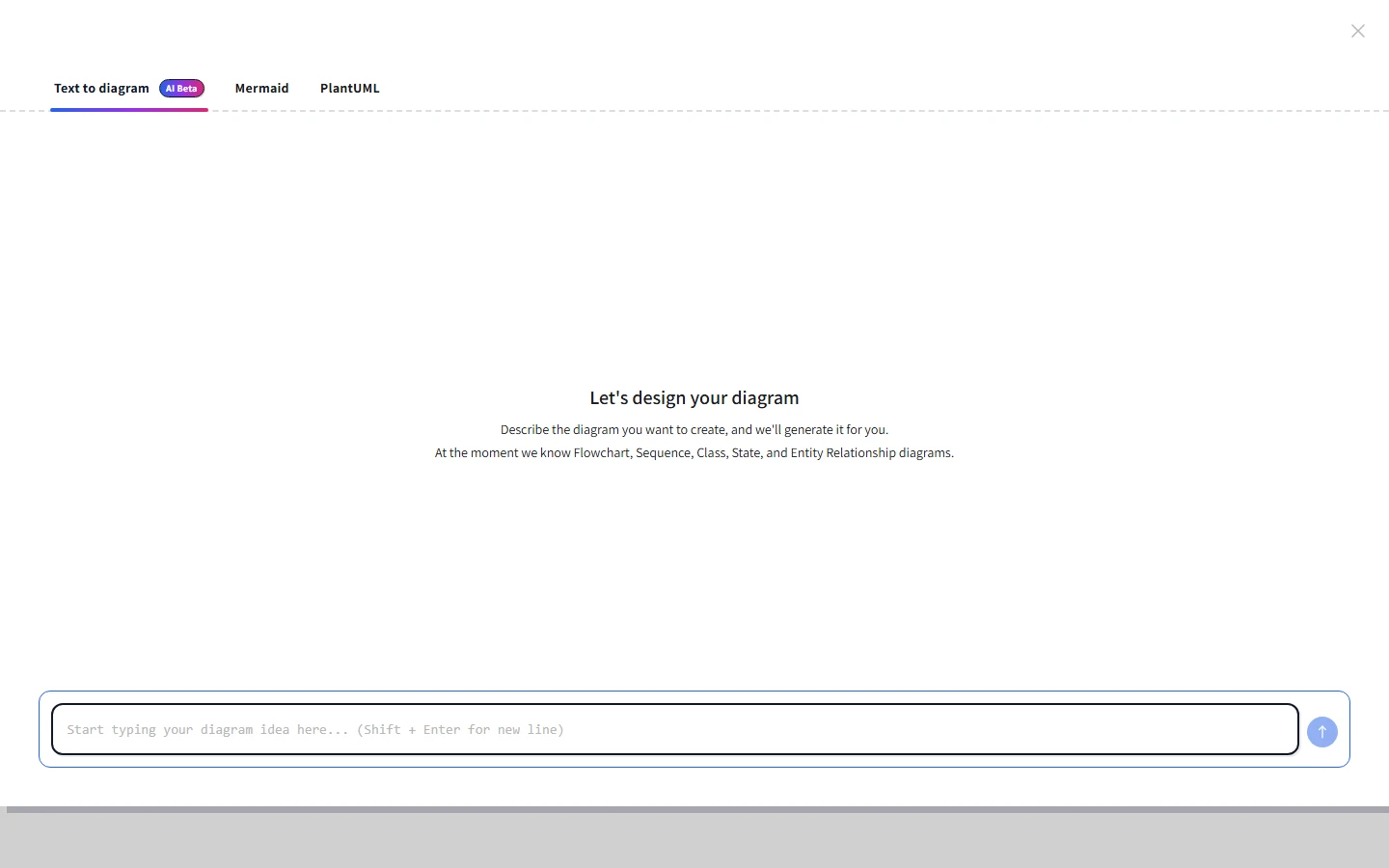
The three tabs
The dialog ships with three tabs across the top. They share the same split layout — source on the left, live preview on the right — but each one accepts a different kind of input. Click a tab to switch:
- Text to diagram (AI Beta) — describe what you want in your own words. The AI agent on this tab streams a Mermaid diagram back to you, and you can keep refining it in a chat-style thread until the result is right. Use this when you do not yet know what the diagram should look like.
- Mermaid — paste or type Mermaid source. CorriDraw parses it natively for the diagram families it supports (flowchart, sequence, class, ER, state, mindmap, timeline, requirement, block, kanban) so the result is real shapes you can edit, and falls back to a Mermaid-rendered image for everything else (gantt, pie, sankey, journey, quadrant, C4, XY, git graph).
- PlantUML — paste PlantUML source. The dialog encodes it, posts it to a PlantUML server, and inserts the rendered SVG as an image element. Sequence, activity, class, component, and deployment diagrams are the most-used types here.
When to use which tab
Pick the tab that matches the source you already have. If you are starting from a blank page, work backward from how much structure you can describe:
- You can describe the diagram in a sentence but cannot write the syntax → Text to diagram (AI).
- Your team already writes Mermaid in pull request descriptions, READMEs, or Notion → Mermaid. You get editable shapes for the common families, which means you can keep refining inside CorriDraw afterward.
- Your team uses PlantUML or you need a diagram type Mermaid does not handle (timing, JSON visualization, work-breakdown structure) → PlantUML.
How to open the dialog
You have three ways in. The mouse-driven flows come first because they are the ones you will use day-to-day:
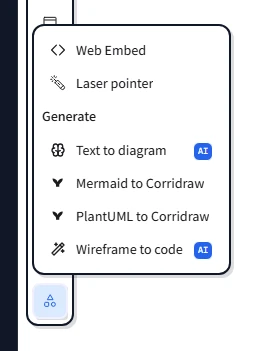
- Toolbar dropdown. Click the extra-tools menu in the top toolbar (the three-dot button next to the shape tools), then click Mermaid to Corridraw or PlantUML to Corridraw. Each entry jumps straight to its matching tab. On mobile, tap the same overflow menu in the bottom toolbar — the entries are identical.
- Command palette. Click anywhere on the toolbar's three-dot menu and pick Command palette, then click Text to diagram in the list. The palette entry opens the AI tab by default so you can start typing your prompt right away.
- Programmatically. If you embed CorriDraw in your own product, call the editor API:
// Open the dialog on the AI tab
app.setOpenDialog({ name: "ttd", tab: "text-to-diagram" });

// Open it on the Mermaid tab — useful if you have prefilled
// the localStorage seed key (see below) with source you want
// the user to start from.
app.setOpenDialog({ name: "ttd", tab: "mermaid" });

// Or jump straight to PlantUML.
app.setOpenDialog({ name: "ttd", tab: "plantuml" });

// Close the dialog from your own UI.
app.setOpenDialog(null);
Pre-seeding the source
When the Mermaid or PlantUML tab opens, the editor is not empty: it loads whatever was last saved into the corresponding localStorage key. CorriDraw uses two keys, both stable so you can write to them from outside the app:
mermaid-to-corridraw— Mermaid source for the Mermaid tab.plantuml-to-corridraw— PlantUML source for the PlantUML tab.
That means a browser extension, a userscript, or your own host page can drop diagram text into the dialog before you even open it. For example, a "Send to CorriDraw" button on a Mermaid block in your wiki could do this:
// Seed the Mermaid tab with the user's source, then open
// the editor in a new tab pointed at the Mermaid dialog.
localStorage.setItem(
  "mermaid-to-corridraw",
  "graph TD; A[Order placed] --> B[Charge card]; B --> C[Ship];",
);
window.open("https://corridraw.com/editor?dialog=mermaid", "_blank");
The PlantUML tab works the same way with the plantuml-to-corridraw key. Both keys are also written back every time you edit the source in the dialog, so closing the editor and reopening it picks up where you left off.
The Insert button
Each tab has a single primary action labelled Insert. Click it and whatever is in the preview pane on the right drops onto your canvas, centred at the current viewport. The AI tab inserts streamed Mermaid output, the Mermaid tab inserts editable shapes (or a Mermaid-rendered image for unsupported families), and the PlantUML tab inserts the SVG response from the PlantUML server as an image element.
The Insert button shows the keyboard shortcut Ctrl+Enter (Cmd+Enter on macOS) right next to its label, because the rhythm of the dialog rewards using both. Click Insert when you want to read what you have, press Ctrl+Enter when your hands are already on the keyboard tweaking the source.
What happens after Insert
The shapes land on the canvas as a normal selection: you can drag them, resize them with the corner handles, restyle them from the right-hand properties panel, and group them like any other elements. Mermaid output that came through the native parser is composed of regular rectangles, ellipses, arrows, and text — there is no hidden state. You can click and delete one node and the rest keep working.
If you change your mind, click the undo arrow in the bottom-left of the canvas (or press Ctrl+Z) — the inserted shapes disappear in a single step. The source you typed stays in the dialog and in localStorage, so reopening the dialog brings it back unchanged.
Where to go next
Read the Mermaid → diagram page for the full list of supported syntaxes, the "Corridraw native look" vs "Mermaid Style" toggle, and the auto-fix behaviour for syntax errors. The PlantUML → diagram page covers the server URL, self-hosting, and the supported PlantUML families.