
Install as a PWA
Install CorriDraw as a Progressive Web App on iOS, Android, and desktop. Add to Home Screen, the Chrome/Edge install prompt, what works offline, and where your data lives.
CorriDraw ships as a Progressive Web App. Install it on your phone or laptop and it runs in its own window with no browser chrome, launches from the home screen or app drawer, and serves a usable shell when the network is gone. This page covers the install steps on every platform, what offline actually means in practice, and where your local data is stored.
What you get from installing
Three concrete things change when you go from "open the site in a tab" to "install":
- Standalone window. No URL bar, no tabs, no browser back button — just CorriDraw, full-screen on phones and in a borderless app window on desktop.
- Home-screen icon. The app appears in your home screen, dock, app
drawer, or Start menu next to native apps. Theme color is dark (
#121212) so the splash screen matches the editor's chrome. - Offline shell. The icons, fonts, and the
/editorshell are precached, so a flaky network or a sleeping cellular radio does not block you from opening a diagram you have already loaded.
Install on iOS — Add to Home Screen
Safari is the only browser engine on iOS that can install a PWA. Open corridraw.com in Safari, tap the Share button (the square with the up-arrow), scroll the action sheet down, and tap Add to Home Screen. iOS shows a preview with the CorriDraw icon and name; tap Add in the top-right and the icon lands on your home screen. Launch from the home screen — not from Safari — to get the standalone window.
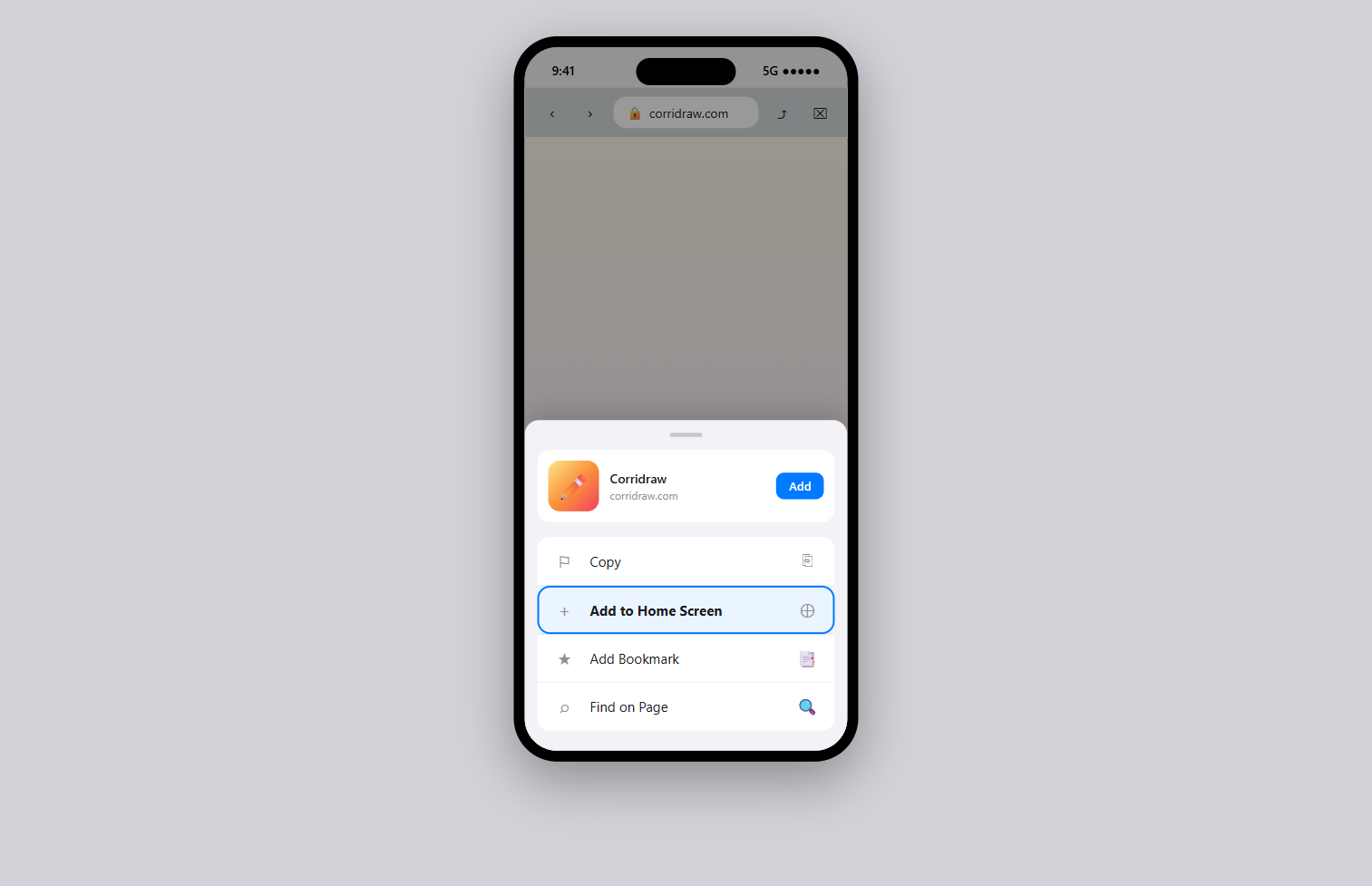
Chrome, Firefox, and other iOS browsers cannot install PWAs — Apple restricts that capability to Safari. If you launch the URL from Chrome on iOS, you will keep getting Chrome's tab UI even with the home-screen shortcut.
Install on Android, Windows, macOS, ChromeOS — the install prompt
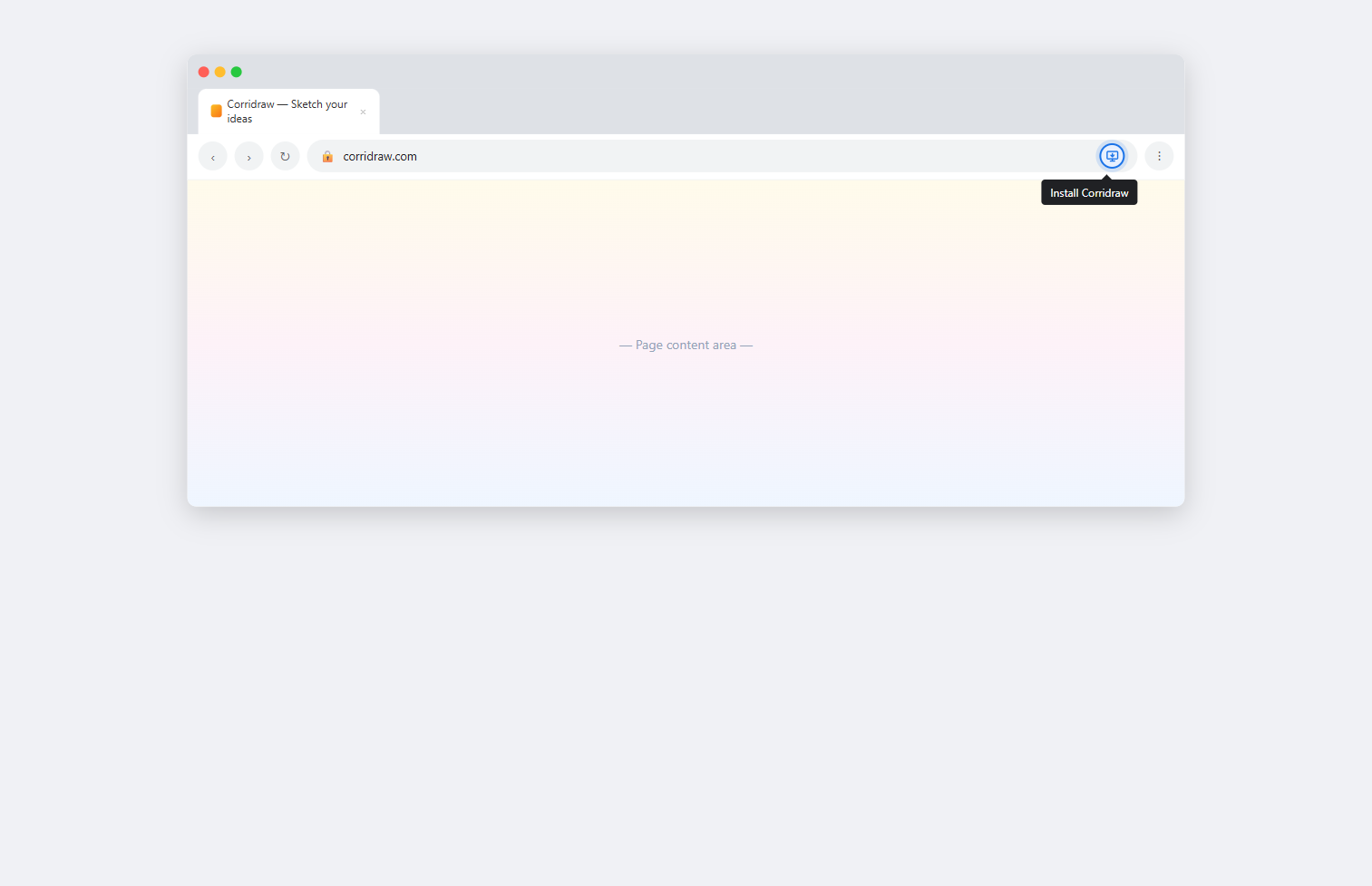
On Chrome and Edge (Android, Windows, macOS, ChromeOS) and on recent Firefox desktop, an install affordance appears once the browser decides the page is install-eligible: typically on the second visit, after a few seconds of engagement. The cue is one of:
- An Install icon (a small monitor with a down-arrow) in the URL bar's right side on desktop Chrome and Edge.
- A native banner from the address bar's three-dot menu — Install Corridraw… — on Android Chrome and Edge.
- A pop-up "Install app" prompt the first time the engagement signal trips.
Click any of those, confirm in the small dialog that opens, and the app installs. Desktop installs land in your applications list (Start menu on Windows, Launchpad on macOS, app drawer on ChromeOS) and create a desktop shortcut. Android installs add the icon to the home screen and the app drawer.
Uninstalling
Uninstall like any other app for the platform: long-press the home-screen icon and pick Remove app on iOS or Android, right-click the app icon and pick Uninstall on Windows, drag to the trash from Launchpad on macOS. Uninstall removes the standalone-window registration; your CorriDraw account, diagrams, and settings on the server are not touched. Reinstall any time and your data is exactly where you left it.
What works offline
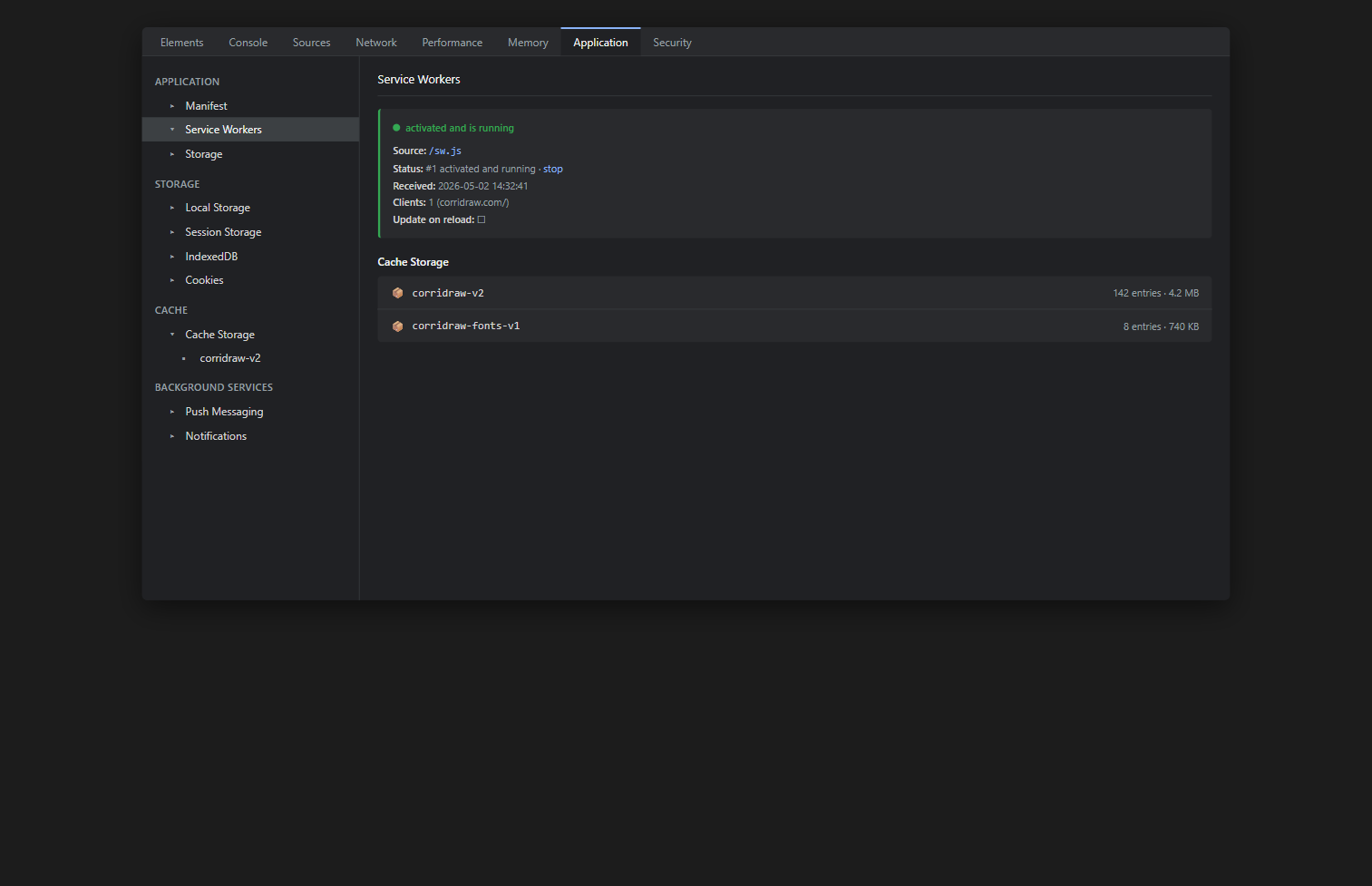
The service worker (/sw.js, version pinned in the file header) precaches
a small set of public assets at install time and again on every update: the manifest,
favicons and icons, and the editor entry route. It then maintains a network-first
cache for the public-cacheable subset of subsequent loads. The result, in plain
English:
- Editor shell loads offline. Open the installed app on a plane and the editor frame appears, with all icons and fonts.
- Diagrams you have already opened load from local storage. Anything cached as a draft in your browser is available without a network round-trip.
- Your dashboard, account, and admin pages do not work offline. Those routes are deliberately excluded from the cache because they render per-user state — caching them would risk one user seeing another's pages on a shared device. They need a live network to load.
- Real-time collaboration pauses. Cursor presence, comments, and
live edits all require the websocket to
collab.corridraw.com. While offline, your edits are queued locally; on reconnect they are flushed up and merged with anything teammates did in the interim.
The service worker, briefly
On every page load CorriDraw registers /sw.js with the browser. The
worker has three jobs: precache the public shell on install, evict the previous
version's cache on activate, and serve a small allow-list of safe-to-cache GET
responses for subsequent navigation. API requests
(/api/*), Next.js framework chunks (/_next/*), and websockets
(/ws/*) are explicitly bypassed — they always hit the network. On logout
the app sends a clear-cache message to the worker so no public-page fragment
referring to the previous user can leak across sessions.
A new service-worker version is downloaded automatically on the next visit after a
deploy, and it activates immediately (we use skipWaiting + clients
.claim) so you do not have to close every tab to get the update.
Where your data lives
Three storage layers are in play once you are signed in and using the installed app:
- localStorage — small key-value preferences (active tool, theme, grid on/off, recent colors). Roughly 5 MB cap; survives reload and reinstall as long as you do not clear site data.
- IndexedDB — drafts, library elements, and offline queues. Tens to hundreds of MB are routinely available; the browser evicts oldest data only under genuine storage pressure.
- The CorriDraw server — the canonical copy of every saved diagram, every comment, and every version history entry, replicated and backed up server-side. Sign in on a fresh device and your work pulls down from here.
"Clear site data" in browser settings will wipe localStorage, IndexedDB, and the
service-worker cache for corridraw.com, which signs the installed app
out and removes any unsynced drafts. Anything that had successfully saved to the
server is unaffected — sign in again and pull it back.