
Images
Add images to CorriDraw by dragging from disk, pasting from clipboard, or dropping a URL. Adjust opacity, lock for tracing, and constrain aspect ratio.
Images in CorriDraw are first-class elements: they live on the canvas alongside shapes and arrows, can be styled with opacity, locked in place for tracing, and resized while preserving their aspect ratio. There are three ways to bring an image in — drag from your file system, paste from the clipboard, or drag a URL straight from a browser tab — plus an Insert image button on the toolbar for a classic file picker. This page covers all of them plus the styling and lock controls that apply once the image is on the canvas.
The Insert image button
The simplest path is the Insert image icon on the top toolbar (it looks like a small picture frame, sitting near the shape tools). Click it and your operating system's file picker opens — choose the image, and CorriDraw drops it on the canvas at a sensible size. On phones and tablets, the same icon lives in the bottom toolbar and opens the system photo picker so you can pull an image straight out of your camera roll.
Drag and drop from disk
Even faster on a desktop: drag the file from your file manager (Finder, Explorer, etc.) onto the CorriDraw canvas. The image lands at the drop point at its natural pixel size, scaled to fit if it's larger than the visible viewport.
Supported formats include PNG, JPEG, WebP, GIF, BMP, AVIF, JFIF, and SVG. SVGs render as resolution-independent vector graphics — they stay crisp at any zoom level.
Paste from clipboard
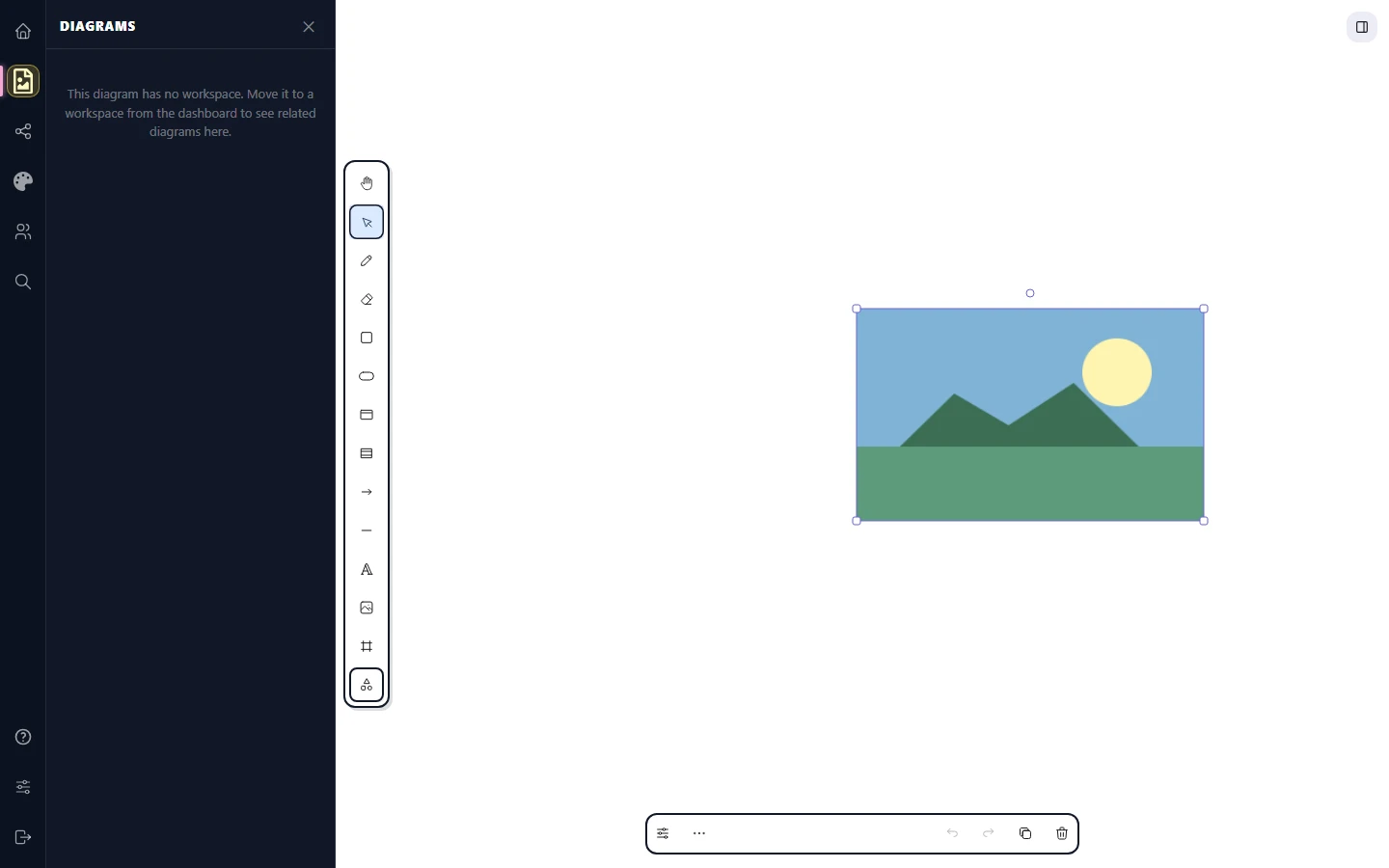
Copy an image to your clipboard — from a screenshot tool, a web browser, an email, anywhere — then paste it into CorriDraw. On desktop, paste with Ctrl+V (Mac: Cmd+V); the image lands at the cursor position. On mobile, long-press an empty area of the canvas and pick Paste from the popup. This is the gold-standard workflow for diagramming over screenshots: capture, paste, then annotate with arrows and labels.
Drag a URL
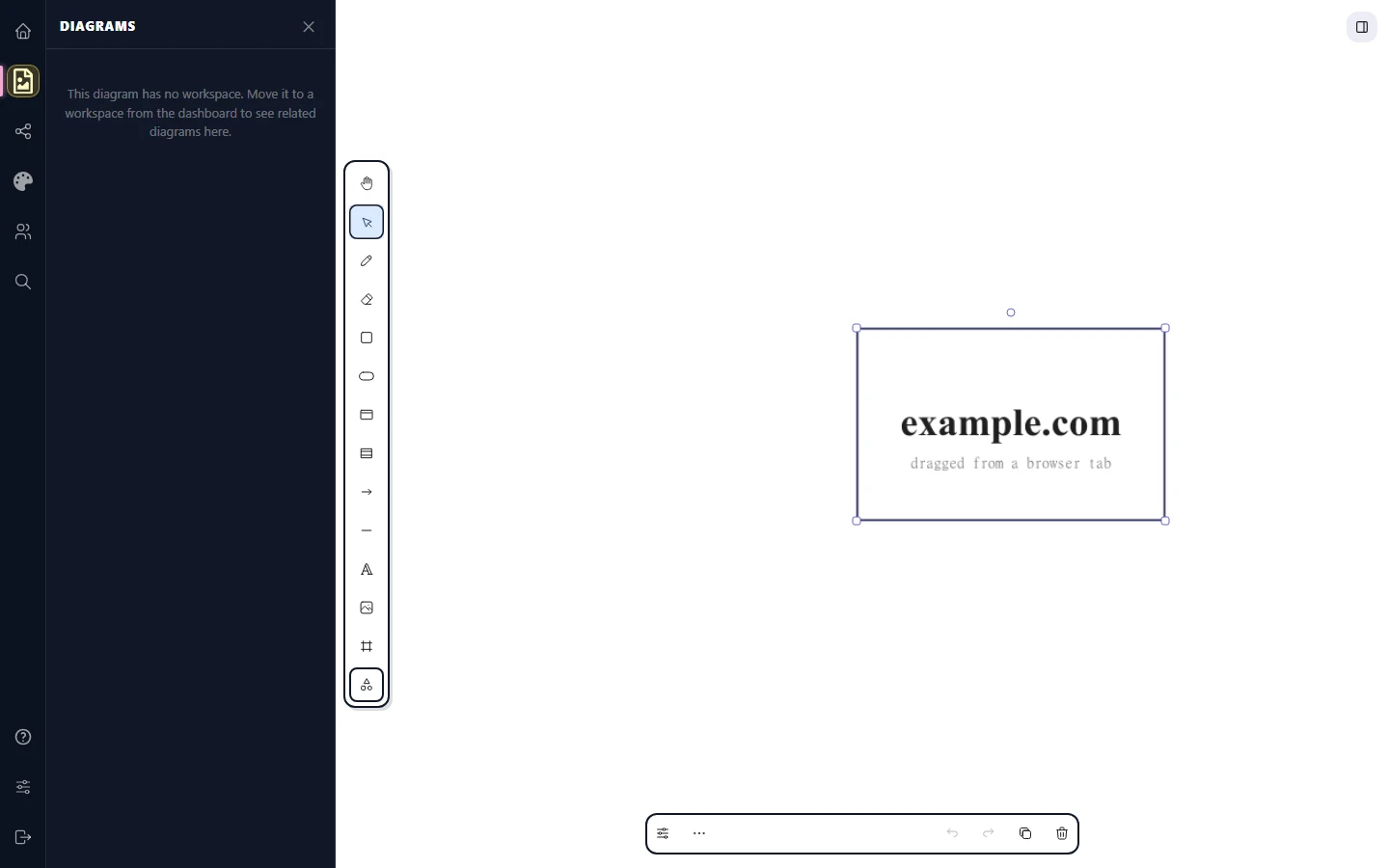
On desktop, drag the image's URL straight from a browser tab — for example, drag the favicon of a site that's showing an image, or drag a thumbnail from an image search result. CorriDraw fetches the image and embeds it on the canvas. The fetched image lives inside your scene as a base64-encoded copy, so the canvas continues to render even if the source URL goes offline.
Opacity
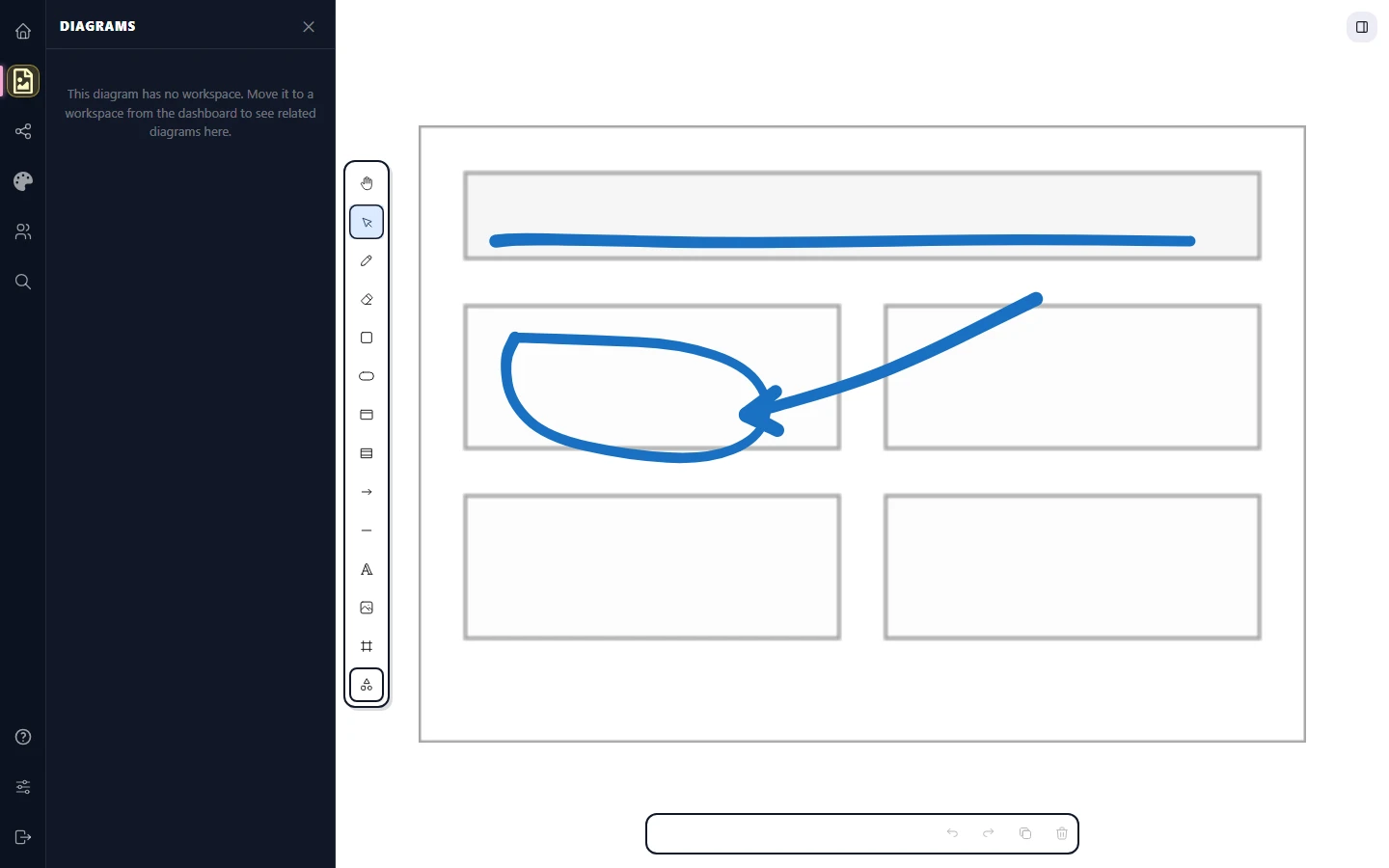
Select the image. The right-hand properties panel reveals an Opacity slider that runs from 0% (invisible) to 100% (opaque). Drag the handle (or tap-and-drag on touch) to lower the opacity when you want the image to act as a backdrop for sketches drawn on top — for example, fading a wireframe to 30% so a freehand annotation pops. Opacity animates smoothly, so a lock-and-trace workflow stays comfortable on the eyes.
Lock for tracing
With the image selected, right-click and pick Lock — or use the Lock button in the actions panel. A small padlock badge appears on the bounding box. Locked images can't be moved, resized, deleted, or selected — exactly what you want when you're tracing over them, since stray clicks won't accidentally drag the reference around. Right-click and pick Unlock when you're done. The actions menu also exposes Lock all, which locks every selected element at once.
Aspect-ratio constraints
By default, dragging a corner handle of an image preserves the aspect ratio. Drag an edge handle and you can squash or stretch — useful for fitting a screenshot into a specific frame. If you want the opposite behaviour for one specific drag, hold Shift while dragging an edge handle to force aspect-ratio preservation, or hold Shift while dragging a corner to release the constraint and stretch in both axes. On touch, two-finger pinch-to-resize always keeps the aspect ratio locked.
Replacing or re-uploading
Right-click an image and pick Replace to swap it out without losing position, opacity, or any other surrounding context. The replacement keeps the dimensions of the original by default; toggle Preserve aspect ratio in the dialog to choose differently.
Performance and large images
Where images store
Images embedded in a CorriDraw scene live inside the scene file as base64-encoded blobs. There's no external image hosting to manage; the scene is fully self-contained. When you share a scene by link or export to .corridraw, the images travel with it. The trade-off is file size — see the warning above for guidance on keeping things lean.