
Share a link
Open the share dialog, generate a public link to your diagram, pick the access level, copy it, and regenerate or remove it when you're done.
Sharing a diagram in CorriDraw is one click and one copy. From the open diagram you click the Share button, click Create Public Link, click whether visitors land in view or edit mode, click Copy, and paste the link into chat or email. The link belongs to the diagram, so anyone who has it can open that diagram and only that diagram. When you're finished collaborating you either click the toggle to disable the public link or click Regenerate Link to invalidate every copy that's already out in the wild.
Step 1 — Open the Share dialog
There are two clickable ways into the dialog from inside the editor:
- Click the Share button at the top right of the editor (a silhouette icon with a plus, sitting in the header next to your avatar).
- Or click the hamburger Main menu (top-left) and click Share.
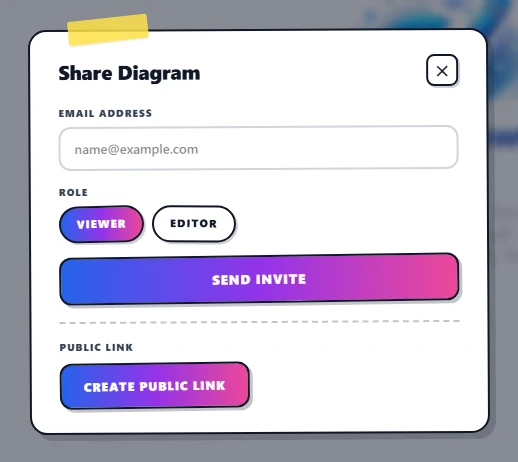
On mobile, tap the same Share button in the top bar — the dialog opens full-screen but is otherwise identical. Both routes open the same dialog, titled Share Diagram. The top half is for inviting specific people by email; the bottom half, under the dashed divider, is the public link panel we care about here. The Share entry only appears once a diagram has been saved at least once — a brand-new untitled scratch file has nothing to share yet.
Step 2 — Create the public link
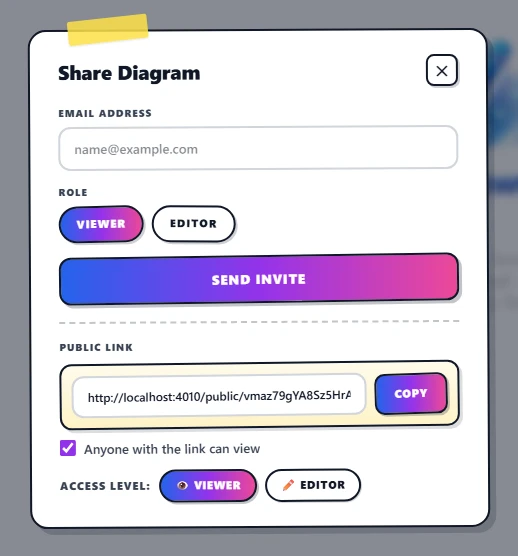
Click Create Public Link. The button is replaced by the link panel: a yellow
URL input that reads https://corridraw.com/public/<token>, a Copy
button to its right, an Anyone with the link can view checkbox below, and an access
level row with two pills — Viewer and Editor. Viewer is
selected by default, which is almost always what you want.
Step 3 — Pick a role
Click one of the two pills to control what visitors can do once they land:
- Viewer — read-only on the canvas. Visitors can pan, zoom, switch themes, export, and read or post comments on existing threads — but they cannot draw, move, or delete anything.
- Editor — full canvas write access. Anyone with the link can add, modify, and delete elements, and add or resolve comments. Their saves count against your storage plan.
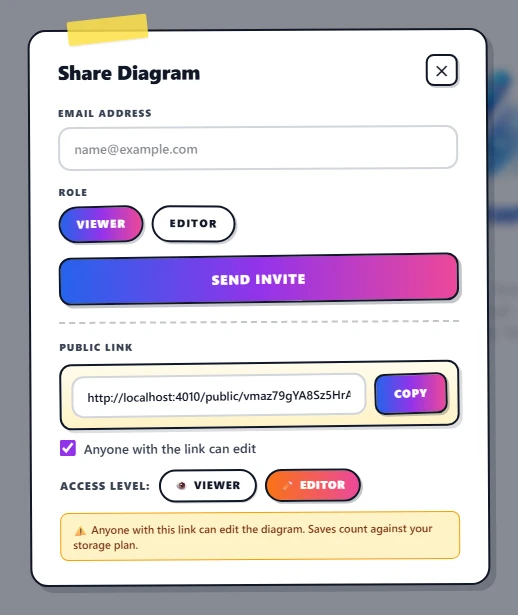
Click Editor and CorriDraw shows a confirmation prompt before flipping the role: "Editor mode lets ANYONE with this link change the diagram. Saves count against your storage plan. Continue?" Click Continue and the pill turns orange-pink, and a yellow warning ribbon appears under the URL reminding you the link is now write-enabled.
Step 4 — Copy and share
Click the Copy button to the right of the URL input. It briefly turns green and shows Copied! for two seconds, confirming the URL is on your clipboard. Paste it into Slack, an email, a Linear ticket — wherever your team lives. The link works for anyone, signed in or not. Visitors who are signed in to CorriDraw will see their name on the cursor; anonymous visitors get a randomly assigned Guest name like Guest 7.
Regenerate to invalidate
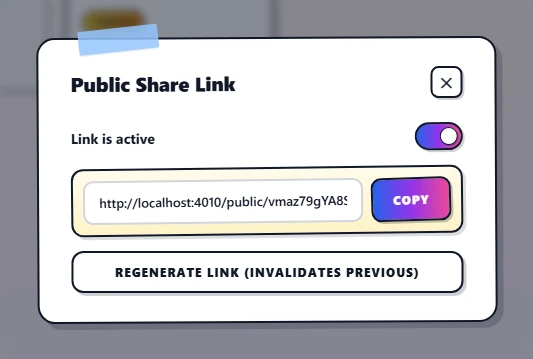
Public links are bearer tokens — anyone holding the URL can use it. If a link leaks, or someone leaves the project and you want to lock them out without disrupting everyone else, the easy fix is to regenerate. The dedicated Public Share dialog, which you can also reach by clicking the kebab (three-dot) menu on the diagram card on your dashboard and clicking Public Share, has a full-width Regenerate Link (invalidates previous) button. Click it and the server mints a fresh token, the URL field updates, click Copy again and any old copies of the link 404 immediately. Send the new URL to whoever still needs access.
Disable or remove the link
To pause sharing without invalidating the token, click the Anyone with the link can view checkbox inside the Share dialog to untick it (or click the toggle in the standalone Public Share dialog). The URL stays the same but visitors get a "Link disabled" page until you re-enable it. To remove the link entirely, click Regenerate Link and never share the new copy — there is no separate "delete link" button because regeneration is a strict superset of deletion: a link nobody knows about is a link nobody can use.
What about per-person invites?
The top half of the Share dialog is a different feature: targeted invitations to a specific email address with a specific role. Click into the Email field, type an address, click Viewer or Editor, and click Send invite. Those don't need a public link — the recipient gets an invite email and the diagram appears under Shared with me on their dashboard the next time they sign in. See Roles & permissions for the full breakdown of viewer-vs-editor on personal invites and how diagram-level roles interact with workspace-level roles.