
Mermaid → diagram
Paste Mermaid source into CorriDraw and get either editable native shapes or a Mermaid-styled image — one click, one shortcut.
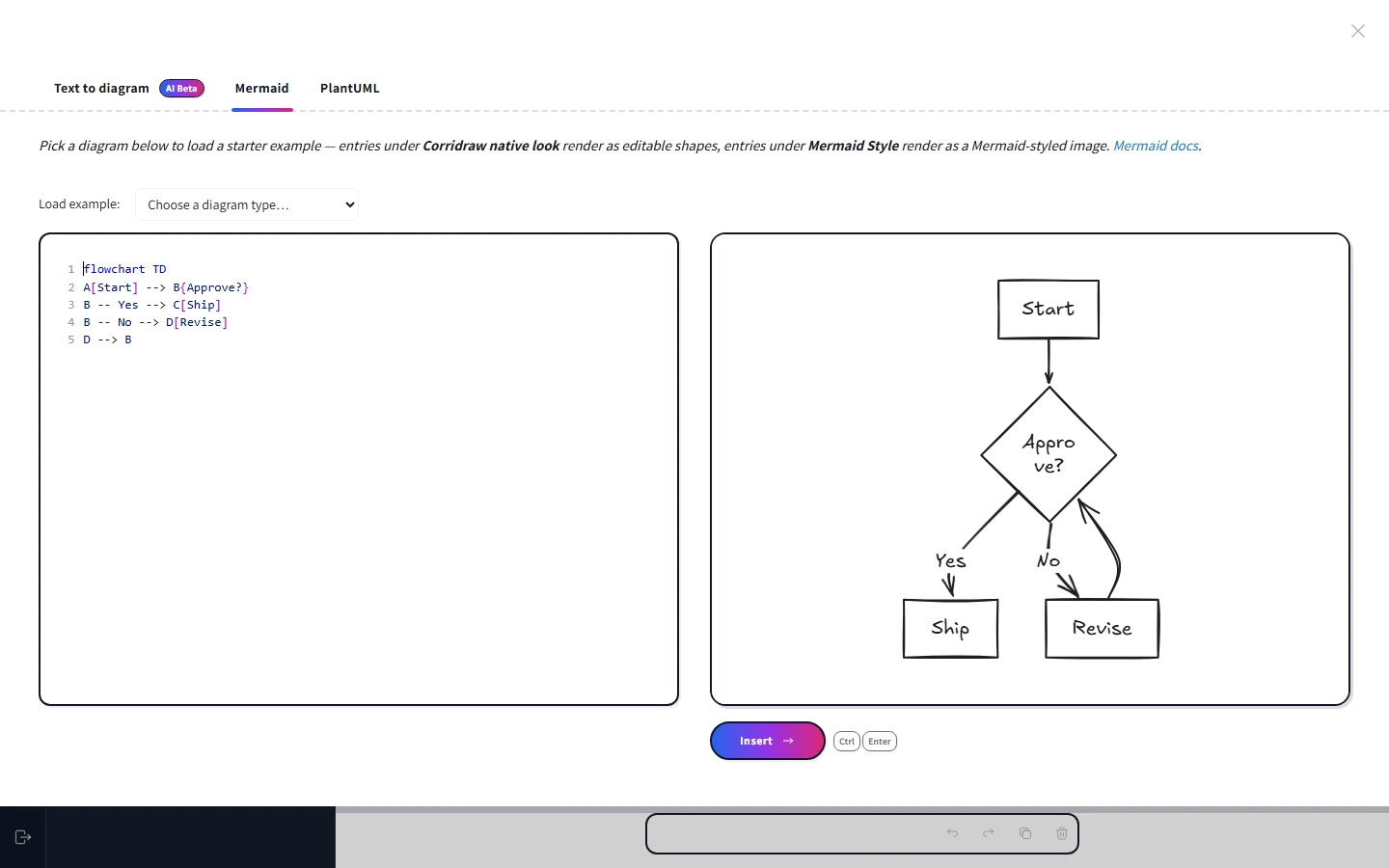
The Mermaid tab is the most direct way to bring an existing diagram into CorriDraw. Paste your Mermaid source on the left, watch the preview render on the right, and click the Insert button at the bottom of the preview to drop the result onto the canvas. For ten of the most common Mermaid families CorriDraw parses the source into native, fully-editable shapes — for everything else, it falls back to a Mermaid-styled image so you still get the picture.
This page walks through the full paste-to-canvas flow, the families that get the native treatment, the "Corridraw native look" vs "Mermaid Style" choice in the dropdown, the auto-fix prompt that appears when your syntax has a recoverable mistake, and a runnable example you can paste in to try it yourself.
The paste flow
Open the dialog from the toolbar's three-dot extra-tools menu and click Mermaid to Corridraw (or open the command palette and click Text to diagram, then click the Mermaid tab). Then:
- Click into the left-hand editor and paste your Mermaid source. The preview re-renders as you type (debounced so it stays responsive on big diagrams).
- Glance at the preview on the right. If you see real shapes with hand-drawn-style strokes, the native parser handled it. If you see a clean, Mermaid-styled image, the fallback path rendered it as an SVG.
- Click the Insert button at the bottom-right of the preview pane. The shapes land in the centre of your viewport, already selected so you can drag them where you want them.
The source you type is saved to localStorage under mermaid-to-corridraw as you go, so you can close the dialog and come back without losing work. See the overview page for how to seed that key from outside the app.
Supported syntaxes
CorriDraw includes a native Mermaid-to-shapes parser for the families that produce structured node-and-edge diagrams. When you paste one of these, the result is real CorriDraw elements — rectangles, ellipses, arrows, text — that you can edit individually:
- Flowchart —
flowchart TD,graph LR, all the directional variants. - Sequence diagram — actors, participants, sync and async messages.
- Class diagram — classes with members, inheritance, association, composition.
- Entity-Relationship — entities with attributes and the standard cardinality notation.
- State diagram —
stateDiagram-v2with transitions and start/end markers. - Mindmap — root and nested branches.
- Timeline — section headers with chronological events.
- Requirement diagram — requirements, elements, and the satisfies/derives relationships.
- Block diagram —
block-betawith column layouts. - Kanban board — Todo / Doing / Done columns with task cards and priorities.
The remaining Mermaid families — gantt, pie, journey, sankey, quadrant, C4, XY chart, and git graph — render as a Mermaid-styled image. You still get a faithful diagram on your canvas; you just cannot edit individual labels the way you can with the native families.
Corridraw native look vs Mermaid Style
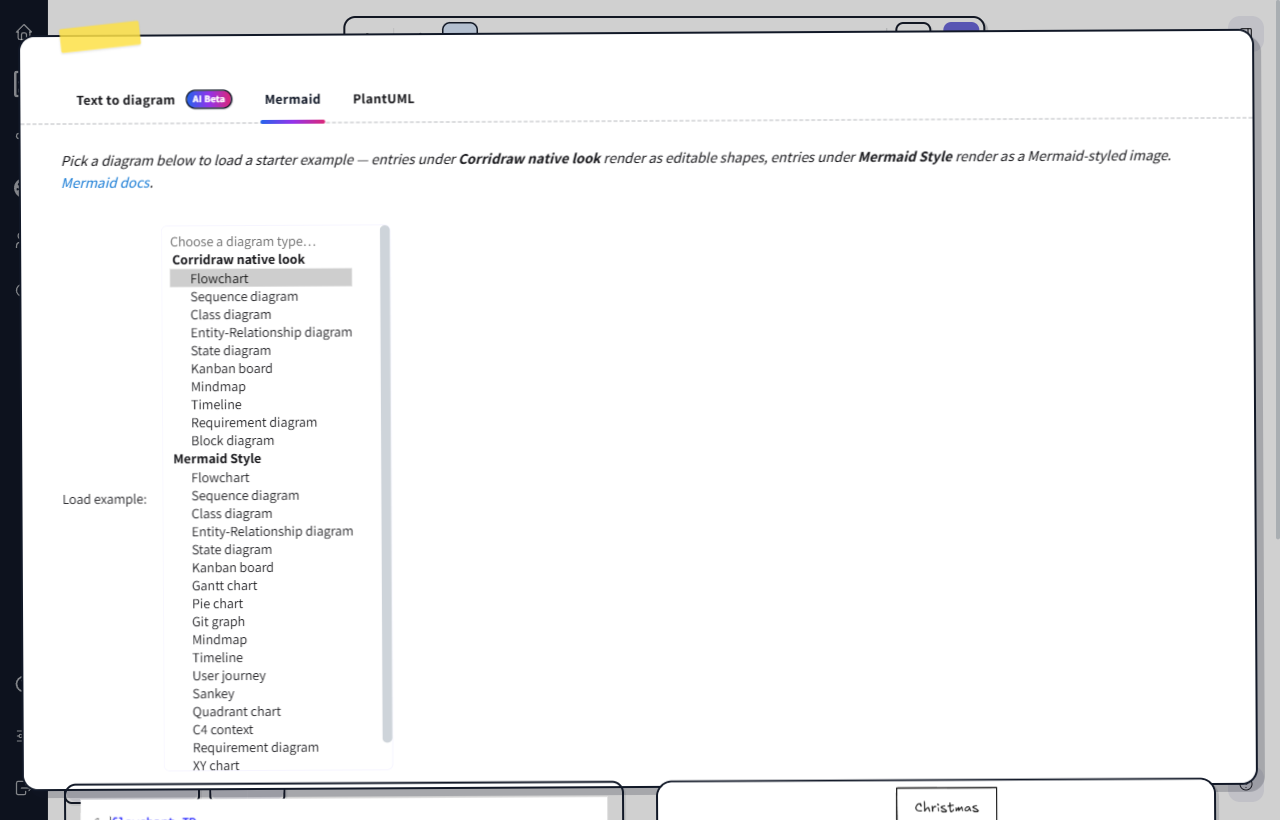
Above the editor there is a Load example dropdown. Click it to open the menu — entries are grouped into two sections: Corridraw native look (entries that produce editable shapes) and Mermaid Style (every example, rendered as a Mermaid-styled image). Picking from one section sets the render mode for the current source, not just the example that comes loaded. Your choice persists across sessions in localStorage.
- Pick Corridraw native look when you want to keep editing inside CorriDraw afterward — change a label, recolour a node, drag an arrow to a different target.
- Pick Mermaid Style when the diagram is "done" and you just want a clean Mermaid-rendered SVG dropped on the canvas as an image.
The Insert button
The primary action sits below the preview pane on the right. It is labelled Insert and shows the Ctrl+Enter hint right next to its label. Clicking it and pressing the shortcut trigger the exact same code path, so use whichever fits the moment — clicks when you are reading the preview, the shortcut when you are deep in the source editor.
After Insert the dialog stays open. That is intentional — most Mermaid editing is iterative, and you will want to tweak a label or add an edge and re-insert. Click the close (×) button in the dialog header, or press Esc, when you are happy with the result.
Auto-fix for recoverable errors
The Mermaid parser is strict about syntax. A missing closing bracket or a stray colon is enough to make the preview blank, and the error pane on the right tells you which line failed. When the error is one CorriDraw recognises as routinely fixable (an unbalanced bracket, an extra comma, a malformed label), an Auto-fix is available hint appears next to the editor. Click it and CorriDraw replaces your source with the corrected version — and only when it has actually verified that the fix parses cleanly. You stay in control: nothing changes until you click.
A runnable example
Paste the snippet below into the editor on the Mermaid tab and click Insert (or press Ctrl+Enter). You should get four nodes — a start rectangle, a decision diamond, and two outcome rectangles — connected by labelled arrows.
graph TD
  A[Start] --> B{Approve?}
  B -- Yes --> C[Ship]
  B -- No --> D[Revise]
  D --> B
If you would rather see how the same source looks rendered through Mermaid's own SVG output instead of CorriDraw's native parser, click the Load example dropdown, scroll down to the Mermaid Style group, and click Flowchart. The preview redraws in Mermaid's house style, and clicking Insert drops it on the canvas as a single image element instead of editable shapes.
Errors that are not auto-fixable
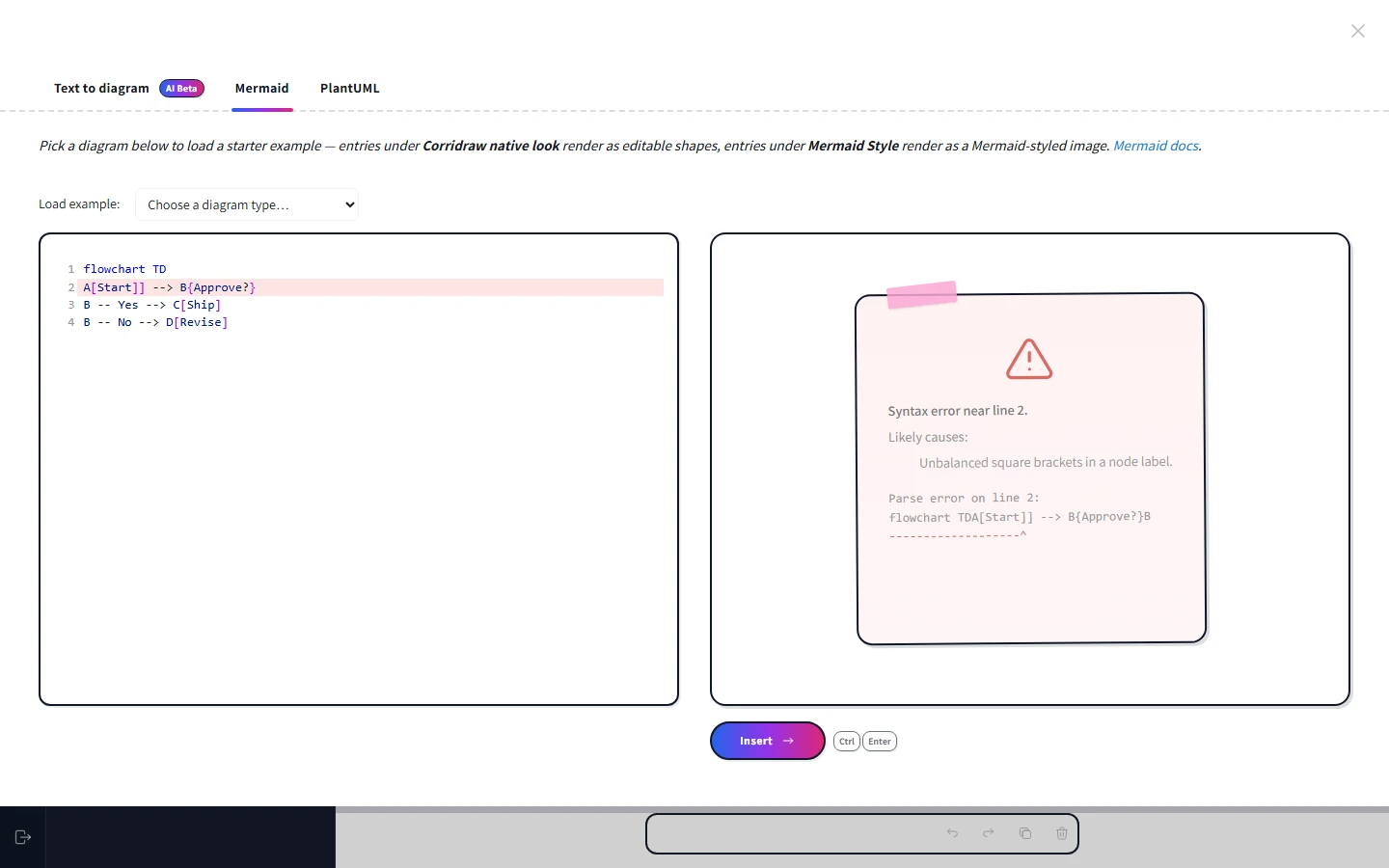
If your source is syntactically broken in a way the auto-fixer cannot guess, the preview pane shows the parser error and the line number. Common causes:
- The first line does not name a recognised diagram (
flowchart,sequenceDiagram,classDiagram, etc.). - A node id contains spaces without quotes — wrap the label in
[ ],( ), or{ }. - An arrow points to a node that has not been declared yet, in a diagram type that requires forward declaration.
The cleanest debugging loop is to keep the dialog open, fix the offending line, and watch the preview re-render. Mermaid's own playground at mermaid.live is also useful when you want a more verbose error message — open it in a new browser tab side-by-side with the dialog.