
Search
The dashboard search bar in CorriDraw — full-text search across diagram titles, debounced suggestions, owner and date metadata, and how the mobile expand-on-tap input behaves.
The fastest way to open a diagram is not to click through workspaces and folders — it is to click the search bar at the top of the dashboard and start typing the name. Search is always one click away, and the results dropdown gives you enough context to disambiguate diagrams with similar titles before you commit. This page covers what the bar searches, how the dropdown is structured, and how it adapts on touch devices.
Where the search bar lives
On desktop, the search bar sits in the dashboard header to the right of the page title and stretches up to 360px wide. It is visible on every dashboard scope — All Diagrams, All Workspaces, an individual workspace, or a folder — and it always searches across everything you have access to, not just the slice you are currently viewing. Click it to focus, then start typing.
On mobile and narrow tablets, the bar collapses to a magnifying-glass icon to free up the header for the page title. Tap the icon and the bar expands to fill the header inline, with a close button on the right; tap the close button and the page title returns. The expansion auto-collapses if you resize the window back to desktop width without first dismissing it.

What gets searched
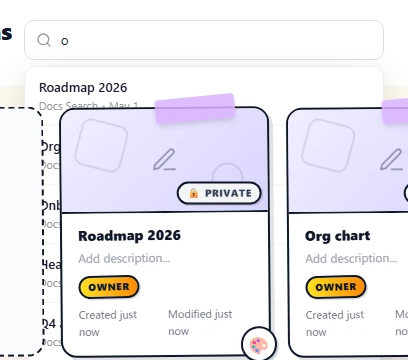
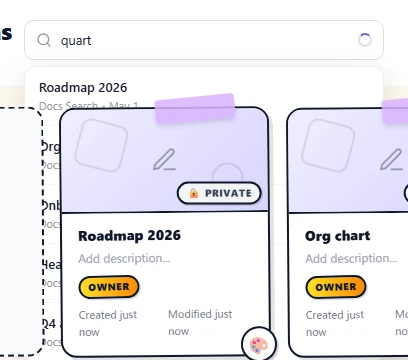
Typing into the bar runs a server-side full-text search against the names of every diagram you can read. Matching is case-insensitive and partial: typing quart finds Quarterly review, Q4 acquisition map, and Headquarters network. The query is debounced by 300 milliseconds, so the dropdown does not flicker while you are still typing.
Search reaches across every workspace you are a member of plus your personal ungrouped diagrams, so a single search at /diagrams covers everything you have ever drawn or been invited to. Diagrams owned by other people that you only have a public-share link to are not indexed for you — those live behind their share token, not your account.
The results dropdown
Each row in the dropdown shows three pieces of information so you can pick the right diagram even if names collide:
- The diagram name in bold, truncated with an ellipsis if it is too long for the dropdown.
- The owner's display name, so you know whose drawing you are about to open.
- The last-updated date, formatted as MMM D (for example Apr 15) so you can tell stale results from fresh ones at a glance.
Click (or tap) any row to open the diagram in the editor. The dropdown closes, the search input clears, and the page navigates to /editor/<diagram-id>. If your query has no matches, the dropdown shows a single greyed row that reads No diagrams found instead of disappearing — that way you know the search ran and came back empty, rather than wondering whether anything happened at all.
Closing the dropdown
The dropdown closes automatically when you click anywhere outside the search container. It also closes the moment you select a result. There is no explicit close button on desktop — the bar is designed to step out of your way the moment you are done with it. If the input still has text and you click back into it, the existing results return immediately so you do not lose context after a misclick.
Loading state
While the server is fetching results, a small spinner appears on the right edge of the input. The spinner is a 14-pixel circle with a purple top arc that rotates at six revolutions per second — short enough that you barely see it on a fast connection, long enough that you know something is happening on a slow one. The spinner disappears the instant results return.
What is not (yet) in the search
The current dashboard search is title-only. It does not look inside diagram contents (text labels, mermaid sources, or sticky-note text), and it does not yet support filters by workspace, owner, or role. Those are tracked features and the bar's API surface is set up for them — for now, the most reliable way to narrow scope is to click into the workspace or folder you care about first, then use the sidebar tree's expand/collapse chevrons to scan visually. Recent activity surfaces inside the editor's left sidebar, not on the dashboard search.
Mobile behaviour in detail
When you tap the search icon on mobile, the rest of the header collapses to make room: the page title hides, the announcement bell hides, and the avatar bubble hides. The expanded bar runs flush from the menu icon on the left to a close X button on the right. Tap the X and the original header layout returns. Resizing the viewport back to desktop width while the bar is expanded automatically returns the layout to its desktop form so you do not get stuck in mobile mode.
