
Mobile touch gestures
Pinch to zoom, two-finger pan, single-tap select, double-tap to add text, and long-press for the context menu — every touch gesture CorriDraw supports on phones and tablets.
CorriDraw runs on phones and tablets out of the box — there is no separate app, just the same web build with a UI that switches to a mobile layout below 640 pixels of width. This page walks through every touch gesture the editor recognizes, plus the two pieces of mobile-only chrome you will see on the canvas: the vertical tool bar anchored to the left edge and the floating shape-actions row at the bottom.
Single-tap — select
Tap a shape to select it. The selection box appears with handles, and the floating bottom row swaps in shape-specific actions — fill, stroke, duplicate, delete. Tap empty canvas to deselect. Tap-and-hold-and-drag a shape's body to move it; tap a handle and drag to resize. Same model as a desktop click, with one wrinkle: a single tap on a text label enters edit mode immediately, the way a double-click does on desktop, because nobody expects to double-tap a label on a phone.
Double-tap — add text
Two single-finger taps on empty canvas, within a half-second of each other and within a few pixels of the same spot, drop a text caret where you tapped and pop the on-screen keyboard. This mirrors the desktop "double-click to add text" gesture exactly. The distance threshold is generous enough that thumb wobble does not block it; the timeout is short enough that two genuinely separate taps will not accidentally start a text element.
Pinch — zoom in and out
Place two fingers on the canvas and spread them apart to zoom in, pinch them together to zoom out. Zoom is anchored at the midpoint between your fingers, which is exactly what feels right — the spot you are pinching stays put under your fingers as the canvas grows or shrinks around it. The zoom range is the same as desktop: roughly 10% to 3,000%.
The current zoom level shows in the bottom-left of the canvas. Tap the percentage to open a zoom menu with Reset zoom, Zoom to fit, and Zoom to selection — three commands that are awkward to nail with a precise pinch and worth keeping a button for.
Two-finger drag — pan
Once you have two fingers down, dragging them across the screen pans the canvas instead of selecting. This separates panning from drawing-on-canvas in the only way that scales: a single finger always means "act on this shape," two fingers always mean "move the camera." If you start a single-finger drag and a second finger lands midway through, the drag stops and pan begins from where the second finger touched down — no half-finished shapes get stuck in the canvas.
A phone screenshot demonstrating a two-finger pinch. Two thumb shapes are drawn on top of the canvas to indicate finger positions, with the canvas at 175% zoom in the bottom-left. The midpoint between the fingers is marked as the zoom anchor.
/screenshots/docs/mobile-touch-2.png Long-press — context menu
Press and hold a single finger on the canvas (or on a shape) for half a second without moving, and the context menu pops up at your finger position. The press threshold is exactly 500 ms — long enough that scrolls and short stutters do not trigger it, short enough that you do not feel like you are waiting. The menu carries the same items it does on desktop right-click: Cut, Copy, Paste, Duplicate, Delete, Group, Send to back, and so on, scoped to whatever your finger landed on.
The menu is pointer-aware — items that take a single shape (like Edit text) show only when one shape is selected; items that take a multi-selection (like Align centers) show only when two or more are. Tap an item to run it; tap outside the menu to dismiss.
A phone screenshot showing the context menu opened by long-press. The menu floats above the press point with items like Cut, Copy, Paste, Duplicate, Delete, Group, and Send to back stacked vertically with a hand-drawn border.
/screenshots/docs/mobile-touch-3.png The mobile tool bar
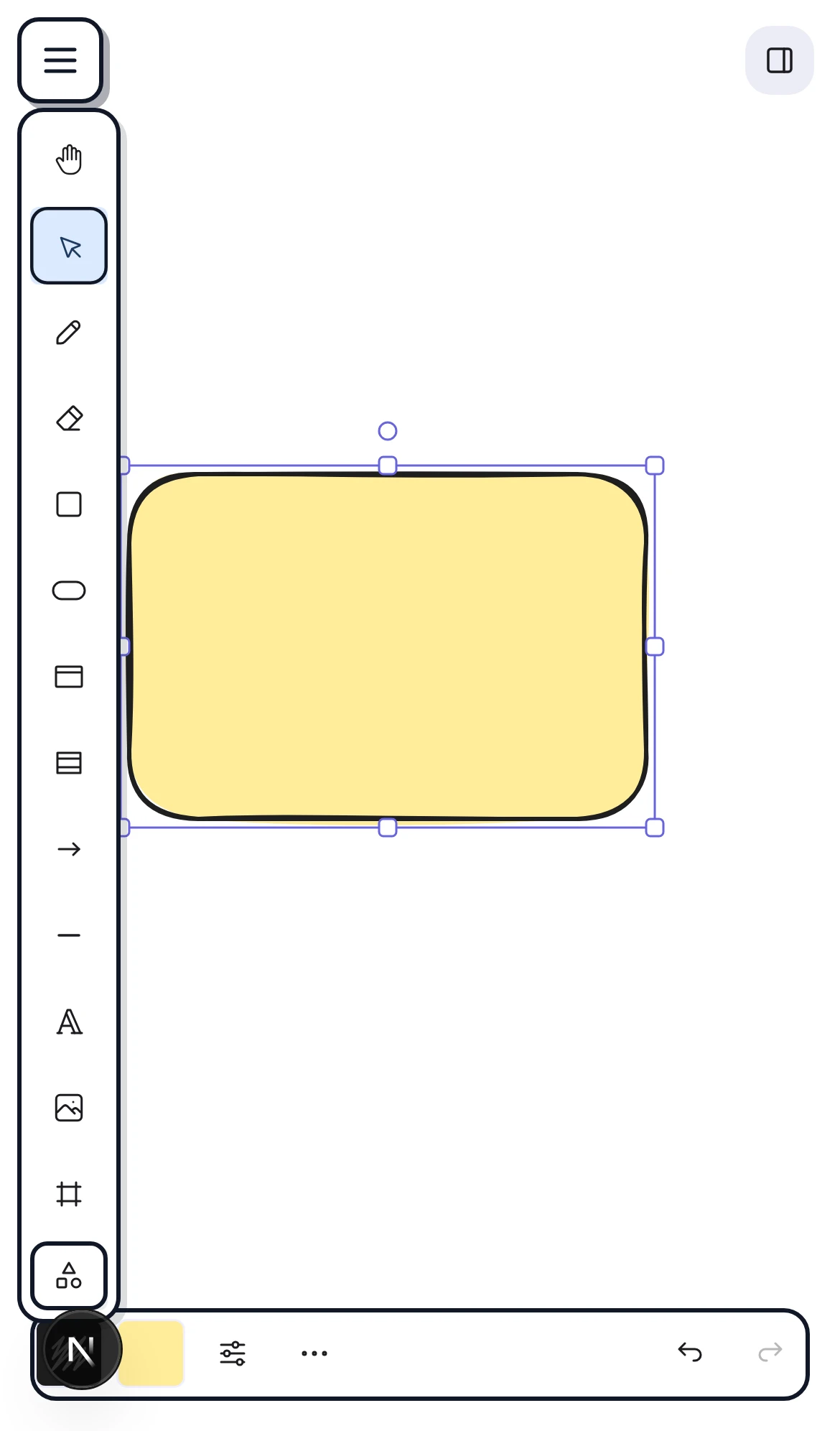
Below 640 px wide, CorriDraw anchors the drawing toolbar as a vertical column to the
left edge of the canvas — the source-of-truth class is .App-left-bar,
not the desktop top-center position. The column carries the most-used tools:
Selection, Hand (panning by single finger), Rectangle,
Ellipse, Diamond, Arrow, Line, Freedraw,
Text, Image, and a More chevron that expands the rest. Tap
a tool to activate it; the active tool is highlighted with a hand-drawn ring. The
column sits on the left so it never fights the phone's bottom system bar or the
on-screen keyboard when you tap into a text label.
The mobile actions row
Selecting one or more shapes on mobile keeps a floating actions row pinned to the bottom of the canvas (centered, max 450 px wide). The row replaces the desktop sidebar — fill color, stroke color, stroke width, opacity, layer order, lock, link — laid out in scrollable groups optimized for thumb taps. Tap empty canvas above it to dismiss; the selection clears and the row goes with it. Re-tap a shape to bring it back.
What does not work the way you might expect
- Three-finger gestures — undo, redo, and the like — are not bound. Use the bottom row's Undo button or the on-canvas keyboard shortcut bar that pops up when an external keyboard is paired.
- iOS Scribble on canvas is intercepted to prevent Apple's handwriting conversion from hijacking ink strokes. Drawing with the Pencil on the canvas creates freehand marks; to type with Scribble, tap into a text element first.
- Browser-level pinch-to-zoom is suppressed on the canvas so it does not fight the editor's own zoom. Pinch outside the canvas (on the toolbars, dialogs) still does what your browser normally does.