Workspaces
Workspaces in CorriDraw — the All Workspaces card grid, an individual workspace at /workspaces/<id>, plus creating, renaming, deleting, and managing members and roles.
A workspace is a named container for diagrams. It is the unit you share with other people, the unit roles attach to, and the unit your folders live inside. Every diagram either belongs to exactly one workspace or sits in All diagrams as a personal scratch pad. This page covers what a workspace is, the two screens that show them off, and how to create, rename, delete, and staff one with members.
What a workspace is
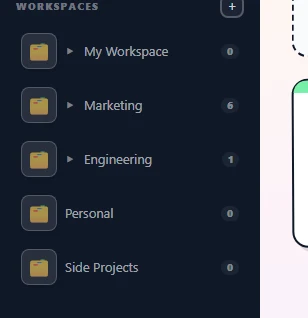
Think of a workspace as a labelled binder. Inside it you can put folders, and inside those folders you can put diagrams. You can also drop diagrams straight into the workspace without a folder — those show up in the workspace's Ungrouped block. Every workspace has exactly one owner, an optional set of admins, and any number of plain members. Whatever role you have on the workspace cascades down to every folder and diagram inside it.
A workspace also carries a small set of shared resources: pending email invitations, a shared library of stickers and templates, and a members list with role badges. The workspace owner can also delete the entire binder in one action, which removes every folder and diagram inside it.
The All Workspaces view
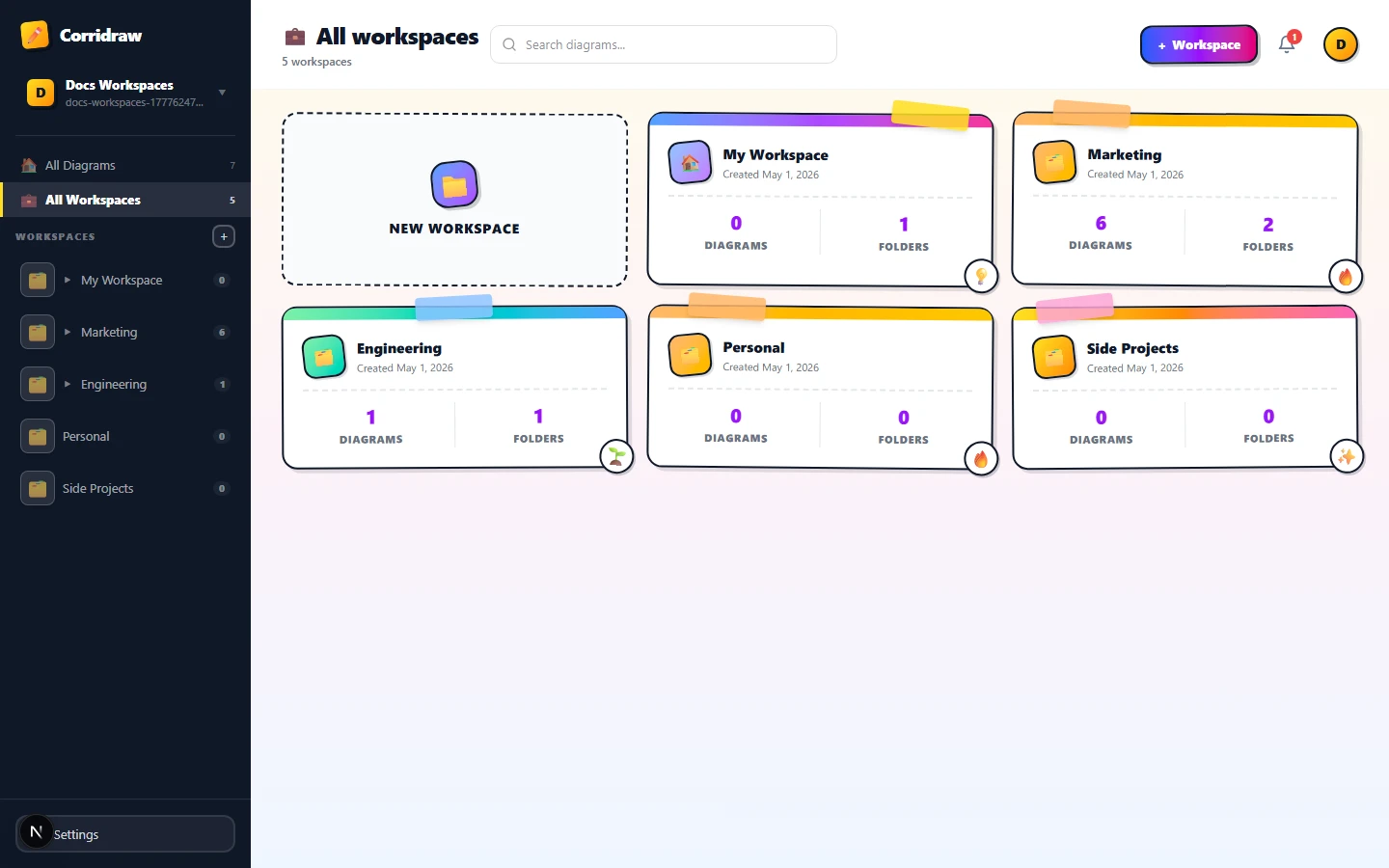
Click All Workspaces in the dark sidebar (or visit /workspaces directly) and you land on a card grid that shows every workspace you have access to. Each card carries the workspace name, a sticker-note style background, and a small footer with the diagram and folder counts. The very first card is a dashed + New workspace tile.
The header on this page swaps to a briefcase icon and the title All workspaces, and a + Workspace button appears on the right side of the header bar so you can create one with a single click instead of scrolling down to find the new-workspace card.
Inside one workspace
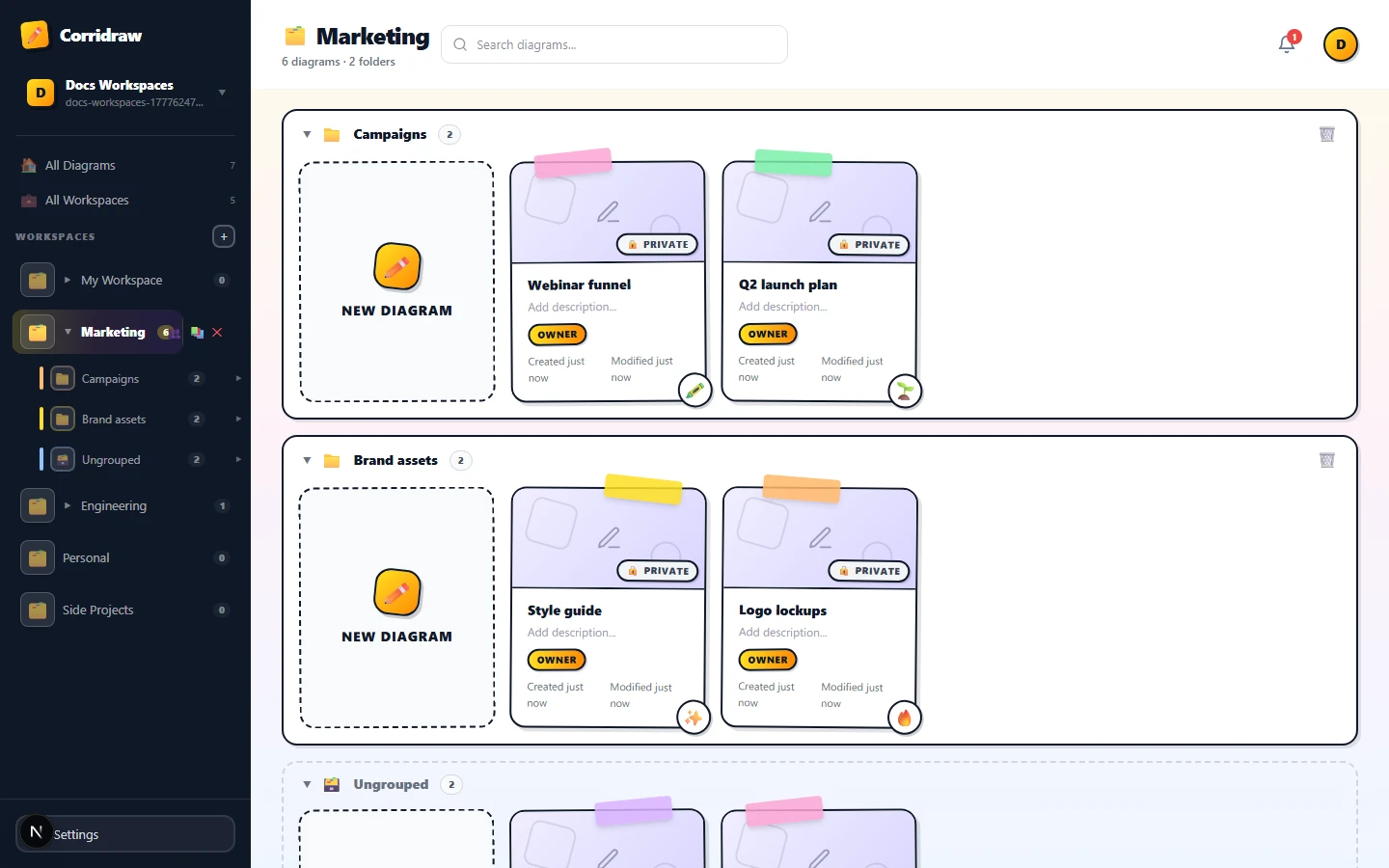
Click a workspace card (or any workspace name in the sidebar tree) and the URL changes to /workspaces/<id>. You stay on the same dashboard chrome — sidebar, header, main grid — but the grid now contains only the diagrams and folders that live in this workspace. The header title swaps to the workspace's own name and the icon switches to the folder-tabs glyph, so the active scope is unmistakable.
From here, the grid renders one block per folder, plus an Ungrouped block at the bottom for diagrams that have not been put into a folder yet. A New diagram tile sits at the top of every block so you can click straight into the right place to create a drawing.
Creating a workspace
You can spin up a new workspace from three places, all click-driven:
- Click the + New workspace tile at the top-left of
/workspaces. - Click the + Workspace button on the right side of the header bar (visible whenever you are on All Workspaces).
- Right-click (or tap the kebab dots on touch) on the All Workspaces entry in the dark sidebar and choose New workspace.
All three open a small inline name editor. Type a name, press Enter (or click outside the field), and the workspace appears immediately in your sidebar tree with you as its owner.
Renaming and deleting
Right-click a workspace in the dark sidebar — or tap the kebab dots that appear on hover — and pick Rename or Delete. Rename opens an inline text field so you can type the new name and press Enter. The change is instant and pushes through to every other browser or device you are signed in on.
Delete is destructive. The action shows a confirmation dialog that lists how many folders and diagrams will be deleted with the workspace; click Delete to confirm or Cancel to back out. Once confirmed, the workspace and all its contents disappear from every member's sidebar. There is a short server-side grace window during which the data is recoverable by support — outside of that, the deletion is permanent.
Members and roles
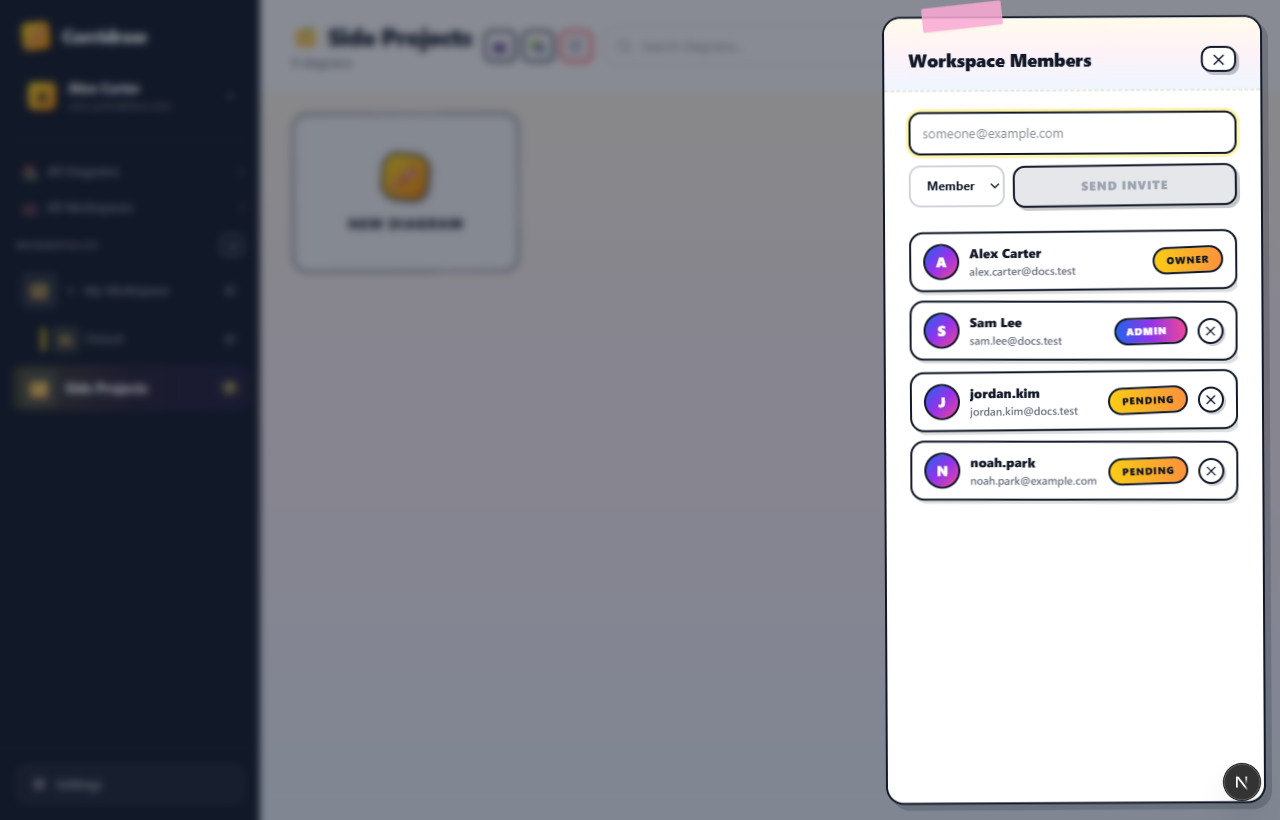
Every workspace has a Members panel that slides in from the right edge of the dashboard. To open it, click the 👥 members chip in the page title bar (right of the workspace name and its diagram/folder count). The panel shows one row per person — avatar, name, email, and a role badge — and stays open while you read or edit; click outside or press Esc to close. There are three workspace roles:
- Owner — the original creator. Yellow-orange badge. Can rename, delete, and add admins; cannot be removed except by transferring ownership.
- Admin — gradient blue/purple/pink badge. Can invite and remove members, manage folders and diagrams, and toggle the shared library, but cannot delete the workspace.
- Member — plain white badge. Can read and edit every diagram in the workspace but cannot change membership or workspace-level settings.
Pending invitations show up in the same list, with the email address greyed out and an explicit Pending tag. They convert to full members the moment the invitee accepts from their own dashboard.
Inviting by email
The top of the Members panel has a two-row invite form: an email field on its own line, then a role dropdown (Viewer, Member, or Admin) sitting beside a full-width gradient Send invite button. Type the address, pick the role, and click Send invite (or press Enter from the email field) — the invitation is mailed out. If the recipient already has a Corridraw account, the workspace appears in their sidebar invitations strip on their next dashboard load. If they do not, the email contains a sign-up link and the workspace is queued against their email until they create an account.
Right-click actions on the sidebar tree
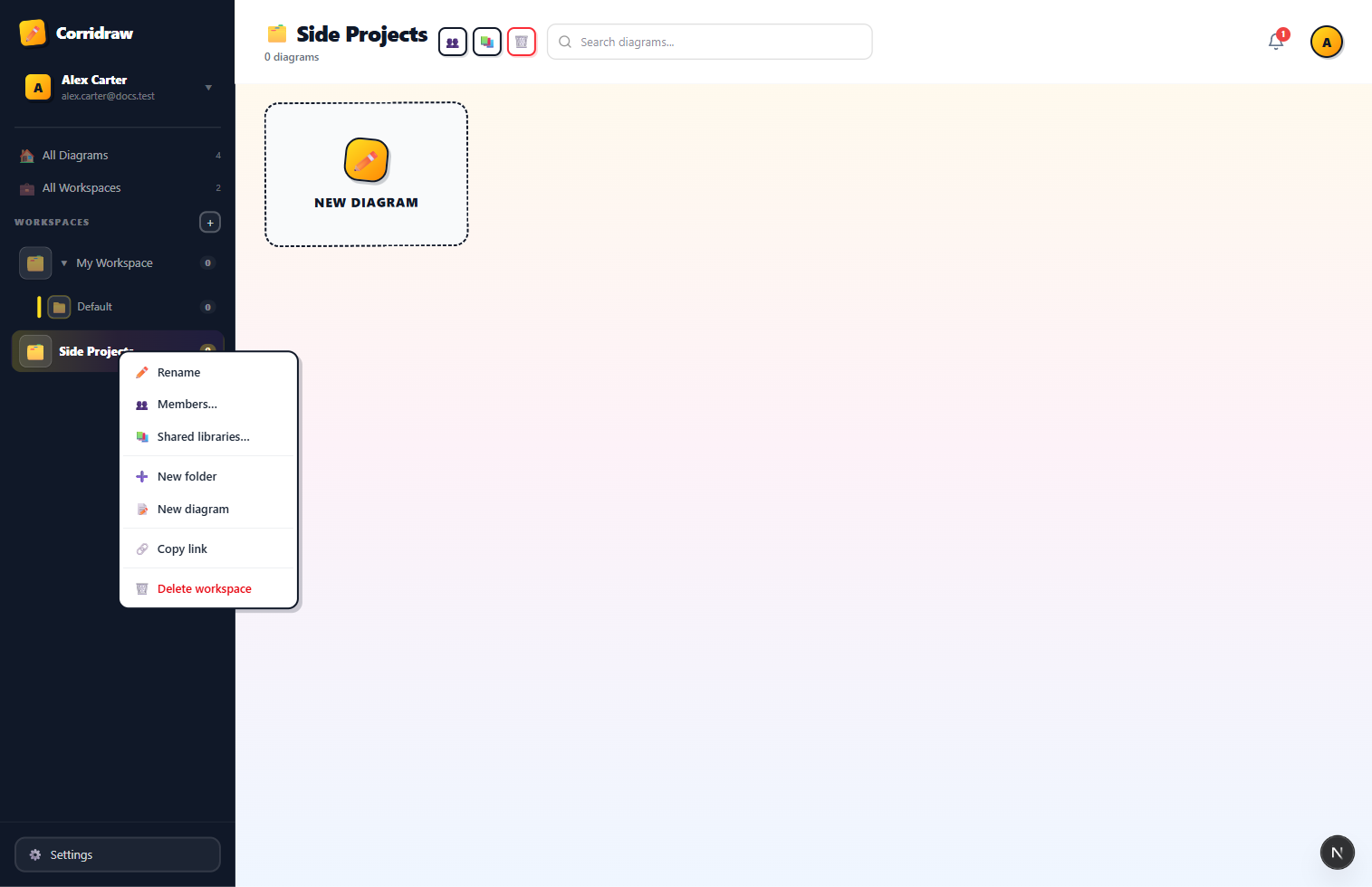
Every workspace and folder row in the dark sidebar tree exposes a context menu. Right-click (or two-finger tap on a trackpad) the row to bring it up — Esc, click outside, or scrolling the tree all dismiss it.
On a workspace row the menu mirrors the action chips that sit in the page title bar (Members, Shared libraries, Delete) and adds the natural creation shortcuts (New folder, New diagram in this workspace) plus a Copy link entry that puts /workspaces/<id> on your clipboard so you can paste it into a chat or notes app. The Delete entry hides on the default workspace because it can't be removed.
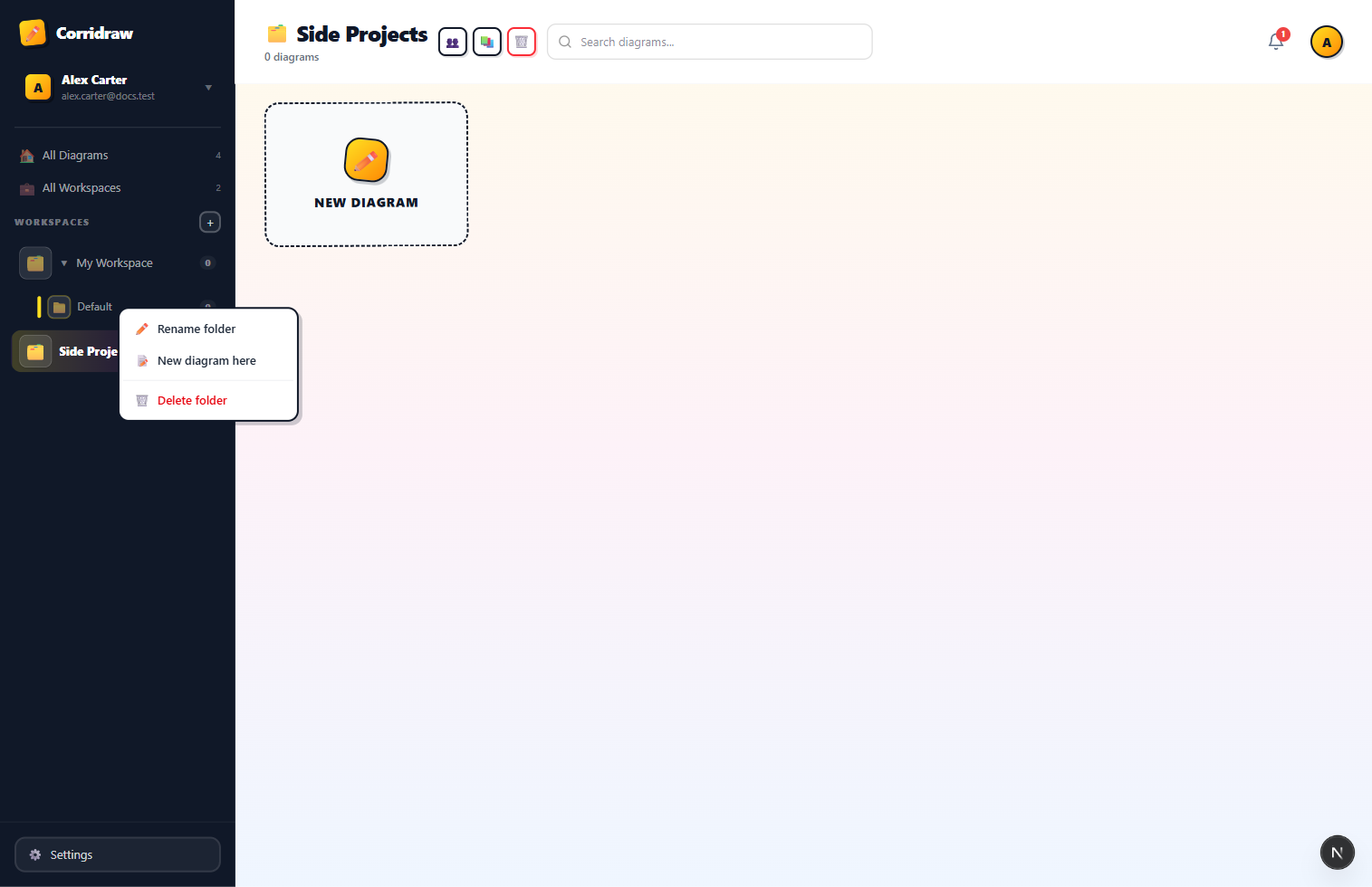
On a folder row the menu is shorter — folders only own their name and the diagrams they hold, so the actions are Rename folder, New diagram here, and a destructive Delete folder.
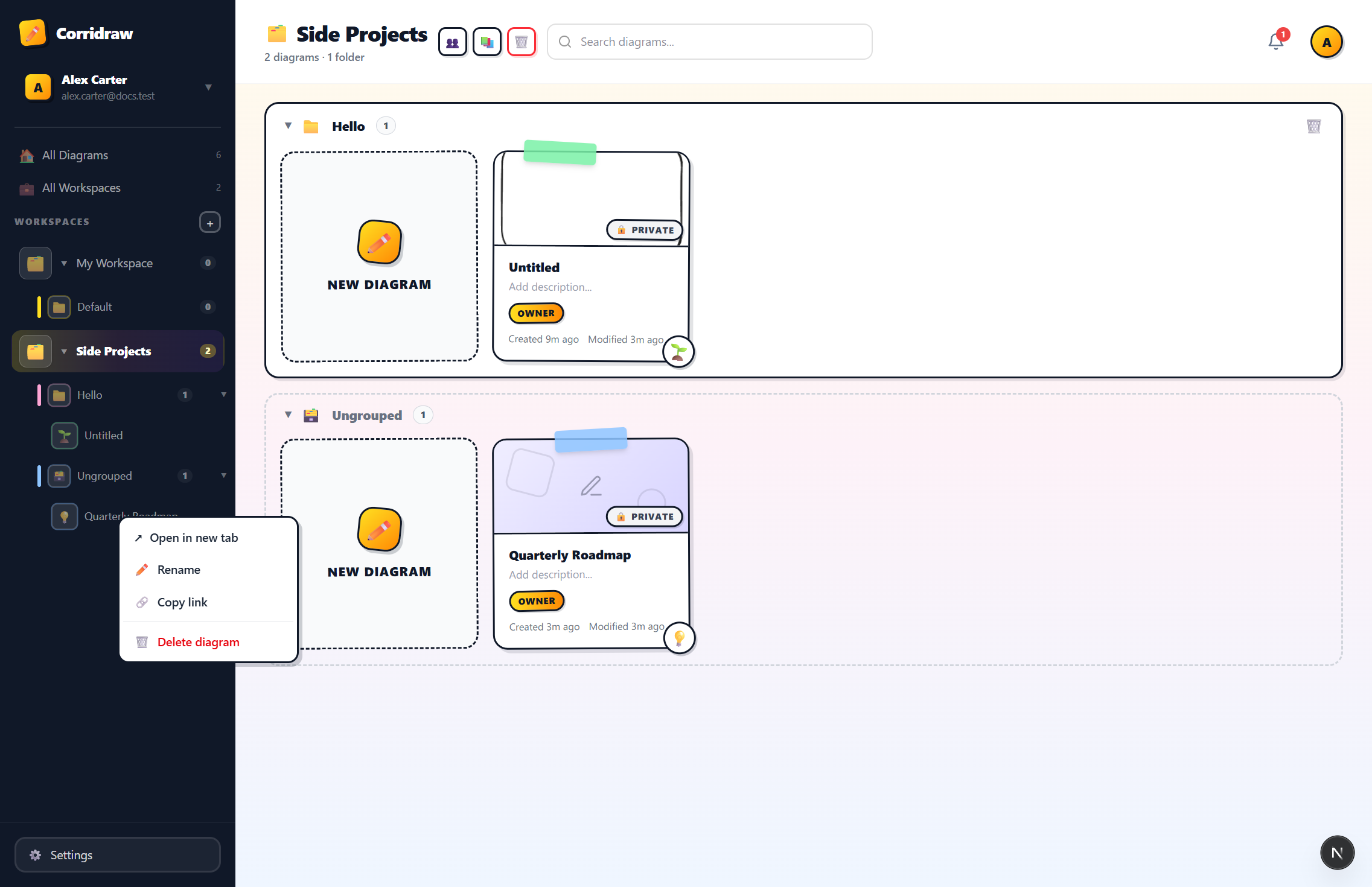
On a diagram row the menu surfaces the per-diagram actions you'd otherwise reach by clicking around the edit panel: open the diagram in a new browser tab (without disturbing the workspace view you're in), rename it, copy a deep link to share with a teammate, and delete it. The Open-in-new-tab path is just a wrapper around window.open('/editor/<id>', '_blank') so it integrates with browser session-restore the same way Cmd/Ctrl-click on a link does.