Sharing overview
How CorriDraw splits sharing into workspace-level membership and per-diagram invitations, how roles inherit, and how to use the editor's share panel and email invites.
CorriDraw has two layers of sharing that work together. One is at the workspace level — broad, durable, and great for teams. The other is at the diagram level — narrow, specific, and great for one-off reviews or public links. Knowing which layer to reach for is most of the work; once you know that, the actual UI is a couple of clicks. This page covers both layers, how they inherit, and the dialogs you use to drive them.
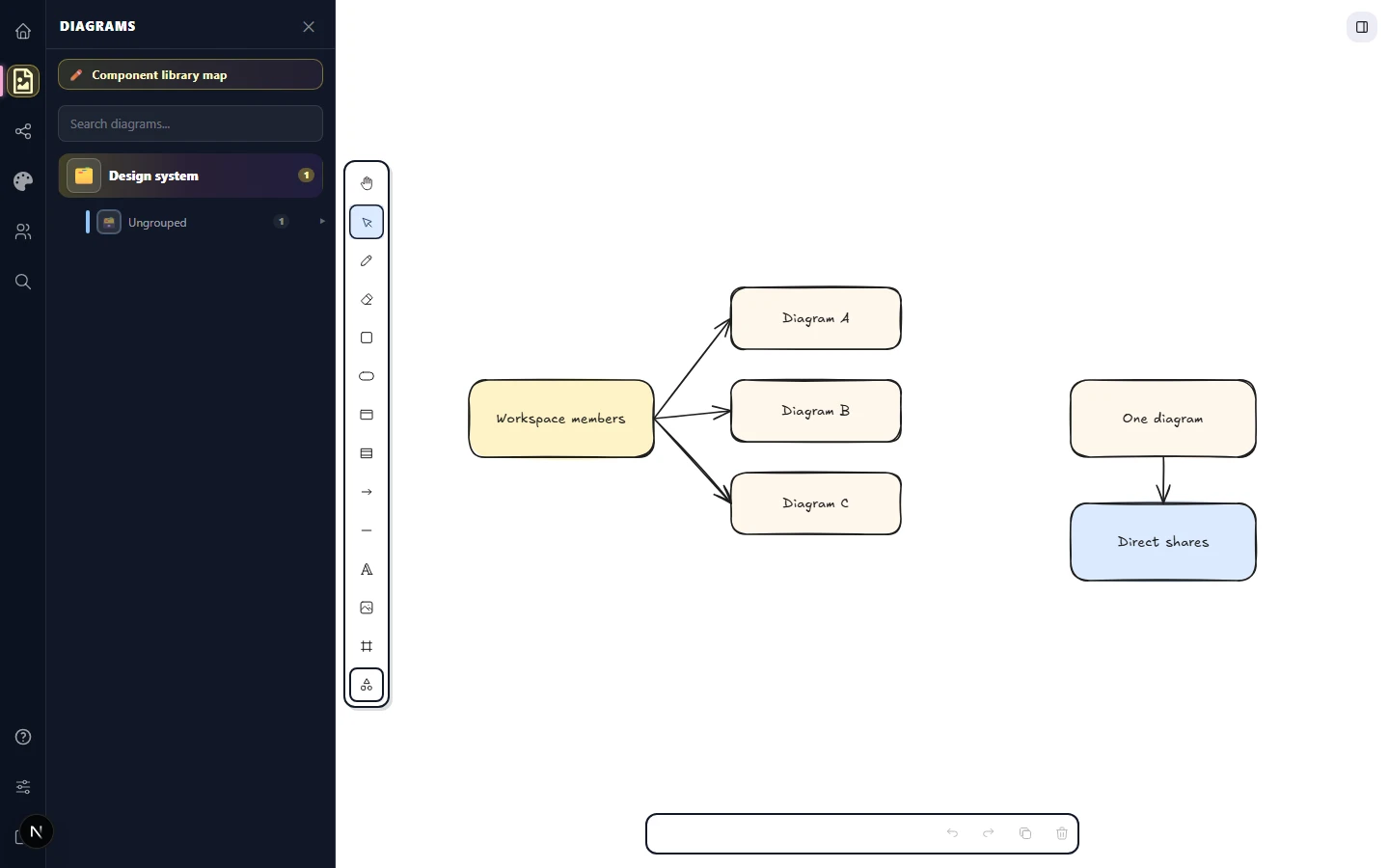
Two layers, one model
Workspace sharing means adding someone as a member of a workspace. They get access to every diagram in that workspace, present and future, and they keep that access until you remove them or they leave. Workspace sharing is the right move for steady collaborators — your design team, your co-founder, your project partner.
Diagram sharing means inviting someone to one specific drawing without giving them anything else. The recipient does not need to be in any of your workspaces. Diagram sharing is the right move for ad-hoc reviewers, external clients, and anyone you want to give a single drawing to.
Roles and how they inherit
Workspaces have three roles: Owner, Admin, and Member. Diagram-level shares have two: Editor and Viewer. The two sets meet in a simple inheritance rule:
- Anyone in the workspace at any role can read every diagram inside it.
- Workspace Members and Admins can edit every diagram inside the workspace by default, on top of their workspace privileges.
- Workspace Owners additionally control workspace settings — renaming, deleting, member management, and the shared library.
- A diagram-level Viewer share grants read-only access to that single diagram, regardless of workspace membership.
- A diagram-level Editor share grants read-write access to that single diagram. It does not escalate to other diagrams in the same workspace.
If someone has both kinds of access — say, they are a workspace member and they have an old per-diagram Viewer share — the more permissive role wins. You never lose access by being added or removed at one layer.
Inviting people to a workspace
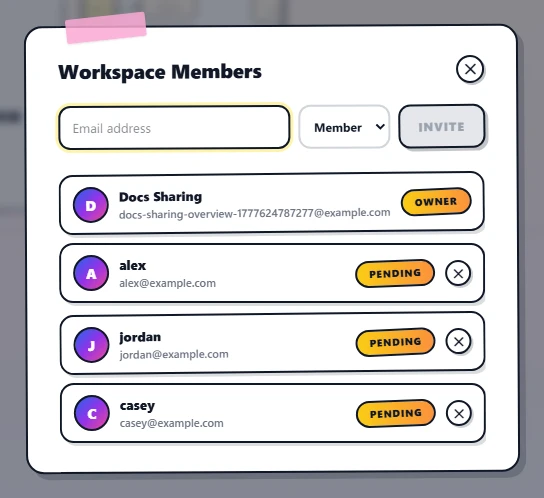
Open the dark sidebar, click the kebab menu (three dots) next to the workspace name, and choose Members. The Workspace Members dialog opens with one row per current member and an invite form pinned to the top. Type an email address into the field, click the role dropdown to pick Member or Admin, and click Invite.
If the invitee already has a Corridraw account, the workspace lands in their dashboard's invitations strip the next time they load it. If they do not, the email contains a sign-up link and the invitation queues against their address until they create one. Either way, the dialog shows the row in Pending state until the invite is accepted, and you can revoke a pending invite by clicking the small remove button on its row.
Inviting people to a single diagram
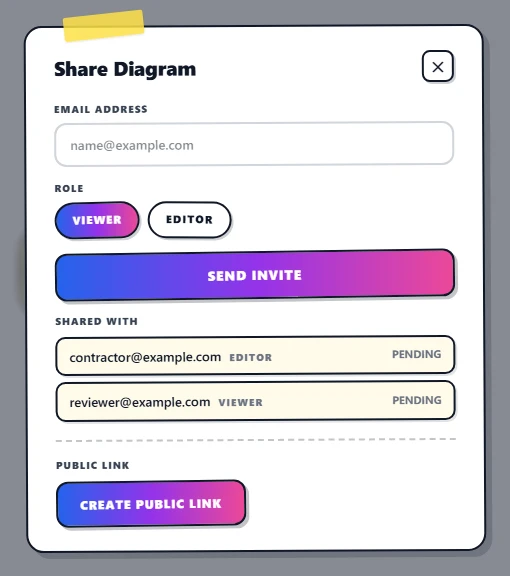
Inside the editor, the left activity bar carries a Share panel. Click its icon to open it, then click Share with people to bring up the diagram's invite dialog. The dialog has the same shape as the workspace one, with a few differences:
- The role pills read Viewer and Editor instead of Member and Admin. Click whichever you want.
- Existing direct shares appear in a list under the form, with their email and current role.
- A separate section at the bottom controls the diagram's public link — a tokenised URL that anyone can open, with its own role toggle.
Sending an invitation here does not add the recipient to your workspace; they get this single drawing only. If they already have an account, the diagram appears as a regular tile in their All diagrams view tagged with your name as the owner.
Public links
Click the public-link toggle in the Share Diagram dialog and CorriDraw mints a stable URL with an opaque token in it. Anyone who has the URL can open the diagram without signing in — no account, no invitation, no email match required. The toggle next to it flips between Viewer (read-only) and Editor (read-write) so you can hand off a link that gets feedback without giving away write access. A Copy link button appears once the link is enabled — click it to drop the URL onto your clipboard, ready to paste into Slack, email, or wherever you are sharing.
To revoke the link, click the same toggle to switch it off. The token is invalidated immediately and any open tab on that link will fall back to the read-only public viewer state on its next render. If you turn the link back on later, a brand-new token is minted, so an old shared URL never silently re-activates.
Removing access
To remove someone from a workspace, click the trash icon at the right end of their member row in the Workspace Members dialog. They lose access to every diagram in that workspace immediately, and any tab they have open on one of those diagrams demotes to read-only on the next sync. Pending invitations are removed the same way, and the email queue is cleared so the invite cannot be accepted later.
Removing a per-diagram share works identically from the diagram's Share dialog — click the trash icon next to their row. Public-link revocation, member removal, and role changes all use the same instant-propagation path: the change is live the moment you click, and there is no Save step on any of these dialogs.