
Profile
Edit your CorriDraw display name, avatar, and bio. Where the profile lives, what teammates see, and what the email field will and won't let you do.
Your CorriDraw profile is the identity teammates see on shared diagrams, in the presence pills above the canvas, and on every comment you leave. It is small on purpose — three fields and an avatar. This page covers exactly what each field does, where to find the editor, and the few things you cannot change without contacting support.
Where to edit your profile
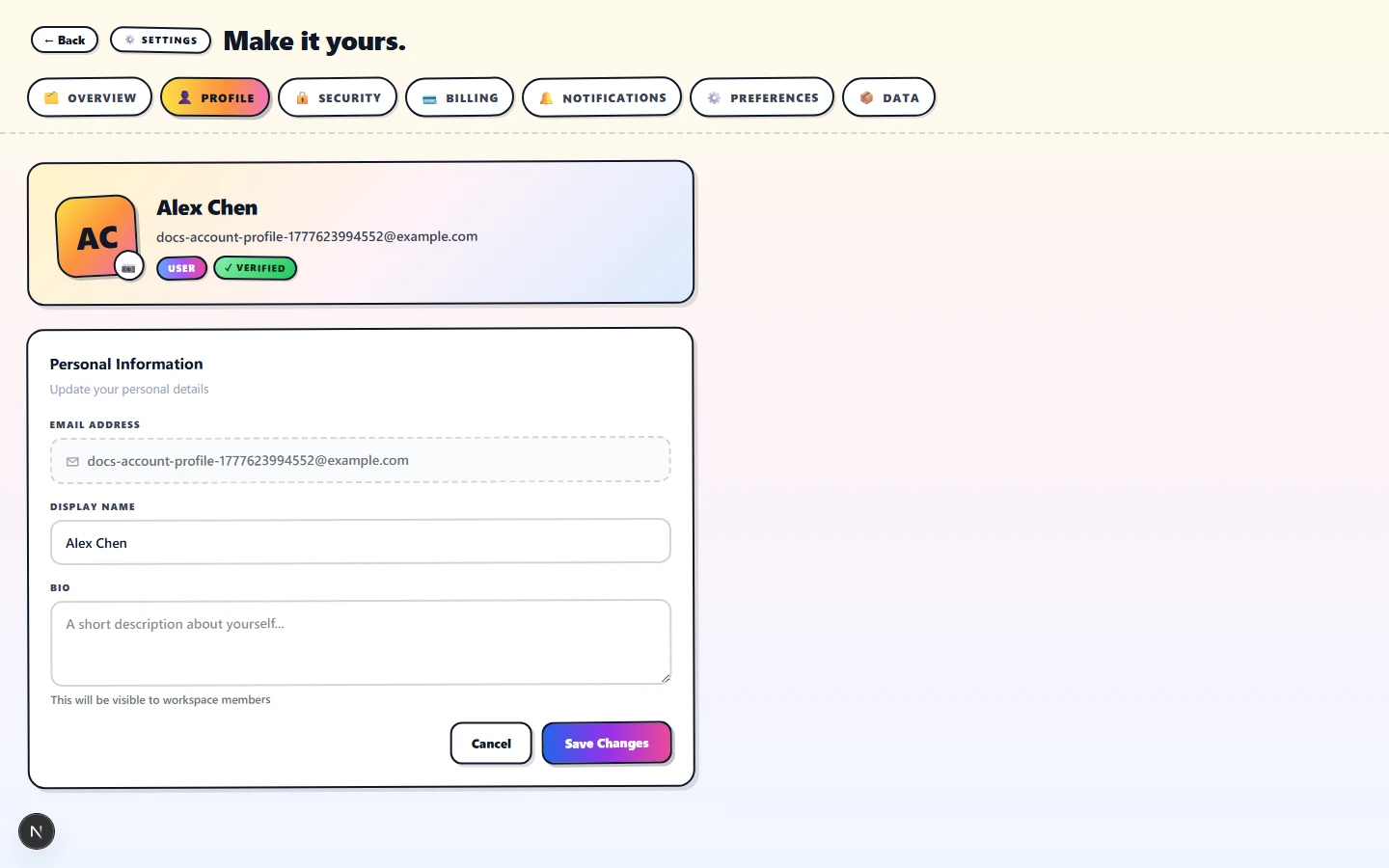
Profile editing lives inside the unified settings page at
/settings. The route
/account is an alias that
opens the same screen — both URLs are valid and bookmarkable. From the dashboard,
click your avatar in the top-right and pick Settings; the page opens on the
Overview tab. Switch to the Profile tab (the one with the 👤 icon)
to reach the fields described below.
Display name
The Name field is what appears beside every shape you draw in a shared session, on every comment, on every share-link card, and on the dashboard's member rosters. It must be at least one non-whitespace character; an empty save shows "Name is required" inline and the form refuses to submit. Anything else is allowed — Unicode, emoji, spaces, even a single character — though the live presence pill truncates names longer than about 20 characters with an ellipsis.
Saves are immediate. Click Save Profile and the API call returns within a second; collaborators in an open session see your new name on their next presence update without having to refresh.
Avatar
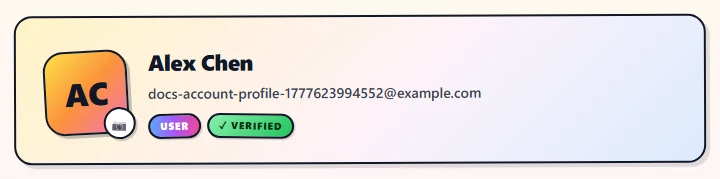
Today, every CorriDraw avatar is a single-letter tile generated from your name. The letter is the first character of your Name field uppercased, painted on a yellow-to-orange gradient with a hand-drawn border and a slight rotation — the same sticky-note style as the rest of the app. There is no upload-a-photo control: change the avatar by changing the first letter of your name.
OAuth signups arrive with the avatar URL Google or GitHub gave us, but it is not rendered in the current UI — every place an avatar shows up uses the initial-on-tile rendering for consistency across providers. If a custom photo upload is something you need, open a request on the community board; it is a tracked item, not a hidden setting.
Bio
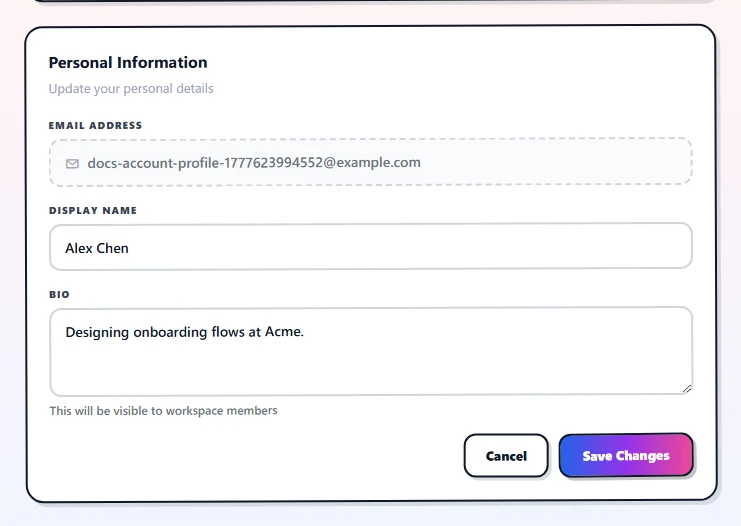
The Bio textarea is a free-form description that surfaces on your public profile card — the one a collaborator sees when they hover your avatar in a diagram or click your name in a comment thread. Empty is fine; if you fill it in, keep it to a sentence or two — the card cuts off at roughly four lines. Markdown is not rendered; line breaks are preserved as-is.
The Email field is shown but disabled. It is your sign-in identity and the one address we use for transactional mail (verification, password reset, billing receipts, share-link invitations). Changing it requires a verified flow we have not exposed in the UI yet — for now, contact support@corridraw.com with both the old and new addresses and we will move the account by hand.
Profile URL
CorriDraw does not currently issue per-user public profile URLs (no
/u/<handle> page). Your identity is scoped to the diagrams and
workspaces you participate in — there is no global profile page that lists everything
you have ever drawn. This is a deliberate privacy choice; if a public-portfolio mode
is something you need, that is a feature request, not a hidden setting.
What teammates see
Three places render your profile data, and only those three:
- Presence pills — the small circles above the canvas during a live session. Show your avatar tile and your name on hover.
- Comment threads — your name and avatar appear next to each comment and reply.
- Workspace member lists — owners and admins see name, email, and role; non-admin members see just name and role.
Bio shows up only on hover-cards in those same three contexts, never as a standalone page. If you want a way to share a longer "about me" externally, link a personal site from the bio text — links are clickable.