
Magic Frame
Wrap a wireframe selection in a Magic Frame and let AI turn it into working HTML — previewable, copyable, exportable from the canvas.
The plan for Magic Frame is to make it the fastest way to go from a hand-drawn UI sketch to real, runnable HTML. You'd draw a button, a header, an input, a card. You'd wrap them in a Magic Frame. CorriDraw would send the wireframe to a diagram-to-code service and drop the result back onto the canvas as an interactive iframe sitting right next to the original sketch. Tweak the sketch, regenerate, and iterate without ever leaving the editor.
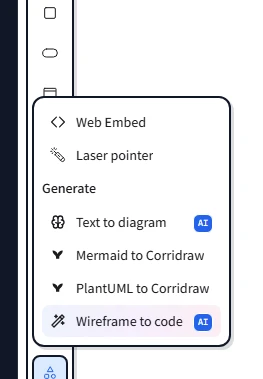
The intended element type is magicframe and the tool's tooltip will read Wireframe
to code. The output will be a regular CorriDraw iframe element with its
customData.generationData populated, which is why you'll be able to drag it, resize
it, copy it, or export the whole canvas with the rendered HTML baked in.
Create a Magic Frame
There are two paths into a Magic Frame, and they exist because wireframing is rarely linear — sometimes you sketch first and decide afterwards, sometimes you scope the area before drawing. Both paths start at the wand-shaped Magic Frame button in the top-right of the toolbar.
- Wrap an existing selection. Drag a marquee around the shapes you want to convert (or shift-click them one by one), then click the wand icon in the top-right of the toolbar. CorriDraw auto-creates a Magic Frame around the selection (with a 50px padding) and immediately fires the generation. On touch, long-press a shape to start a multi-select, tap the others, then tap the wand button.
- Draw the frame first. Click the wand icon with nothing selected, then click and drag out a rectangle on the canvas. Drop your shapes inside. When you are ready, click the frame to select it and click Wireframe to code on the on-canvas action button that appears above it.
What goes inside the frame
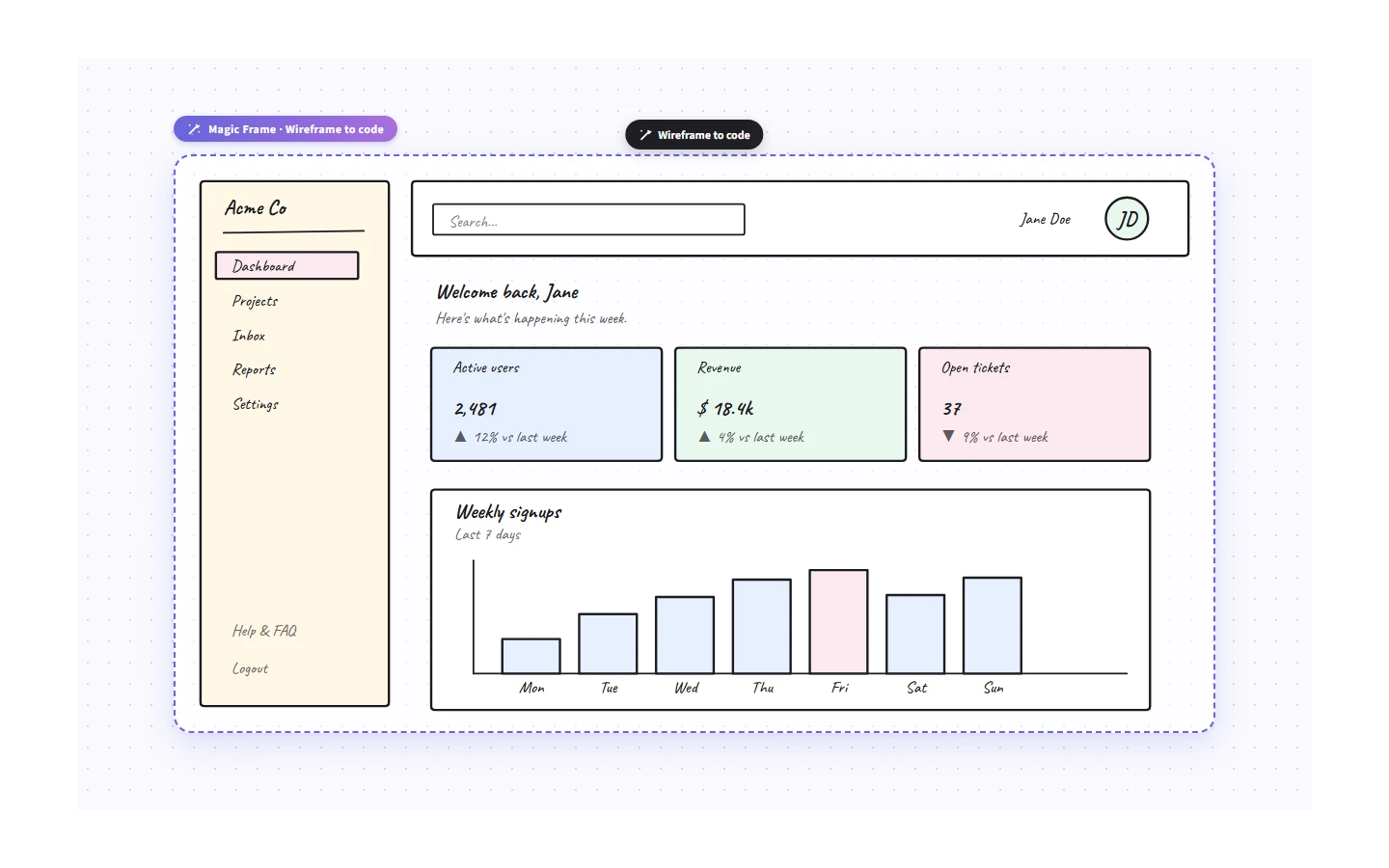
Anything overlapping the frame becomes part of the prompt — rectangles become containers, ellipses become buttons, text labels become real text, arrows are ignored as instructional. The cleaner the wireframe, the closer the generated HTML matches your intent. A few rules of thumb:
- Use real text for labels, headings, and placeholder copy. Click the text tool, click on the canvas, and type. The AI reads the strings literally and renders them in the output.
- Group related controls (a label + its input) close together so the layout engine treats them as one row.
- Keep aspect ratios honest. If you want a hero image, draw a rectangle with the right ratio — the model uses the bounding box to size things.
- Don't bury notes inside the frame unless you want them rendered. Put scratch notes outside.
Generate, preview, iterate
Triggering generation drops a placeholder iframe to the right of your frame (offset by 30 pixels, matching the source dimensions) showing a pending spinner. When the response arrives, that placeholder swaps in the real rendered page. You can interact with it — buttons hover, inputs accept focus, links don't navigate (the iframe is sandboxed, that's intentional).
Click the generated iframe to select it, and two action buttons appear above it:
- Copy source — click to copy the full
<!DOCTYPE html> … </html>document to your clipboard so you can paste it into a code editor. - Enter fullscreen — click to pop the iframe out to fill the browser window for a real-world preview.
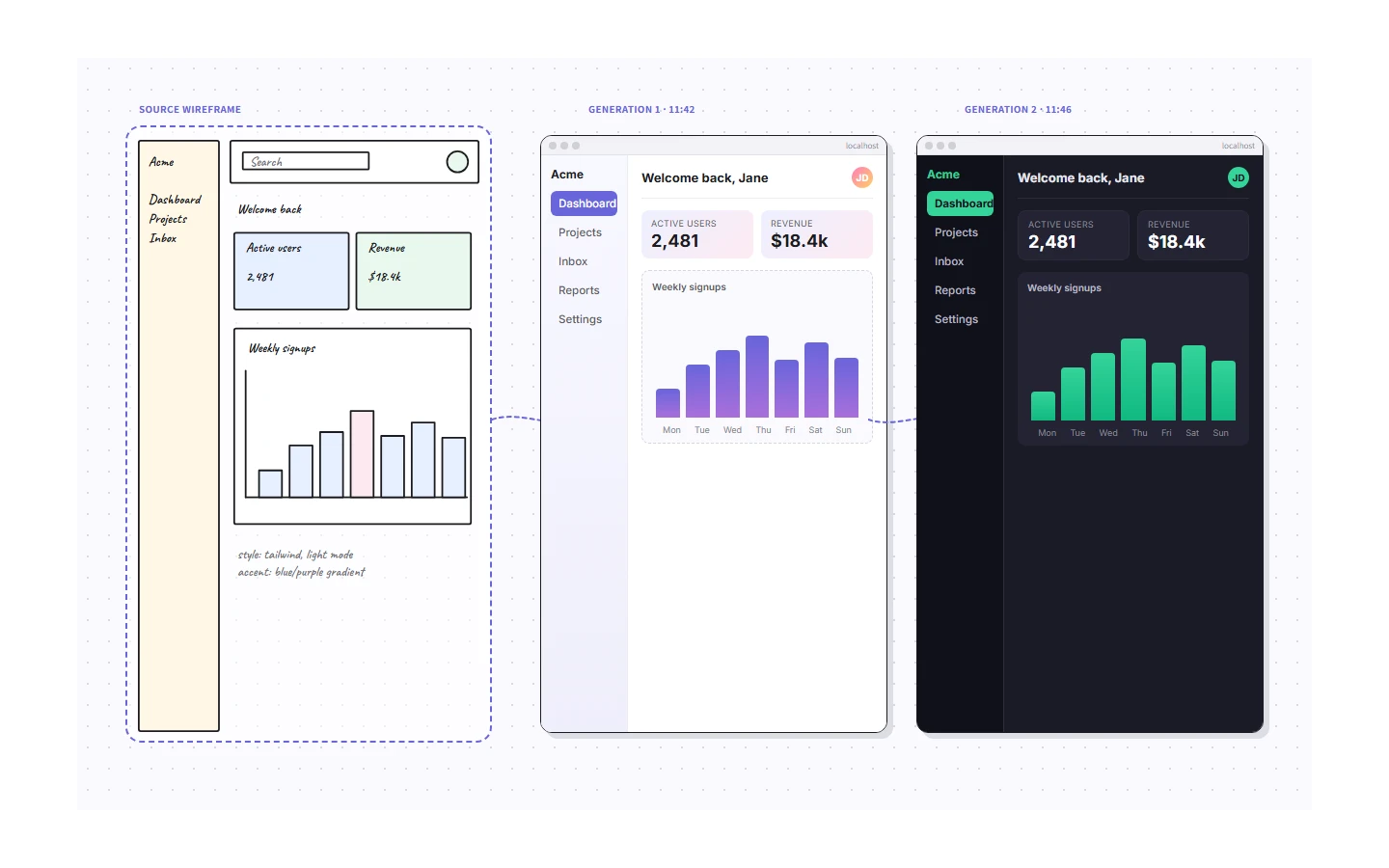
To iterate, edit the wireframe inside the original frame, click the frame to select it, then
click Wireframe to code again — a fresh iframe appears, leaving the previous
version on the canvas as a side-by-side comparison. Click the older ones and press
Delete once you're happy. Because every iframe is a regular element, your version
history captures each generation.
Prompt-style hints
Magic Frame does not currently take a free-text prompt — there is no input box on the frame itself. Hints are baked into the wireframe itself: the shapes, their layout, and any text you write inside them. If you want to nudge the model toward a particular framework or styling (Tailwind, dark mode, rounded corners), click the text tool and add a labelled rectangle inside the frame with that instruction as text. The text in the frame is part of the generation context, so the model treats those labels as guidance rather than rendered copy.
When generation fails
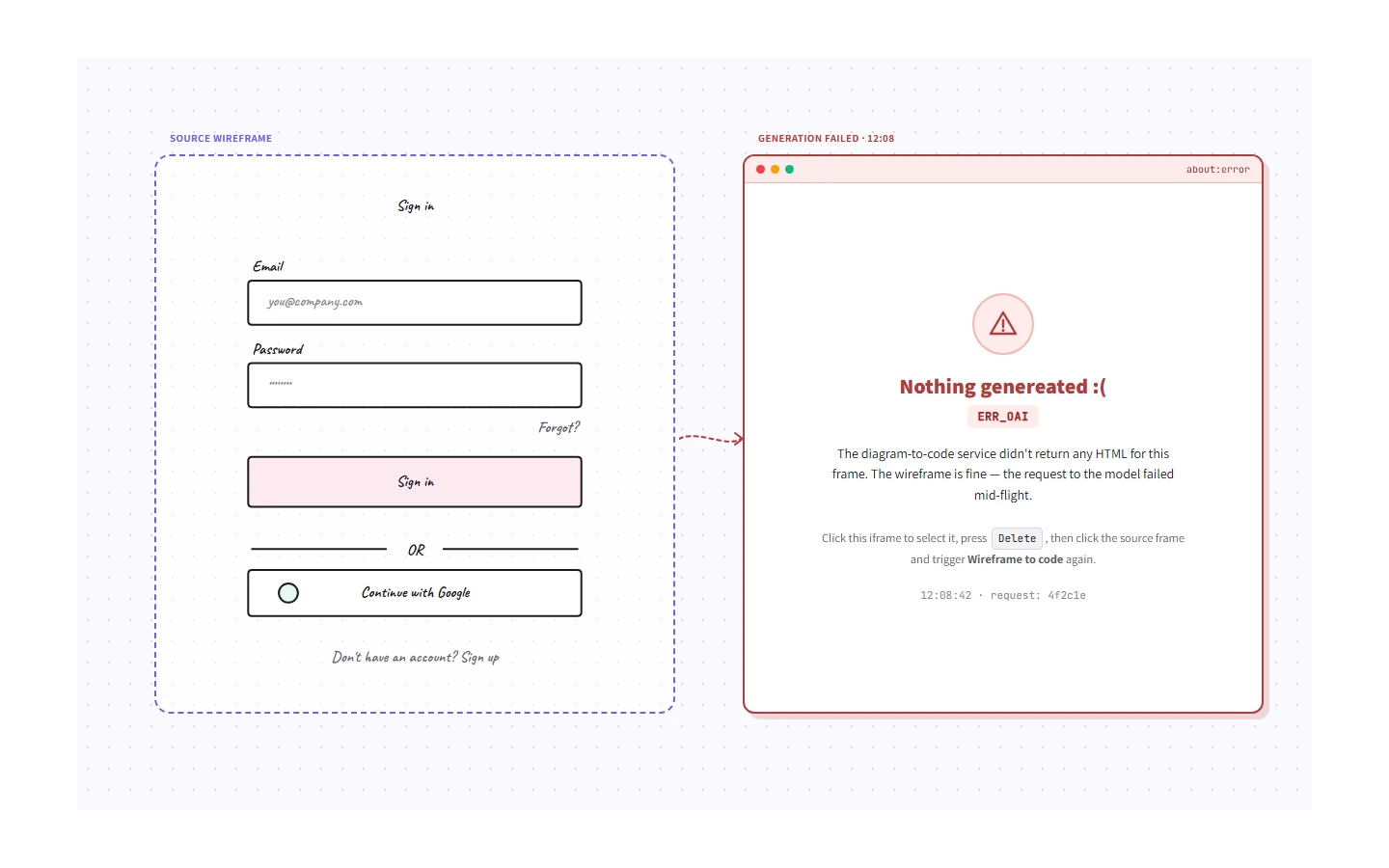
Empty frames refuse to generate (you'll see Cannot generate from an empty frame). If
the AI service times out or returns nothing, the placeholder iframe flips to an error state with
code ERR_OAI. Click the failed iframe and press Delete to remove it,
then click the frame and trigger Wireframe to code again — usually a slightly cleaner wireframe
or a fresh attempt resolves it. See Troubleshooting
for the full failure matrix.
Exporting the result
A generated iframe is a first-class canvas element. PNG and SVG exports rasterise the rendered
HTML into the image. JSON exports preserve the source HTML inside the element's
customData, so re-opening the file in CorriDraw restores the live preview. To grab
just the HTML for use elsewhere, click the iframe to select it and click the Copy
source action button above it.
Magic Frame works best as a starting point: convert a wireframe, copy the source, and refine the HTML in your editor of choice. It's not a replacement for hand-tuned production code — it's a fast bridge between sketch and skeleton.