Folders
Folders inside a CorriDraw workspace — creating them, dragging diagrams between them, the /workspaces/<id>/folders/<id> URL, and the Ungrouped catch-all.
Folders are the second-level container inside a workspace. Where workspaces decide who can see your work, folders decide how your work is organised once you are inside. They are lightweight on purpose — no roles of their own, no membership, just a name and a stack of diagrams underneath. This page covers how to create, name, drag, and link to them — all click and drag, no shortcuts to memorise.
Where folders live
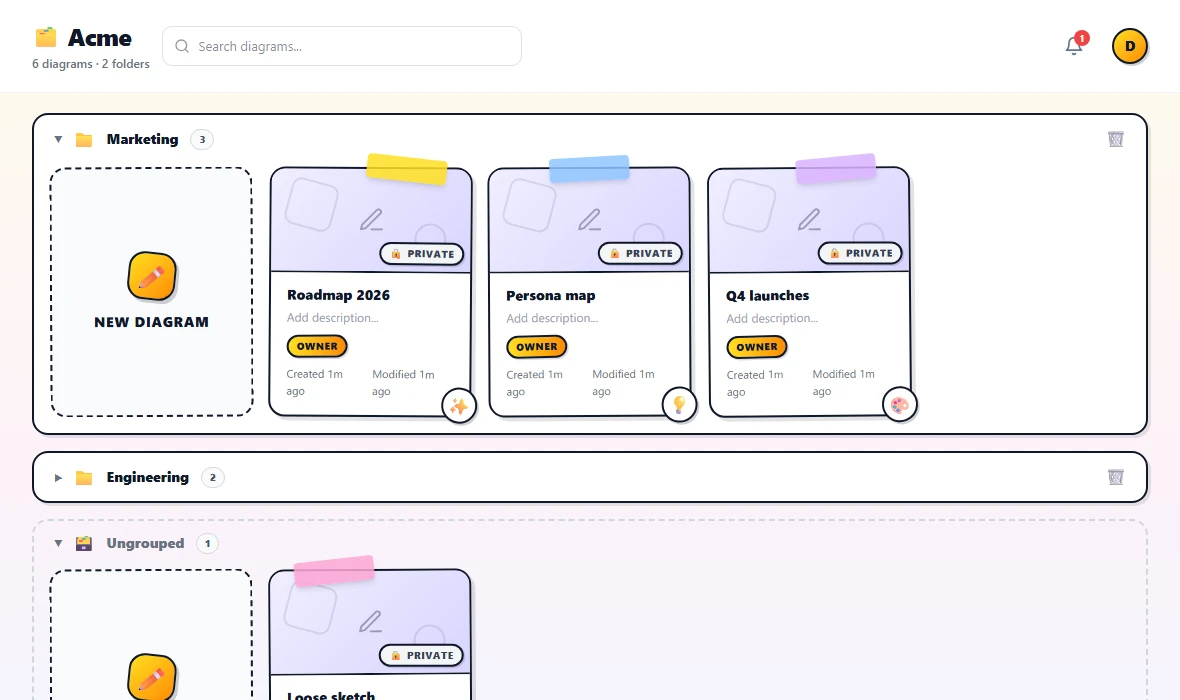
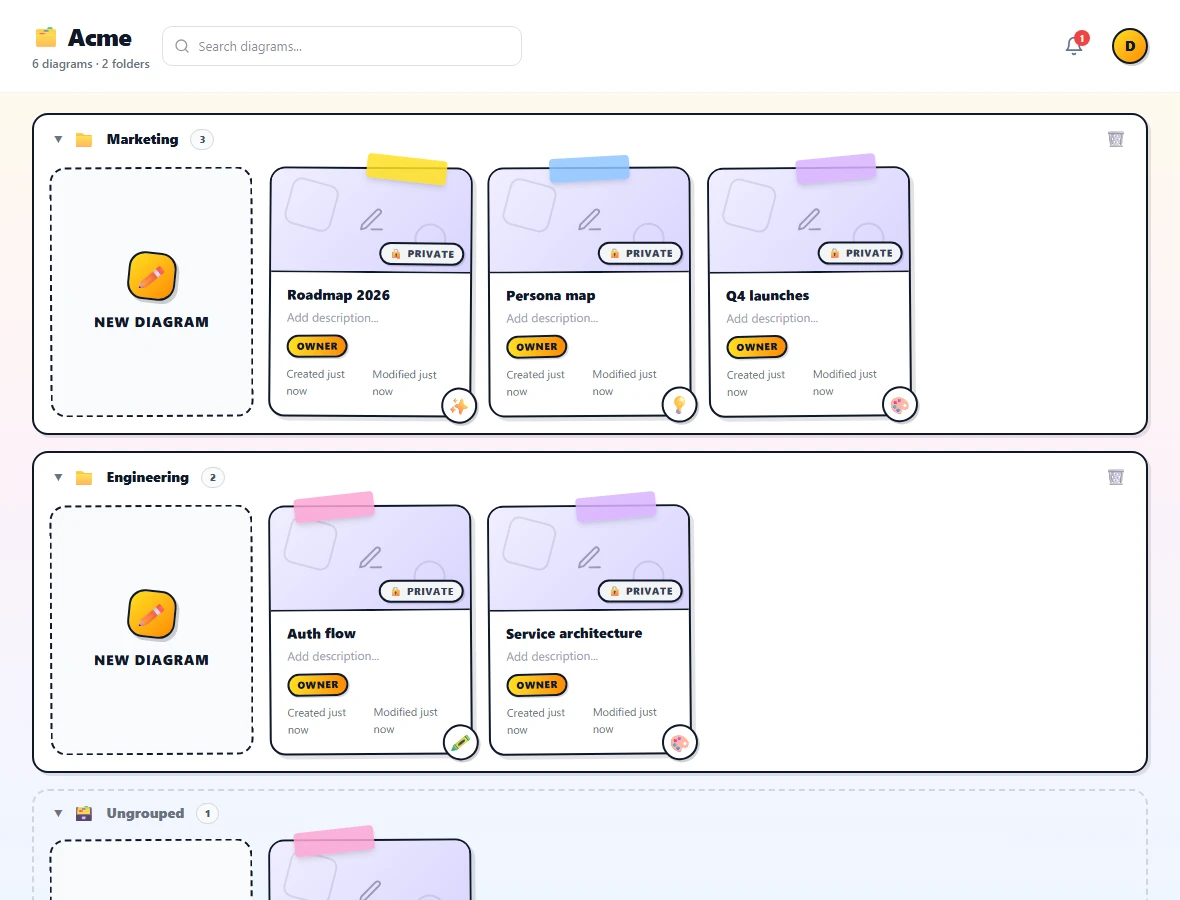
Every folder belongs to exactly one workspace. You can see them in two places: in the dark sidebar's workspace tree (each workspace expands to show its folders, and each folder expands to show its diagrams — click the chevron to expand), and in the main grid on the dashboard, where each folder renders as a labelled block with its diagrams arranged inside.
The grid also shows an Ungrouped block at the bottom of every workspace view. That block has a dashed grey border and collects every diagram in the current workspace that has not been put into a folder yet. You cannot rename or delete Ungrouped — it is automatic, and it disappears once every diagram in the workspace lives in a real folder.
Creating a folder
You can spawn a new folder in two ways:
- From the workspace tree. Hover the workspace name in the dark sidebar and click the + action that appears, then choose New folder. An inline text field opens immediately under the workspace so you can name it. On a tablet, tap the kebab dots that appear next to the workspace name to get to the same menu.
- From the dashboard grid. Inside a workspace view, click the kebab menu near the workspace title and pick New folder. Same inline name editor opens.
Type the name, press Enter (or click outside the field), and the folder appears as a fresh empty block in the grid and as a new node under the workspace in the sidebar tree. Empty folders stay visible until you delete them, so you can pre-create the structure you want before you start drawing.
The workspace tree expanded with a new folder being created — an inline text input is focused under the workspace name with a placeholder reading 'Folder name'
/screenshots/docs/folders-2.png The folder URL
To open a folder, click its name in the sidebar tree, or click the folder's title bar inside the dashboard grid. The URL switches to /workspaces/<ws-id>/folders/<folder-id>, the header title swaps to the folder name with a folder icon, and the grid filters down to just the diagrams in that folder.
This URL is stable — bookmarking it always brings you back to the same folder, even if you move it inside the sidebar tree. Sharing the URL with a teammate works the same way: anyone with workspace access who opens the link lands directly inside that folder.
Drag-and-drop reorganisation
Folders are designed to be moved through, not just clicked into. The dashboard supports drag-and-drop in three places — works equally well with a mouse on desktop and a long-press-and-drag gesture on a tablet:
- Diagram → folder (sidebar). Drag a diagram card from the main grid and drop it onto a folder name in the dark sidebar. The diagram moves into that folder and the grid reflows.
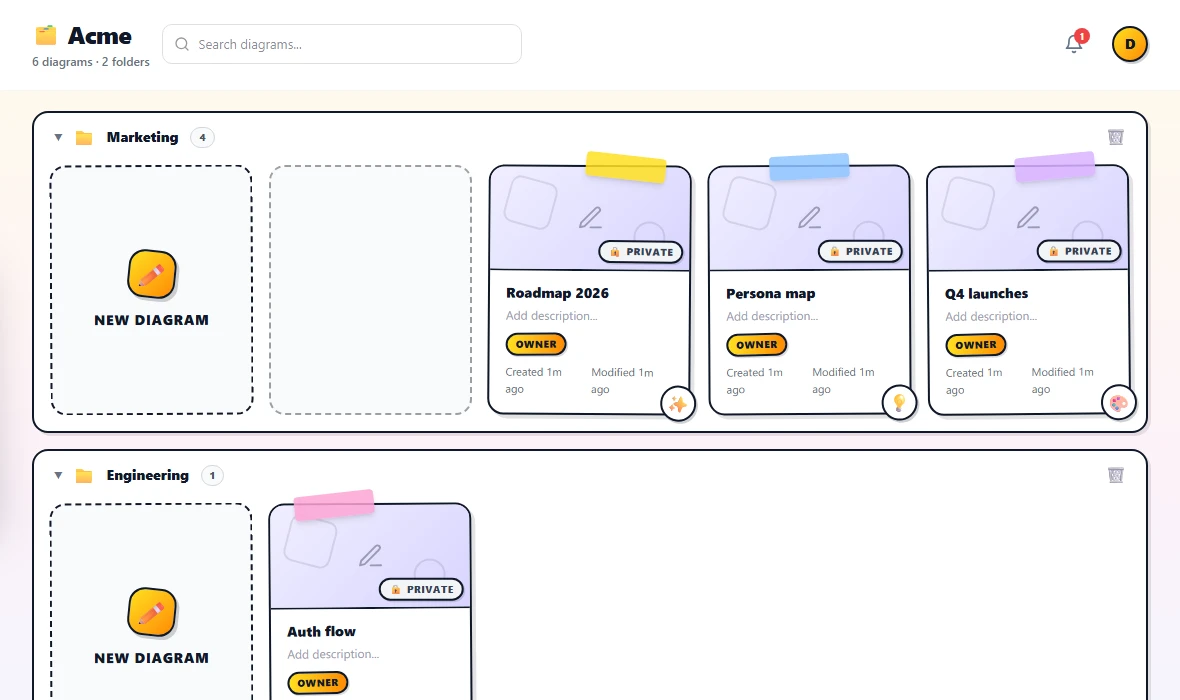
- Diagram → folder (grid). Drag a diagram card from one folder block and drop it on another folder block in the same grid. The header row of the destination block highlights yellow while you hover.
- Diagram → ungrouped. Drop a diagram on the dashed Ungrouped block to take it out of its current folder without deleting it.
Drops happen instantly and sync to every other tab the diagram's owner has open. There is no Save step.
Renaming and deleting
Each folder block in the grid has its name in the header row. Double-click the name to switch to an inline text field, type the new name, and press Enter. The same action is available from the kebab menu on the folder header and from the right-click menu in the sidebar tree (long-press on touch).
To delete a folder, open the same kebab menu and choose Delete folder. Deleting removes the folder shell but keeps the diagrams inside it. The diagrams flow back into the workspace's Ungrouped block automatically, so a stray click never costs you any work.
About nested folders
CorriDraw deliberately keeps folders flat: one level inside each workspace, no folders inside folders. This keeps the sidebar tree a predictable two-deep structure (workspace → folder → diagram) and makes drag-and-drop targets unambiguous on touch screens. If you find yourself wanting nested folders, the recommended pattern is to split the parent into its own workspace and treat each former subfolder as a top-level folder there.
Collapsing folder blocks
Each folder block in the grid has a small chevron at the left of its header row. Click (or tap) it to collapse the block and hide its diagrams; click again to expand. The collapsed state is local to your browser, so you can keep the folders you are not actively working on rolled up without affecting your teammates' views.