
Community webboard
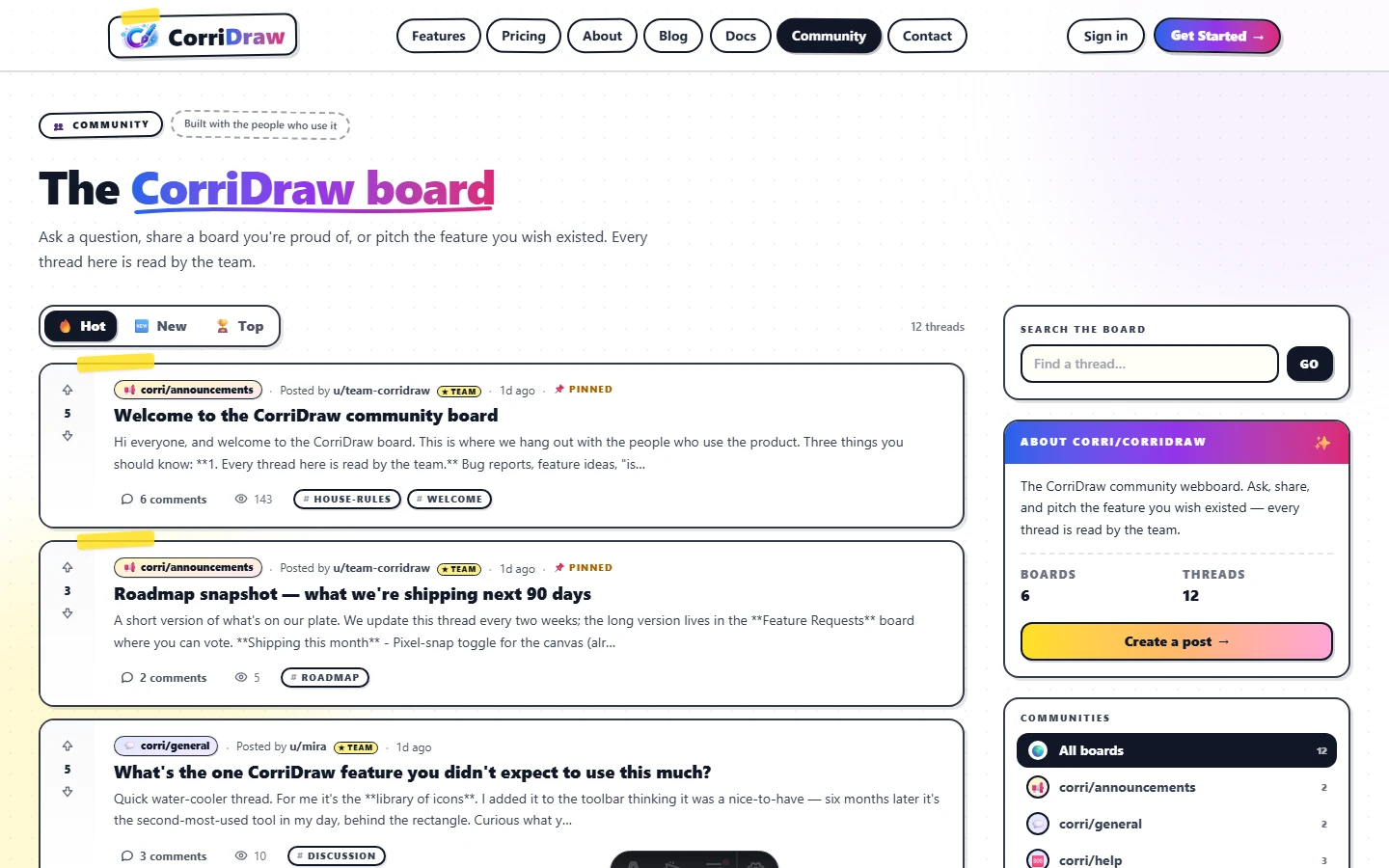
The CorriDraw webboard at /community is where users ask, share, and pitch. Sign in once on the main site and you're in — no separate account required.
Every CorriDraw install ships with a Reddit-style webboard at /community. It's the place to ask questions when the docs come up short, post the board you're proud of, and pitch the feature you wish existed. The team reads every thread — the roadmap is shaped here, in public, by the people actually using the product.
One sign-in, two surfaces
The community runs in integrated mode by default. That means the webboard trusts the
same JWT cookie the rest of corridraw.com uses. If you're already signed into the editor or the
dashboard, opening /community drops you straight onto the board with your
existing display name, avatar color, and staff badge (where applicable). There is no separate
"create a community account" step — the user record is mirrored on first visit.
If you're signed out, the top-right of the webboard is intentionally quiet. Click
Sign in in the main site nav, finish the auth flow at /login, and the
redirect lands you back where you came from. Your community profile inherits the display name
from your account, which you can change any time on
your profile page.
The four-and-a-bit categories
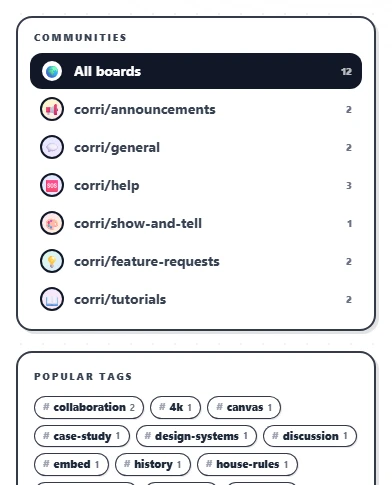
Every thread lives in exactly one category, picked from the composer dropdown. The seed ships six boards — Announcements and General run in addition to the four user-facing ones below — but these are the four you'll post in:
- Help & Support (
corri/help) — stuck on something? Ask here. The team and the community both watch this category. Clear, specific titles get clear, specific answers; "it doesn't work" titles get crickets. - Show & Tell (
corri/show-and-tell) — share boards, templates, and screenshots of work you've made in CorriDraw. Process posts (annotated before/after, why you chose a layout) get the most engagement. - Feature Requests (
corri/feature-requests) — pitch ideas, vote on others, and watch the top of this board feed directly into the public roadmap. One idea per thread; merge duplicates by linking to the older one and upvoting it. - Tutorials (
corri/tutorials) — step-by-step walkthroughs from both the team and the community. If you've solved something interesting, write it up here so the next person doesn't have to.
Announcements (corri/announce) is read-only for non-staff — release notes,
roadmap updates, and incident postmortems land there. General (corri/general) is
the catch-all for chatter that doesn't fit anywhere else; if you can fit your thread in one
of the four user categories above, please do.
How the team reads threads
Every new thread and every reply lands in an internal review queue. Staff replies are flagged with a yellow Team badge next to the avatar so you can tell at a glance which voice is the company's. Roughly:
- Help & Support — first response within one business day. If a thread
is stuck for longer, mention it in
corri/generalor email support. - Feature Requests — we triage weekly. Ideas that pass triage get a Roadmapped tag and a link to the public roadmap card. Rejected ideas get a reply explaining why, not silence.
- Show & Tell and Tutorials — we read everything but reply selectively, usually to ask if we can quote you in release notes or pin the thread.
Sort tabs and what they mean
Above the feed, three sort tabs control how threads are ordered:
- Hot (default) — a time-decayed score that surfaces threads with recent upvote activity. New threads with traction climb fast; old threads drift down even if they have a high lifetime score.
- New — strict reverse chronological. Useful for first responders who want to triage the unanswered.
- Top — pure score, all-time. Useful for finding the well-loved explainers.

Search and category pages
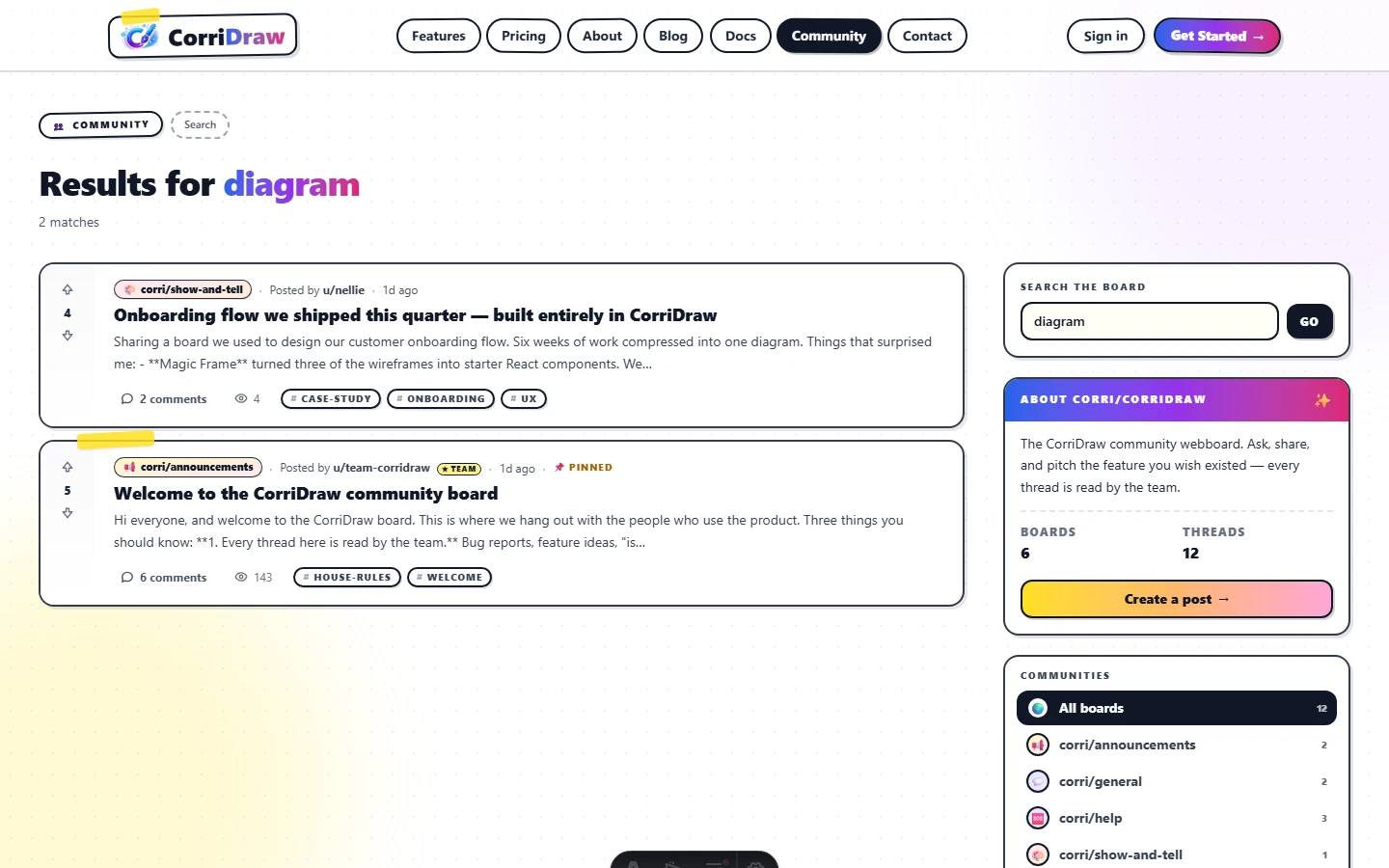
Each category has its own page at /community/c/<slug> — the same feed,
pre-filtered. The site search at /community/search?q=… matches titles, body
text, and tag slugs across every category.
If your goal is to find the answer to a specific question, search before you post. About half of incoming Help & Support threads have been asked before, often with a perfect answer sitting two paragraphs down. The composer page (covered next) shows tag suggestions as you type to help you land in the same vocabulary as the existing threads.
Ready to post? Head to Posting & voting for the composer walkthrough, the markdown subset we support, and the etiquette around replies and votes.