
Create an account
Sign up for CorriDraw with email or with Google or GitHub, verify your inbox, and land on the dashboard. The account is optional, but it unlocks cloud sync, sharing, and version history.
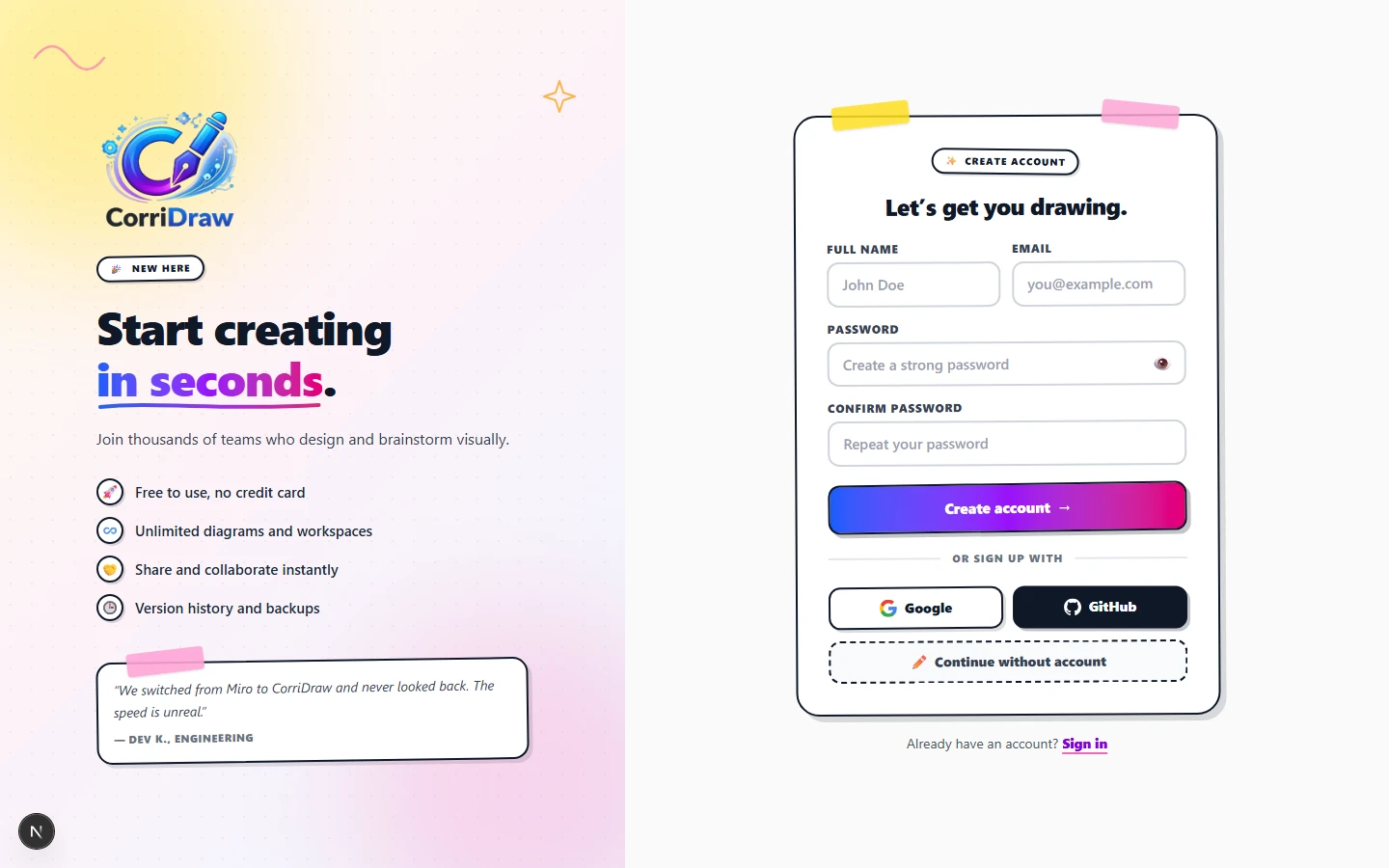
CorriDraw works without an account. Open corridraw.com, click (or tap, on a tablet) the Continue without account button, and you can draw immediately — your work saves to the browser's local storage. An account adds three things on top of that: cloud sync across devices, shareable links to anyone you invite, and full version history. This page walks through every way to get one.
Guest mode vs. signed-in
On both /login and
/register, the dashed button at the bottom of the
card is labelled Continue without account. Click it and you skip straight into the
editor on a blank canvas. Anything you draw in guest mode lives only in
localStorage on that browser — close the tab and clear site data, and it's gone.
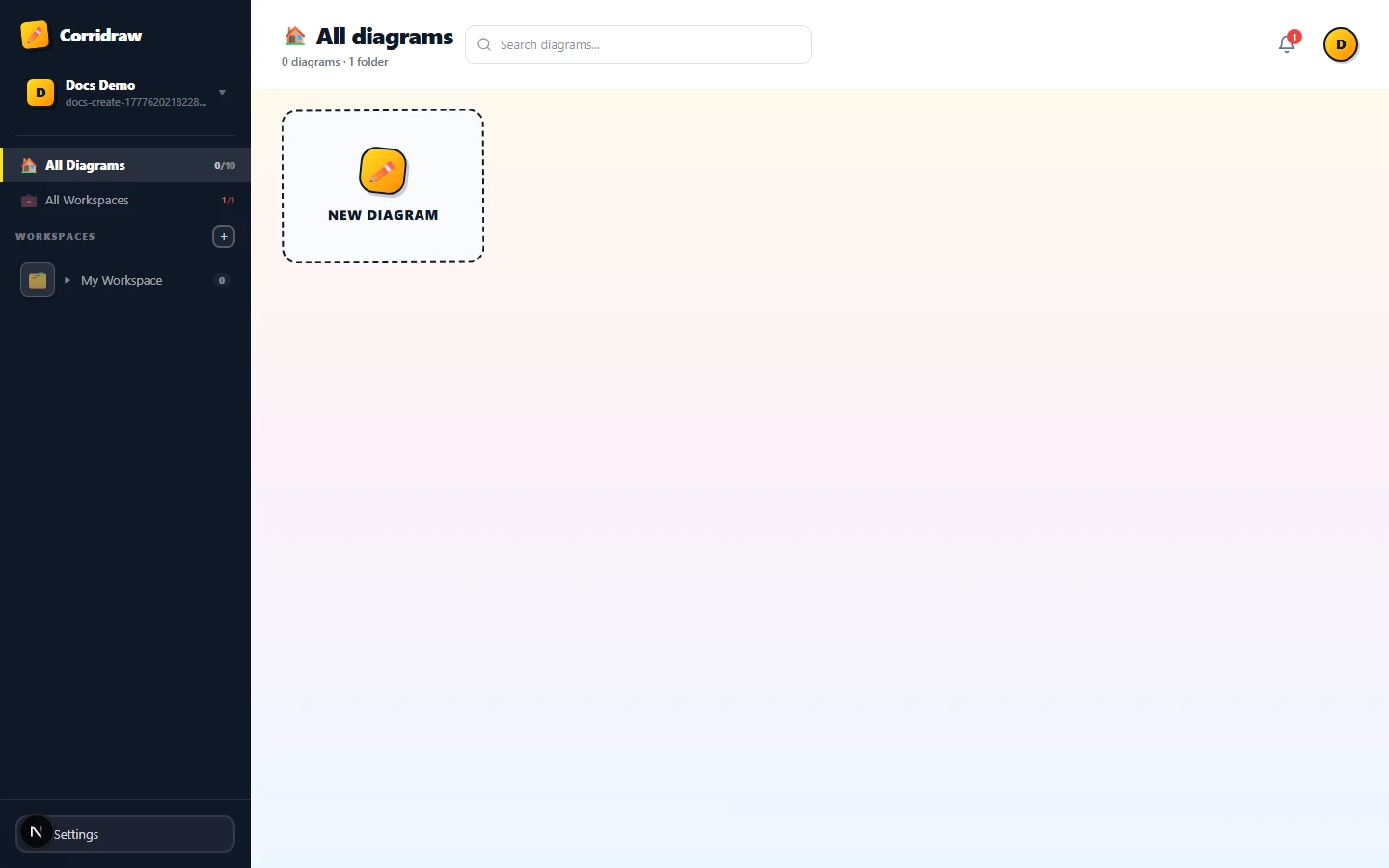
The moment you sign in, the dashboard appears at /diagrams and every save is
mirrored to the server.
Email and password signup
To get to the form, click Sign up on the homepage hero, or open
/register directly. The card is identical on desktop and mobile — on a phone the
Google and GitHub buttons stack vertically and the dashed guest-mode button still sits at the bottom. The
form takes four fields:
- Full name — at least 2 characters. This shows on shared diagrams and comments.
- Email — must look like an email and be unique across CorriDraw.
- Password — minimum 8 characters. Anything shorter blocks the submit button.
- Confirm password — must match the password field exactly.
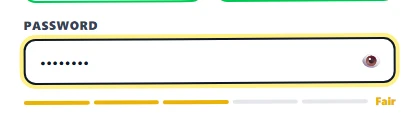
The password field shows a five-segment strength meter as you type. The meter ranks each password from Very weak to Very strong based on five checks: at least 8 characters, contains an uppercase letter, contains a lowercase letter, contains a number, and contains a special character. Hitting all five turns the meter green. Click the eye icon on the right of the field to reveal what you've typed if you want to double-check before submitting. The minimum to submit is 8 characters — the rest of the checks are guidance, not gates — but a password that flunks multiple checks will get rejected by attackers in minutes, so aim for green.
Verifying your email
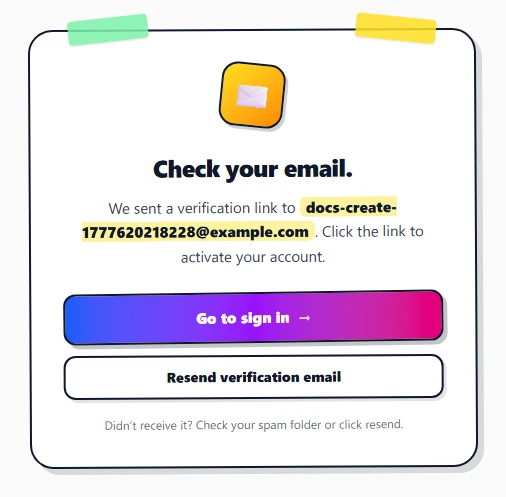
Click the Create account button at the bottom of the form. The card swaps for a "Check your email" panel — we've just sent a one-click verification link to the address you signed up with. The link is good for 24 hours. Click it and the app drops you on the sign-in page — your account is activated, but you still have to enter your email and password once to log in.
- Open the email titled Verify your CorriDraw account.
- Click Verify email. The browser opens to a confirmation page.
- Click Go to sign in and enter the same email and password.
If the email doesn't show up within a couple of minutes, check spam. The "Check your email" card has a Resend verification email button — click it once and a 5-minute cooldown stops you from spamming the queue.
Signing up with Google or GitHub
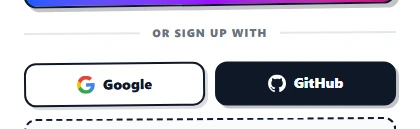
Below the email form on both /login and /register, two buttons
sit side by side: a white Google button and a black GitHub button. Click
either one to send you over to Google or GitHub to confirm — same tab, same browser, just
a quick "Yes, let CorriDraw use my account" screen — then you land back here, signed in.
The buttons look the same on the sign-in page and the sign-up page, so pick whichever you
started on.
What we receive from each provider:
- Google — your name, email address, and avatar URL. Nothing else.
- GitHub — your username, primary email, and avatar URL. We do not request repository or organization access.
Signing up with Google or GitHub skips the verification email entirely. They already
confirmed your address, so you bounce straight from the consent screen to the dashboard at
/diagrams. If the email on your Google or GitHub account matches an account you
already made with a password, we link them together — next time you can sign in either way.
Your first sign-in
Whether you signed up with email or with Google or GitHub, the next time you visit
corridraw.com you'll land on the login screen at
/login. After successful authentication, the app routes you to the diagram
dashboard at /diagrams — every diagram you've created shows up there as a card,
grouped by workspace and folder. New accounts arrive with one default workspace called
My Workspace and one default folder called Default; both are created on the
server during register.
Forgot password
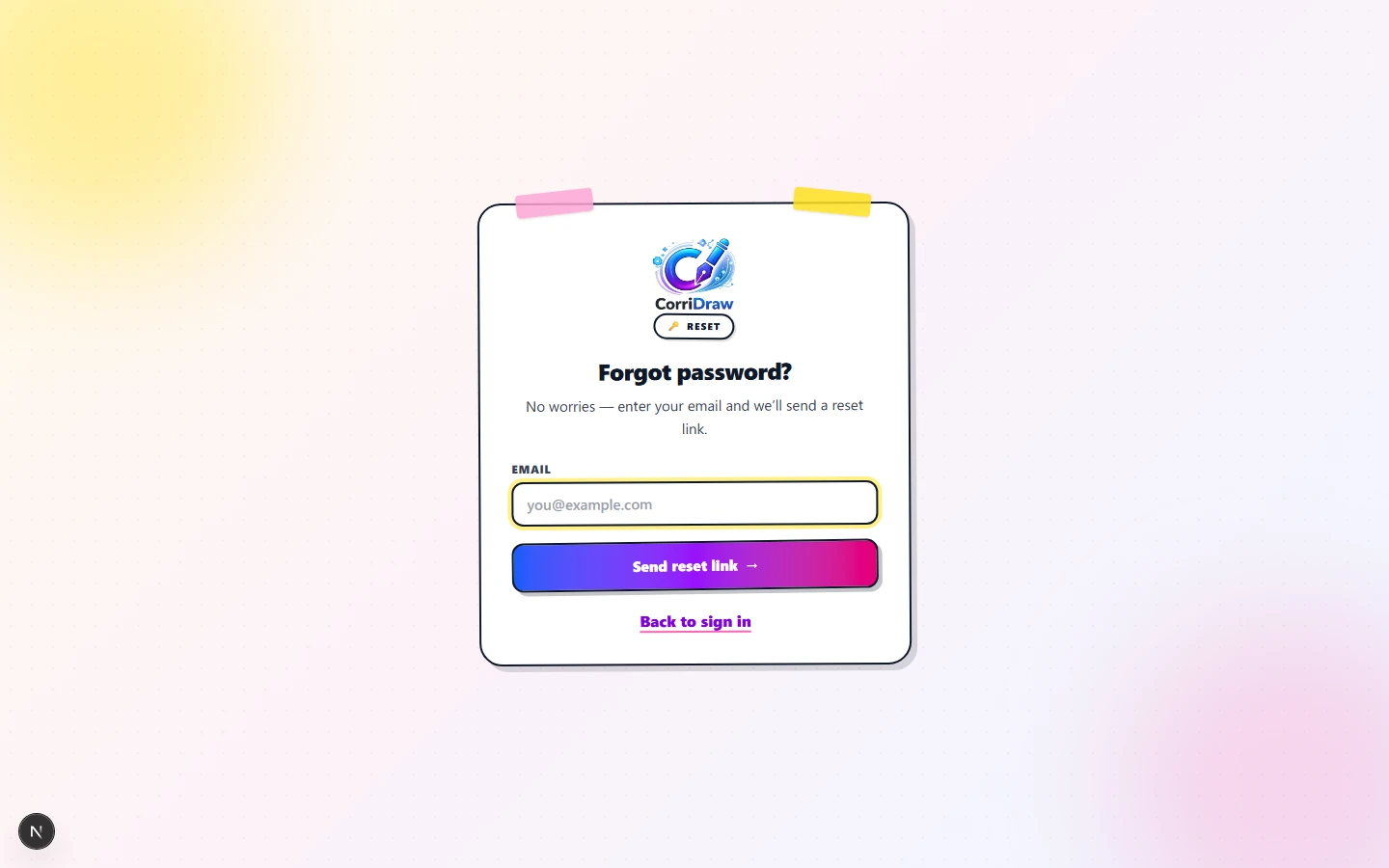
On the login card, click the Forgot password? link under the form. Enter the email
tied to your account, click Send reset link, and we'll send a reset link to that
address. The link lands on /reset-password/<token>; pick a new password
(same rules as signup — minimum 8 characters), confirm it, click Reset password,
and you'll be redirected back to login. The reset token is single-use and expires after 1
hour, so request a fresh one if you don't get to it in time.
If you signed up with Google or GitHub, you don't have a password to reset — just sign in again with the same Google or GitHub account next time. The forgot-password page politely declines if you only ever signed up that way.