
Password & sign-in security
Change your CorriDraw password, see your active session, sign out from a device, and understand what's coming next for 2FA and OAuth account management.
The Security tab is where you change your password, review your
current sign-in session, and sign yourself out of the device you are on. It lives
inside /settings (or the
alias /account) under the 🔒 Security tab. This page covers
every control that exists today, plus an honest note about what is on the roadmap and
what is not.
Changing your password
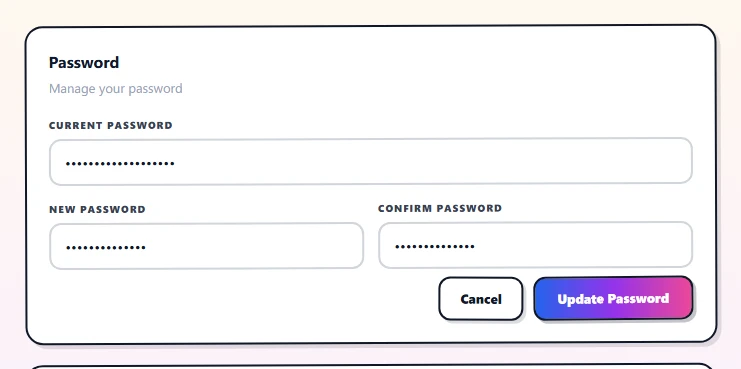
Click Change Password on the Password card. The form opens inline and asks for three things:
- Current password — the password you sign in with today. Required to authorize the change.
- New password — at least 8 characters. Anything shorter is rejected with "Password must be at least 8 characters." The same rule applies on the register and reset-password screens, so the floor is consistent across the app.
- Confirm password — must match the new-password field character-for-character.
Click Update Password. On success a green check appears with "Password changed successfully" and the form collapses; on failure (wrong current password, network blip) the inline alert tells you what went wrong, the form stays open, and nothing has been saved.
Linked OAuth accounts (Google, GitHub)
CorriDraw supports signing in with Google and GitHub from the
/login and
/register pages. The link
between your CorriDraw user and an OAuth provider is created automatically the first
time you complete a provider's consent flow with an email that matches an existing
account.
There is currently no UI for adding, removing, or listing those links. If you want to disconnect a provider — for example, you no longer use the Google account that originally signed you in — open support@corridraw.com and tell us which provider to detach. We will leave you signed in with email-and-password and a fresh OAuth flow for the same email will re-link it later. A self-serve "linked accounts" panel is on the roadmap; we will mention it in the changelog when it ships.
Your current session
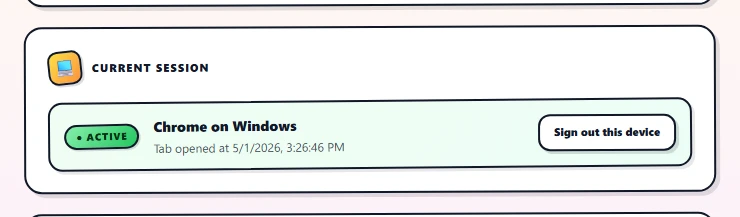
Below the password card, the Current session card shows the device you are looking at right now. The badge reads "● Active" in green, the line below it names your browser and OS — "Chrome on Windows," "Safari on iOS" — and the timestamp underneath records when this tab was opened. Browser detection is local: we read your user-agent in the page and label accordingly.
Signing out
The Sign out this device button on the Current session card calls the logout
endpoint, drops your session cookie, and redirects to /login. It signs
out the browser you click it in. Other browsers and devices keep their sessions until
they expire or the user signs out there too.
A Sign out everywhere control — invalidate every active session for the account in one click — is not exposed in the UI today. If you suspect your account is compromised: change your password (which does not automatically revoke other sessions either), then email support@corridraw.com and ask us to expire all sessions server-side. We can do it within minutes during business hours.
Two-factor authentication
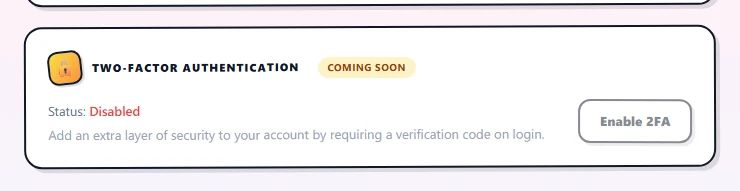
The Security tab shows a Two-Factor Authentication card with a Coming soon badge and an Enable 2FA button that is disabled. This is honest reporting: 2FA is on the roadmap but is not implemented. The card is visible so you know exactly where the toggle will appear when it ships, and so the absence is not silent. There is no hidden TOTP setup, no backup-code generator, and no SMS fallback today.
Practical hardening, today
Until 2FA arrives, the strongest controls available are:
- Use a unique password. The 8-character floor is a minimum, not a target. Aim for a passphrase a password manager generated.
- Sign in with Google or GitHub. Both providers offer 2FA, and CorriDraw inherits the security of whichever sign-in flow you used. If your Google account requires a hardware key, your CorriDraw OAuth login does too — for free.
- Verify the URL. CorriDraw login pages live on
corridraw.comand (for self-hosted Enterprise installs) on the domain your admin gave you. Anything else is phishing — we will never ask for your password from another origin.